
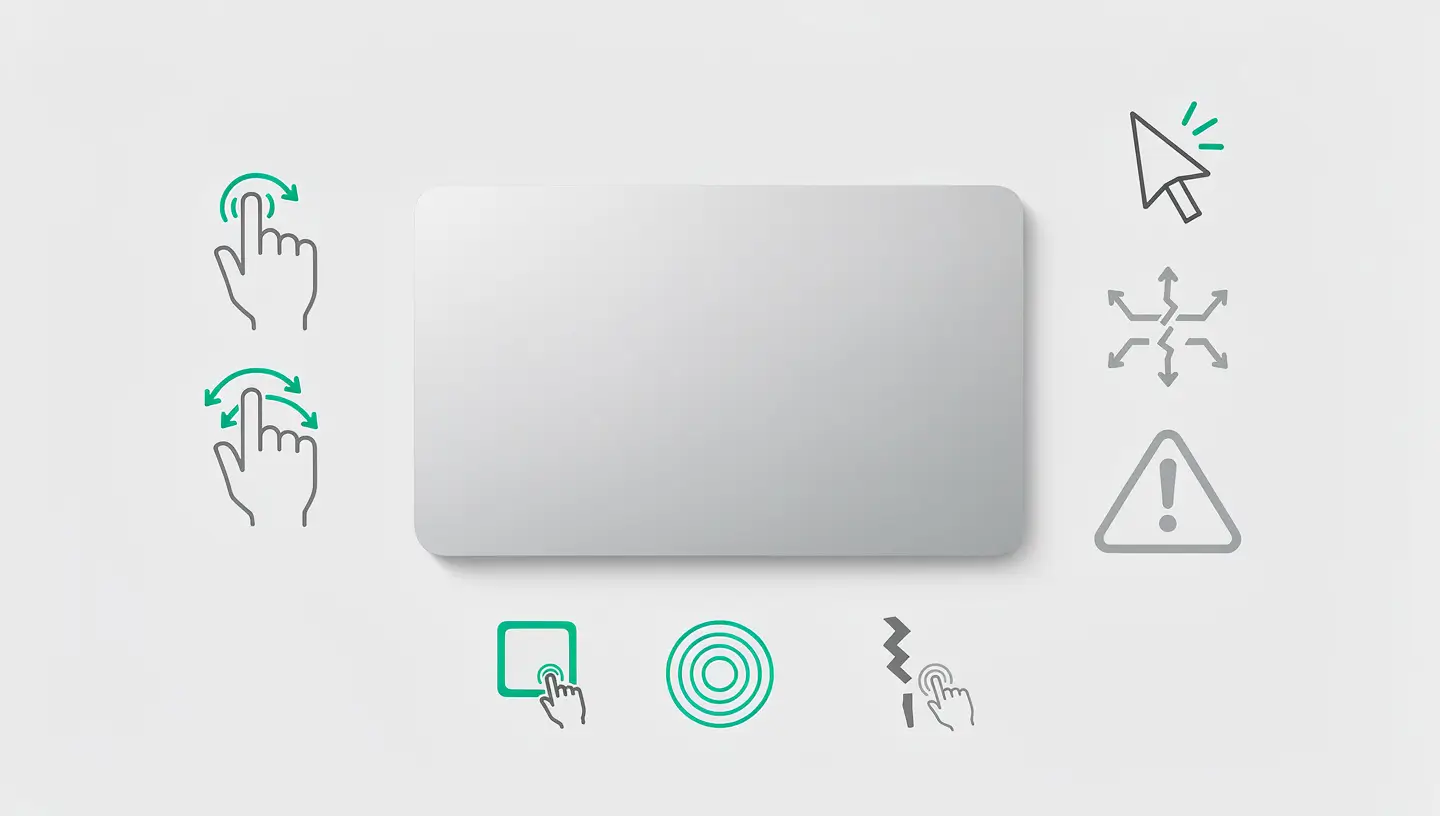
Trackpad problems on MacBooks manifest themselves in a variety of ways, and identifying the precise symptom helps you target the right solution. Some users find that the cursor doesn't move at all, others that the trackpad clicks on its own all the time, or that clicking works but two-finger scrolling is unresponsive.
| Symptom | Probable cause | Solution to be tested first |
|---|---|---|
| Cursor completely frozen | Software crash, driver conflict, disconnected tablecloth | Forced restart, then SMC |
| Clicking doesn't work but the cursor moves | Worn click mechanism, swollen battery, accessibility settings | Check settings, then battery status |
| Trackpad clicks by itself (phantom clicks) | Swollen battery, moisture, dirt under the surface | Cleaning, then battery check |
| Multitouch gestures no longer respond | Settings disabled, software conflict, wet surface | Trackpad settings, safe mode |
| Trackpad works intermittently | Partially disconnected tablecloth, corrosion, software conflict | SMC, then professional diagnosis |
| Curved or raised trackpad surface | Inflated battery (emergency) | Stop using your MacBook, immediate consultation |
The most important point to remember: a trackpad that physically lifts up or a case that deforms at the wrist rest is a sign of a inflated battery. This is a safety issue that requires rapid intervention - more on this below.
A frozen trackpad after a system crash is often resolved by a simple reboot. If the cursor doesn't move at all and the MacBook doesn't respond to any interaction, hold down the power button down for 10 seconds until the power is completely switched off. Wait a few seconds, then switch it back on.
On recent MacBooks (2016 and later) equipped with the Force Touch trackpad, the click is simulated by haptic feedback - there is no physical mechanism. If the MacBook is switched off or completely crashed, the trackpad will not give any haptic feedback, which is normal. Once restarted, haptic feedback returns.
If your Mac won't turn on after a forced restart, the problem goes beyond the trackpad and requires further diagnosis.
macOS offers a number of settings that modify the behaviour of the trackpad. An accidental change can give the impression of a fault when everything is working normally.
Go to System settings → Trackpad and check the three tabs:
| Tab | Settings to check |
|---|---|
| Point and click | Cursor speed (not at minimum?), Click (enabled?), Touch to click, Click force, Silent click |
| Scrolling and zooming | Scroll direction (natural or reverse), Intelligent zoom, Pinch to zoom |
| Other gestures | Swiping between pages, Mission Control, Notification Centre, Launchpad |
Also check System settings → Accessibility → Pointer control. The «Ignore integrated trackpad when a wireless mouse or trackpad is present» option can disable your trackpad if a Bluetooth device is connected - even if you're not actively using it. The mouse button (in Accessibility → Pointer Control → Alternative Control Methods) can also interfere with normal behaviour.
A conflict between a Bluetooth mouse and the built-in trackpad is more common than you might think. Even a mouse in a rucksack, still switched on and connected via Bluetooth, can interfere with the trackpad if the accessibility option mentioned above is activated.
To test: deactivate Bluetooth completely in System Settings → Bluetooth (not just disconnect the devices, but disable the function). If the trackpad works again immediately, the culprit has been identified. Then reconnect your devices one by one and uncheck the «Ignore integrated trackpad» option in the accessibility settings.
The Force Touch trackpad is extremely sensitive to moisture, grease and residue. A thin film of perspiration or an invisible droplet of water can cause phantom clicks, dead zones or erratic multitouch behaviour.
Switch off your MacBook completely. Lightly dampen a microfibre cloth (the same one you use for your glasses) with a little distilled water or 70% isopropyl alcohol. Wipe the surface of the trackpad with gentle strokes, then dry with a dry cloth. Never use household cleaners, scented wet wipes or sprays directly on the trackpad.
If your MacBook has been exposed to liquid, even just a glass of water spilt nearby, corrosion can affect the sensors under the trackpad. If this happens, read our guide to Macs in the water - the faster the intervention, the better the chances of saving the components.
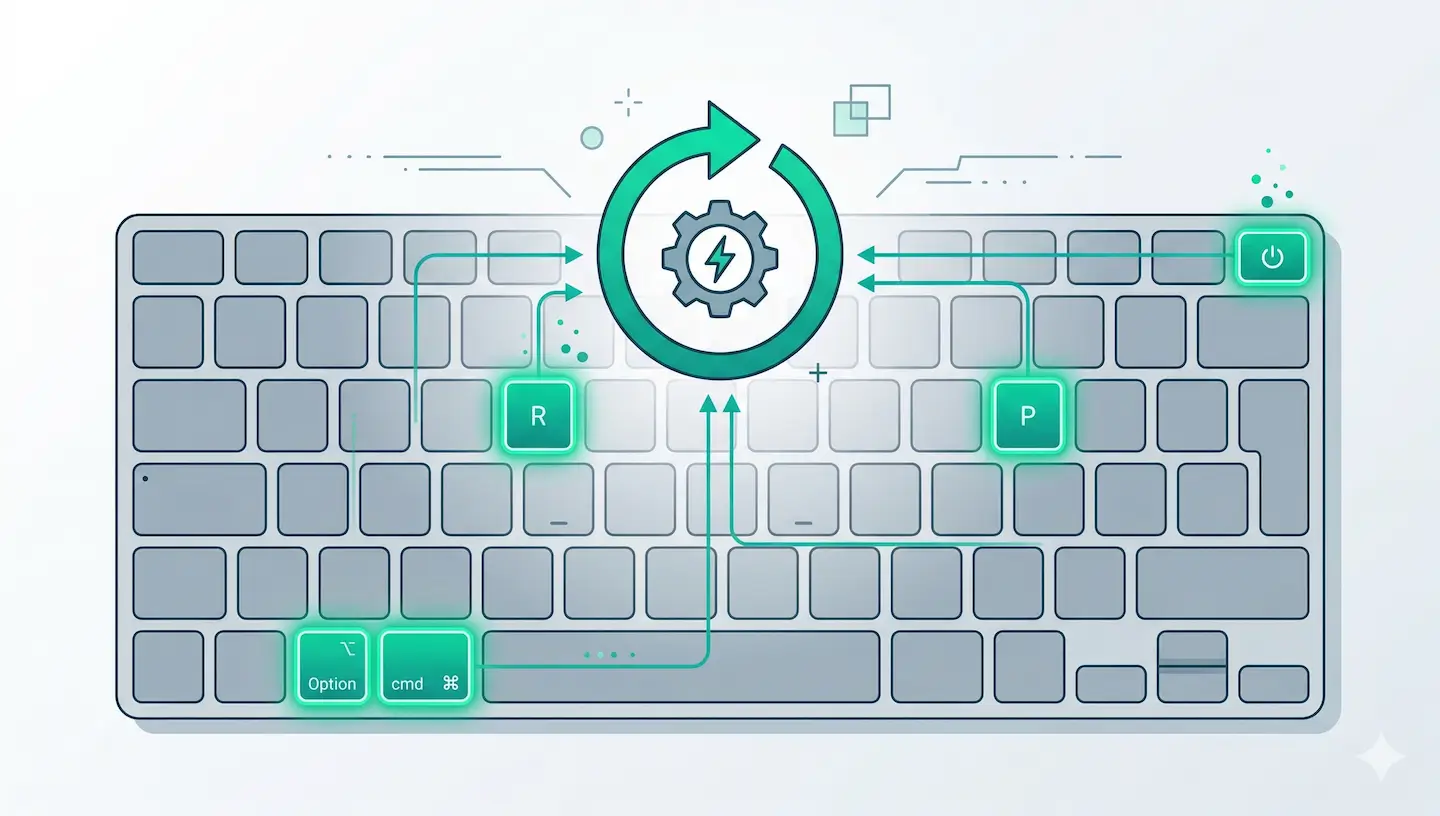
The SMC (System Management Controller) manages low-level hardware components, including the Force Touch trackpad and its haptic feedback. Resetting the SMC frequently solves problems where the physical click no longer responds or the haptic feedback has disappeared.
| Model | SMC procedure |
|---|---|
| MacBook with T2 chip (2018-2020) | Switch off. Hold Ctrl + Option + Left Shift for 7 seconds, then add the power button. Hold the 4 keys for another 7 seconds, release everything, wait, turn it back on. |
| MacBook without T2 (non-removable battery) | Switch off. Hold down Ctrl + Option + Left Shift + Power button for 10 seconds. Release, wait, turn on again. |
| Apple Silicon Mac (M1/M2/M3/M4) | No SMC. Switch off completely (power button 10 seconds if necessary), wait 30 seconds, switch on again. |
After resetting, test the trackpad immediately. If the haptic feedback returns but the behaviour remains erratic, move on to the next solution.
NVRAM stores certain hardware parameters that can indirectly affect the trackpad, including input device settings and screen resolution (which influences the correspondence between finger movement and cursor movement).
On an Intel Mac: switch off, switch on again and hold down immediately. Option + Command + P + R for approximately 20 seconds. On Apple Silicon Macs, NVRAM automatically resets itself on each reboot if necessary - a simple reboot is all that's required.
If the trackpad works correctly in safe mode but not during normal start-up, third-party software interferes with the trackpad driver. Common culprits: trackpad customisation applications (badly configured BetterTouchTool, obsolete MagicPrefs), graphics tablet drivers (Wacom, Huion), certain remote control software or overly intrusive antivirus software.
In safe mode, macOS only loads essential system extensions. If the trackpad works there, restart normally and uninstall the suspect software one by one to isolate the conflict. Use AppCleaner to remove them cleanly, without leaving any residue.
This is the most common hardware cause of trackpad problems on MacBooks, and also the most dangerous if ignored. A lithium-ion battery at the end of its life can swell and exert upward pressure against the trackpad, causing phantom clicks, a trackpad that won't depress, or a visibly bulging surface.
To check the state of the battery, Apple recommends consulting the charge cycle and battery status information. The quickest way: hold down the Option (⌥) and click on the battery icon in the menu bar. The possible states are :
| Display status | Meaning | Action |
|---|---|---|
| Normal | The battery is working normally | No action required |
| Replacement soon recommended | Small but functional capacity | Planning a replacement |
| Replace now | Significantly reduced capacity | Quick replacement recommended |
| Repairing the battery | MacOS detects fault | Urgent replacement required |
Our complete MacBook battery guide details charging cycles, good practice and the signs of wear to look out for to anticipate problems.
As a software last resort, reinstalling macOS replaces all the system files, including the trackpad drivers, without affecting your personal data. This is the ultimate solution when a system corruption prevents the trackpad from working and all other manipulations have failed.
Restart in Recovery mode (Cmd + R on Intel, long power button on Apple Silicon), select Reinstall macOS and follow the instructions. The procedure takes between 30 and 60 minutes, depending on the model and Internet connection. See our article on create a bootable macOS USB key if Recovery mode is not available.
If no software solution has worked, the problem is hardware. The possible interventions depend on the model of your MacBook :
| Intervention | Models concerned | Details |
|---|---|---|
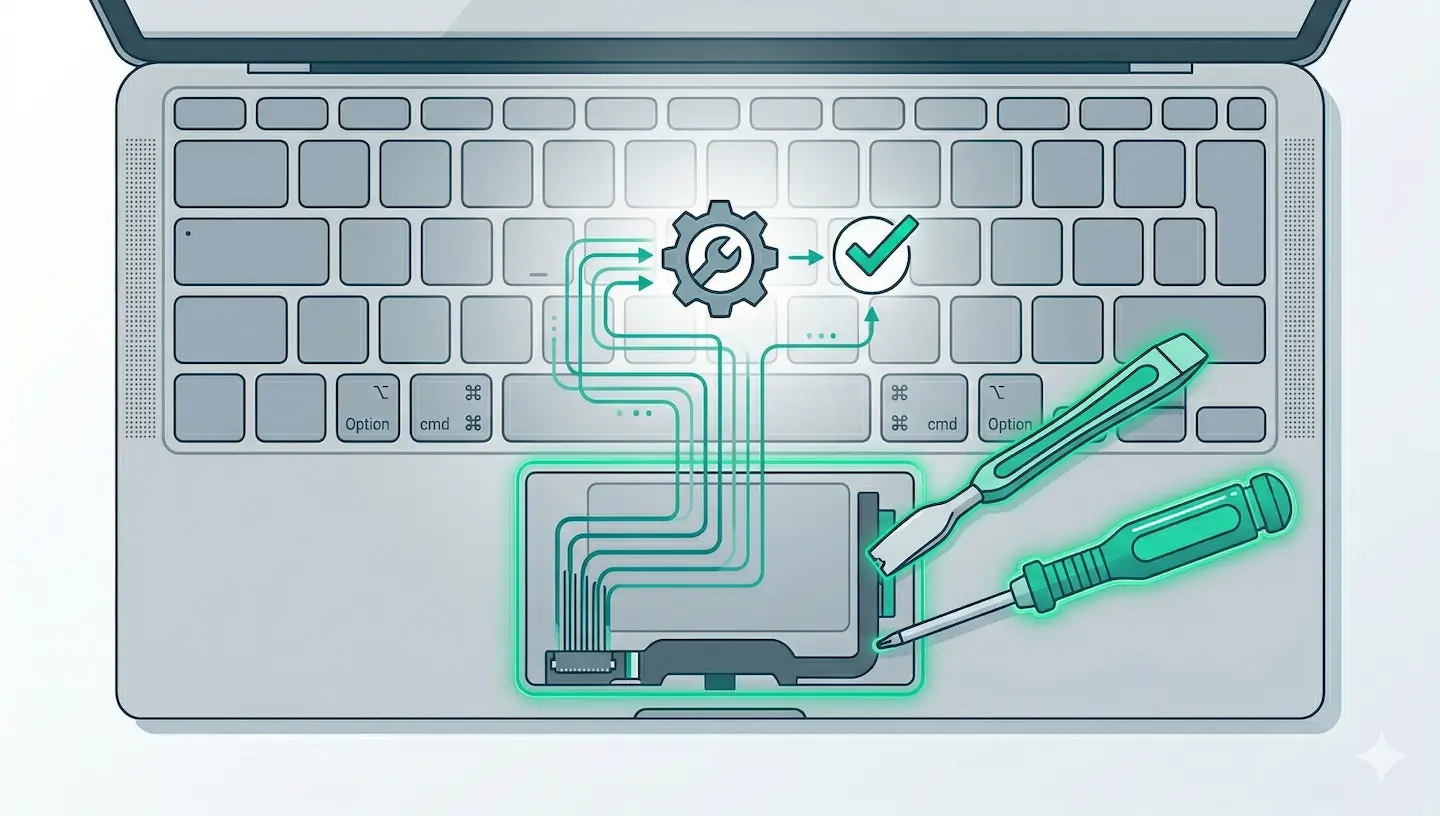
| Replacing the trackpad | All MacBooks | The trackpad is replaced by a complete module, including the ribbon cable. Solves phantom clicks, dead zones and cracks. |
| Replacing the battery | All MacBooks | Indispensable when a swollen battery is the problem. Solves phantom clicks and deformed casing. |
| Replacing the trackpad cover | MacBook Pro/Air pre-2016 | The cable connecting the trackpad to the motherboard can deteriorate. Simple, affordable replacement. |
| Motherboard repair | MacBook Pro 2016+ (T2, Apple Silicon) | On recent models, the trackpad controller is integrated into the motherboard. A problem at this level requires a motherboard repair. |
At MAC repair, the diagnosis is free of charge and enables us to determine exactly which component is at fault. With over 15 years' experience since 2010, we use professional-quality parts with a 180-day guarantee on every job. View our rates or take directly online appointment.
Phantom clicks are most often caused by a swollen battery exerting pressure under the trackpad, or by moisture and residue on the capacitive surface. Start by cleaning the trackpad and checking the condition of the battery. If the MacBook case is warped or the trackpad is bulging, stop using it and have the battery replaced as a matter of urgency.
The Force Touch trackpad is a sealed module comprising the touch surface, pressure sensors and Taptic Engine haptics engine. In the event of a hardware failure, it is replaced in its entirety. Component repair is not possible on this type of trackpad.
The absence of haptic feedback indicates either a problem with the Taptic Engine (the engine that simulates clicking) or a software problem. Reset the SMC first. If the feedback does not return, the Taptic Engine is probably faulty, which means that the entire trackpad module needs to be replaced.
Absolutely. Connect a USB or Bluetooth mouse and your MacBook is still perfectly usable. You'll lose the trackpad's specific multitouch gestures (pinch to zoom, smooth two-finger scrolling), but an external Apple Magic Trackpad offers exactly the same functionality as the built-in trackpad.
Yes, the battery is located directly under the trackpad in most MacBooks. As it swells, it pushes the trackpad upwards, distorting the clicking mechanism and can permanently damage the sensors. In some cases, replacing the battery is enough to restore trackpad operation. In other cases, the trackpad also needs to be replaced.
Go to System Settings → Accessibility → Pointer Control and tick «Ignore built-in trackpad when a wireless mouse or trackpad is present». The built-in trackpad will then be disabled as long as an external device is connected. This prevents accidental clicks if your trackpad fails.
Yes, the trackpad is covered by Apple's one-year limited warranty and by AppleCare+ in the event of a manufacturing defect. However, damage caused by liquid, dropping or inappropriate use is not covered (except by AppleCare+ accident cover, with an excess). Outside the guarantee, an independent repairer such as Réparation MAC often offers more competitive rates with a 180-day guarantee.
Yes, pre-2015 MacBooks use a mechanical trackpad with an adjustment screw accessible under the bottom cover. A technician can adjust the click tension to restore normal behaviour without replacing the component. It's a simple and inexpensive procedure.
BetterTouchTool is a reliable and widely used application, but incorrect configuration can intercept certain gestures and give the impression that the trackpad is no longer working properly. If you suspect a conflict, temporarily deactivate BetterTouchTool (right-click on its icon → Quit) and test the trackpad. Update the application too, as older versions may be incompatible with the latest versions of macOS.
The cost varies depending on the model. Replacing the trackpad on a MacBook Air is generally less expensive than on a MacBook Pro Retina. At Réparation MAC, diagnosis is free and a quote is provided before any work is carried out. Visit our rates for price ranges by model.
Over 15 years of Apple expertise in Brussels. Free, no-obligation quote and 180-day guarantee on repairs.


