
Before doing anything, find out where the problem lies. The quickest test is to try connecting your AirPods to another Apple device - typically your iPhone.
If your AirPods work on iPhone but not on Mac : the problem is with the Mac. Go to the «Unpairing and re-pairing correctly» section below.
If your AirPods don't work on either Mac or iPhone : the problem is with the AirPods themselves. Go to the section entitled «Resetting AirPods completely».
If your AirPods connect to the Mac but the sound doesn't play : This is a problem with the audio output selection. Go to the section «When the sound does not come through despite the connection».
Apple has regularly updated the minimum macOS requirements for each generation of AirPods. If your Mac is running too old a version, some AirPods will simply refuse to connect.
| AirPods model | macOS minimum requirements | Full functionality with |
|---|---|---|
| 1st generation AirPods | Sierra 10.12 | macOS Catalina or later |
| 2nd generation AirPods | Mojave 10.14.4 | macOS Catalina or later |
| 3rd generation AirPods | Monterey 12 | macOS Monterey or later |
| AirPods 4 (both models) | Sequoia 15 | Latest version of macOS |
| AirPods Pro 1st generation | Catalina 10.15.1 | macOS Big Sur or later |
| AirPods Pro 2nd generation | Ventura 13 | Latest version of macOS |
| AirPods Pro 3rd generation | Sequoia 15 or newer | Latest version of macOS |
| AirPods Max | Big Sur 11.1 | Latest version of macOS |
To check your macOS version: Apple menu → About this Mac. If your Mac is too old to support a version compatible with your AirPods, you'll need to use alternative Bluetooth headphones or upgrade your Mac.
This is the most effective solution for resolving connection problems. Clean re-pairing« involves completely deleting the existing pairing and then starting again from scratch.
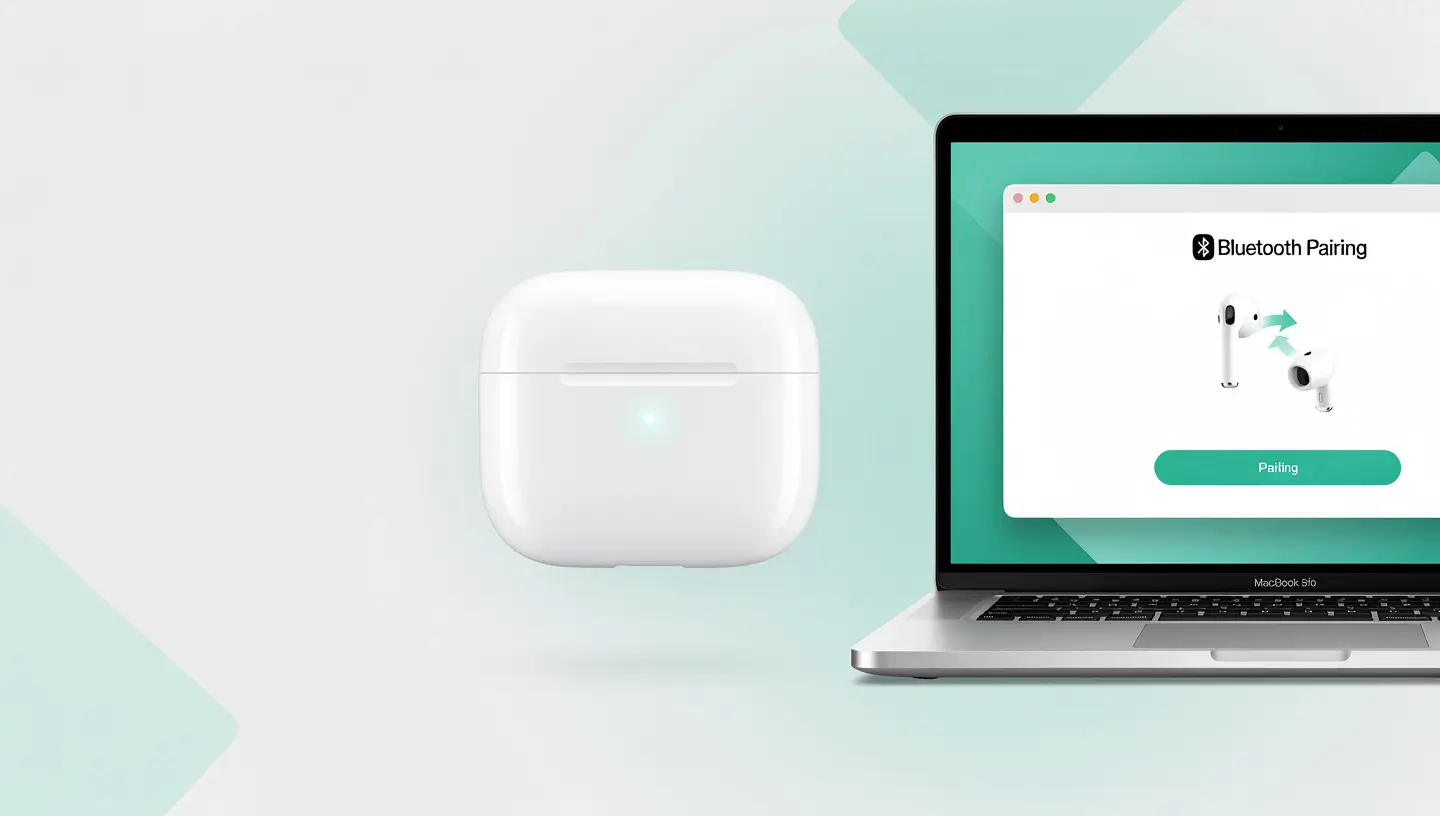
If the simple re-pairing did not work, or if your AirPods do not connect to any device, a complete reset is necessary. This procedure erases all the data stored in the AirPods and returns them to their factory state.
Your AirPods are connected to the Mac (you see the green Bluetooth icon), but the sound is coming out of the internal speakers or nothing is coming out at all. It's an audio output selection problem, not a connection problem.
For more general sound problems, see our article More sound on the Mac: 10 solutions.
If your AirPods connect correctly but disconnect every few seconds or minutes, the problem is different. Here are the most common causes and their solutions.
Your AirPods are synchronised via iCloud, so they switch automatically between Mac, iPhone and iPad. If you receive a call or notification on your iPhone, the AirPods may leave the Mac to connect to it. To avoid this behaviour:
USB-C and USB 3.0 ports emit interference on the 2.4 GHz band used by Bluetooth. If you have an external hard drive, USB-C hub or dongle connected close to the Mac, move them or use shielded cables.
Some applications (Loopback, Soundflower, Krisp, professional audio plug-ins) install «virtual audio devices» which can disrupt the stability of the AirPods connection. Check System Settings → Sound to see if any virtual inputs or outputs appear and temporarily disable them to test.
See the section below on updating the firmware.
Apple regularly releases firmware updates for AirPods, often correcting connectivity issues. The problem: there's no manual way of forcing this update. It happens automatically when your AirPods are :
To force the update, place your AirPods in the case, connect the case to a wired load, and place it next to your wifi-connected iPhone for at least 30 minutes. Then check the version. If it has changed, the update is complete. Apple details the procedure in its official guide on AirPods connection problems.
This indicates that the AirPods are physically working, but that pairing with the Mac is broken. Solution: on the Mac, forget about the AirPods (Bluetooth → Forget), then put them back into pairing mode and reconnect. If you're connected to the same Apple ID on both devices, they should appear automatically.
Your AirPods are not in pairing mode. Place them in the case, close the cover for 15 seconds, open it, then hold the button on the back of the case until the light flashes white. On AirPods 4 and Pro 3, tap the front of the case twice. Your AirPods should then appear in the Mac's Bluetooth list.
On a Mac, after logging in, click on Control centre → Sound → your AirPods will display their charge level. On iPhone, open the AirPods cover next to the iPhone - a window shows the charge level. On the case, the LED indicator shows the status: green = charged, orange = charging, red = battery critical.
This happens when an AirPod is not properly charged or has a sensor problem. Replace both AirPods in the case, wait 30 seconds, then take them out. If the problem persists, completely reset the AirPods (hold the button on the case for 15 seconds). If only one AirPod permanently refuses to work, contact Apple Support for a replacement (they are guaranteed for 1 year).
Yes, that's normal. When the MacBook goes into sleep mode (cover closed), it switches off Bluetooth to save battery power. When you open the cover, your AirPods will automatically reconnect within a few seconds. If the automatic reconnection doesn't work, it's a bug - delete and re-pair your AirPods.
Possible causes: interference with a USB 3.0 or USB-C port (move USB devices further away), 2.4 GHz WiFi saturating the Bluetooth band (switch to 5 GHz), too many Bluetooth devices paired simultaneously, or low AirPods battery. For more general Bluetooth disconnections, see our article Bluetooth Mac unavailable.
On iPhone: Settings → Bluetooth → i next to AirPods → Connect to this iPhone → choose «When last connected to this iPhone». Do the same on the Mac and iPad. This disables automatic switching between devices, and your AirPods will remain connected to the device you're actively using.
Go to System Settings → Sound → Input and select your AirPods as the audio input. If the sound is poor, disable audio enhancements in the application settings (Zoom, Teams). Note that the quality of the AirPods microphone is deliberately limited to save Bluetooth bandwidth - for professional use, a USB microphone is preferable.
On iPhone: Settings → Bluetooth → i next to your AirPods → scroll to «Version» or «Firmware Version». To force an update: place the AirPods in the charging case, next to your wifi-connected iPhone, for at least 30 minutes. The update will take place automatically and silently.
Yes, with over 15 years' experience since 2010, we diagnose Mac Bluetooth connectivity problems, including those related to AirPods. If the problem is with your Mac's Bluetooth module, we'll identify the cause and suggest a repair. For faults specific to the AirPods themselves, contact Apple Support - Apple Repair is usually more appropriate. Free in-shop diagnosis. Take appointment.


Over 15 years of Apple expertise in Brussels. Free, no-obligation quote and 180-day guarantee on repairs.