
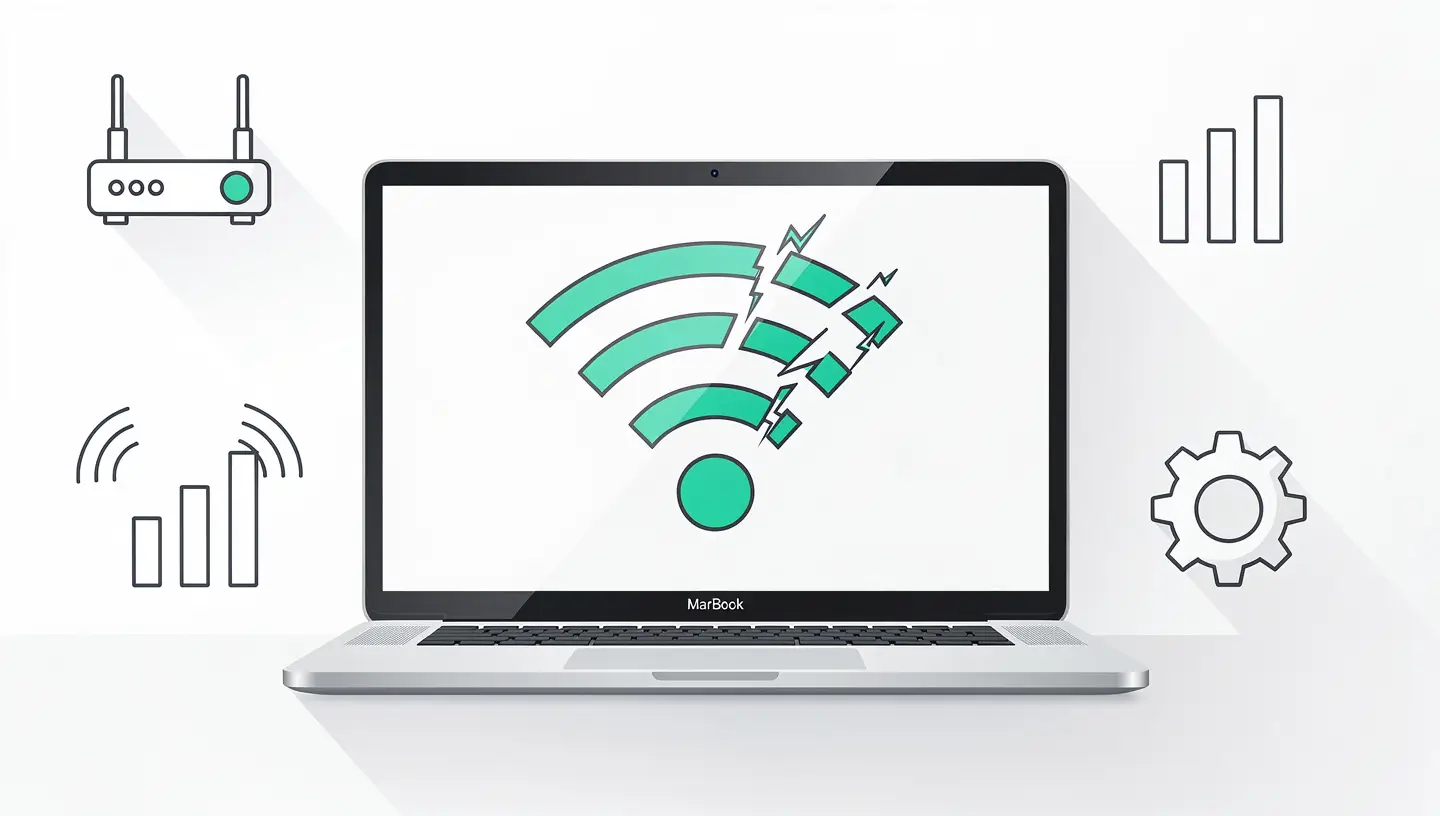
A Mac that suddenly loses its WiFi connection, refuses to connect to a known network or displays a crossed-out WiFi icon in the menu bar... it's a frustrating situation, especially when everything was working perfectly just an hour earlier. Before you panic, you should know that the majority of WiFi problems on Macs can be resolved without any hardware intervention.
The causes generally fall into three categories. On the software side, an incorrectly installed macOS update, corrupted preference files or a DNS conflict regularly cause disconnections. On the network side, the router itself may be saturated, incorrectly configured or overheated. Finally, on the hardware side - rarer but not impossible - a damaged WiFi antenna plate or a faulty AirPort card can explain a persistent problem, particularly on MacBooks that have suffered a shock or an accident. liquid damage.
Let's take a look at the solutions, from the simplest to the most advanced, for restoring your connection.
The most basic reflex is often the most effective. Click on the WiFi icon in the menu bar, then select Disable Wi-Fi. Wait about ten seconds, then reactivate it. This forces macOS to reset the wireless network stack and rediscover the available networks.
On Mac laptops, you can also activate and deactivate the aeroplane mode via the Control Centre (icon in the top right-hand corner on macOS Ventura and later versions). This action cuts all wireless connections at once, including Bluetooth, before restoring them cleanly.
If the first solution doesn't work, proceed to a complete reboot of both devices. Start with the router: disconnect it from the power supply, wait 30 seconds (for the capacitors to drain), then reconnect it. Wait for all the lights to stabilise - this usually takes two to three minutes.
Then restart your Mac via the Apple → Restart. This double reboot can be used to resolve problems linked to an expired DHCP lease, a corrupted routing table or a conflict between IP addresses on the local network. It's also a good opportunity to check whether other devices in your home are connecting to WiFi normally: if none are connecting, the problem is with your router or ISP, not your Mac.
macOS stores all the WiFi networks you've ever connected to, along with their passwords and settings. Sometimes this information becomes obsolete - for example after a WiFi password change or a router replacement.
To force a fresh connection :
| Step | Action |
|---|---|
| 1 | Open System Settings → Wi-Fi |
| 2 | Click on Details next to the problematic network |
| 3 | Click on Forget this network then confirm |
| 4 | Reconnect by selecting the network and entering the password |
If your list contains dozens of public networks (hotels, cafés, airports), delete the ones you no longer use. macOS sometimes tries to connect automatically to a weak network rather than your own.
macOS includes a network diagnostics tool that is often underestimated. To access it, hold down the Option (⌥) and click on the WiFi icon in the menu bar. Select Open Wireless diagnostics. This utility analyses your WiFi environment and identifies interference, saturated channels and configuration problems.
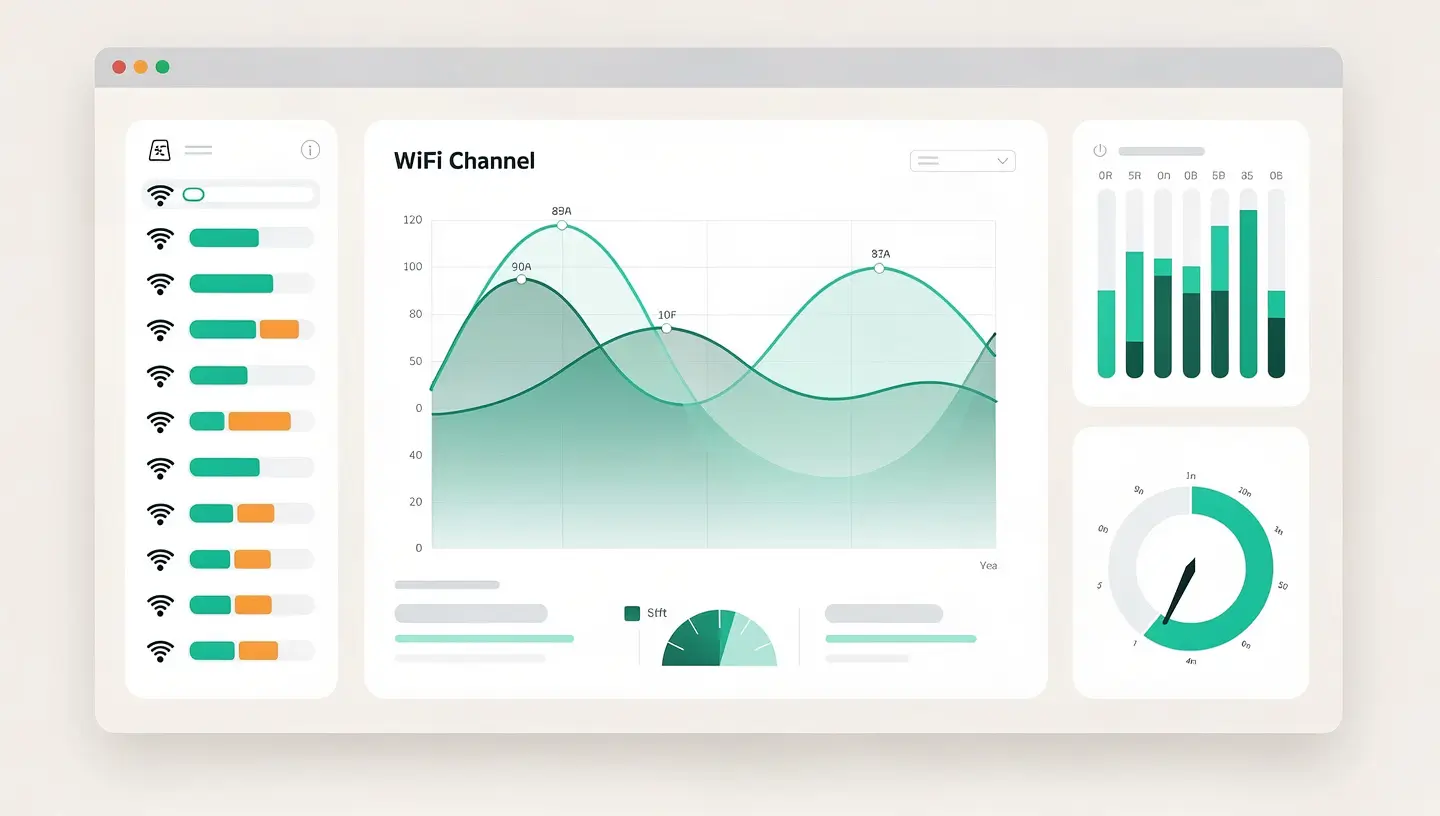
The tool generates a detailed report showing, among other things, the WiFi channel used by your router and the level of congestion on that channel. In a dense urban environment like Brussels, where dozens of neighbouring networks overlap, changing your router's channel (from channel 6 to channel 1 or 11 in 2.4 GHz, for example) can radically transform the stability of the connection. Consult the Apple documentation on wireless diagnostics to find out more about interpreting the results.
Your Mac may be connected to WiFi (normal icon in the menu bar) but not accessing the Internet. In this case, the problem often lies with the DNS servers supplied automatically by your router or ISP. Replacing these DNS servers with more reliable ones often solves the problem.
Here's how it works:
| Step | Action |
|---|---|
| 1 | Open System Settings → Wi-Fi, click on Details your network |
| 2 | Go to the DNS |
| 3 | Delete existing DNS using the − |
| 4 | Add 8.8.8.8 and 8.8.4.4 (Google DNS) or 1.1.1.1 and 1.0.0.1 (Cloudflare) |
| 5 | Click on OK then test the navigation |
If browsing resumes immediately, the problem was indeed with the DNS. You can keep this configuration permanently without any inconvenience - Google's and Cloudflare's public DNS are generally faster and more reliable than those of Belgian providers.
macOS stores the network configuration in several files in the system folder. When these files become corrupted - after a power cut, a crash or an interrupted update - WiFi can become unstable or refuse to connect. Deleting these files forces macOS to recreate them anew.
Before you start, Write down your WiFi password (you will need to re-enter it after the operation) and close all applications. Open the Finder, use the Go → Go to folder and type :
/Library/Preferences/SystemConfiguration/
Move the following files to your Desktop (don't delete them permanently, just in case):
| File | Role |
|---|---|
| com.apple.airport.preferences.plist | Preferences for memorised WiFi networks |
| com.apple.network.identification.plist | Identification of network locations |
| com.apple.wifi.message-tracer.plist | WiFi event log |
| NetworkInterfaces.plist | Configuring network interfaces |
| preferences.plist | Global network system preferences |
Restart your Mac. The system will automatically recreate blank files and you will need to reconnect to your WiFi network. This method solves the vast majority of persistent software WiFi problems.
The SMC (System Management Controller) and NVRAM (Non-Volatile Random Access Memory) manage certain low-level hardware parameters, including power management for wireless components. Resetting these controllers can solve WiFi problems that software solutions do not correct.
| Type of Mac | SMC reset |
|---|---|
| MacBook with T2 chip (2018-2020) | Switch off the Mac. Hold Ctrl + Option + Shift (left side) for 7 seconds, then add the power button. Hold down the 4 keys for a further 7 seconds, release, wait, then switch on again. |
| MacBook without T2 (non-removable battery) | Switch off the Mac. Hold down Ctrl + Option + Shift + power button for 10 seconds. Release, wait, then turn it back on. |
| iMac, Mac mini, Mac Pro | Switch off, disconnect the power cable, wait 15 seconds, reconnect, wait 5 seconds, then switch on again. |
| Apple Silicon Mac (M1/M2/M3/M4) | No SMC to reset. A simple reboot is all that's needed - hold the power button for 10 seconds to force a power-down if required. |
For NVRAM, switch off your Intel Mac, then switch it back on again by immediately holding down the key. Option + Command + P + R for approximately 20 seconds (you will hear the start-up sound twice on older models). On Apple Silicon Macs, NVRAM automatically resets itself on each reboot if necessary.
If none of the above solutions has worked, here are three additional avenues to explore before concluding that there is a hardware problem.
In System settings → Network, click on the drop-down menu Location at the top of the window and choose Modifying locations. Create a new location (name it «WiFi Fix», for example), select it and then reconnect to your network. This will create a completely new network profile, independent of the old one.
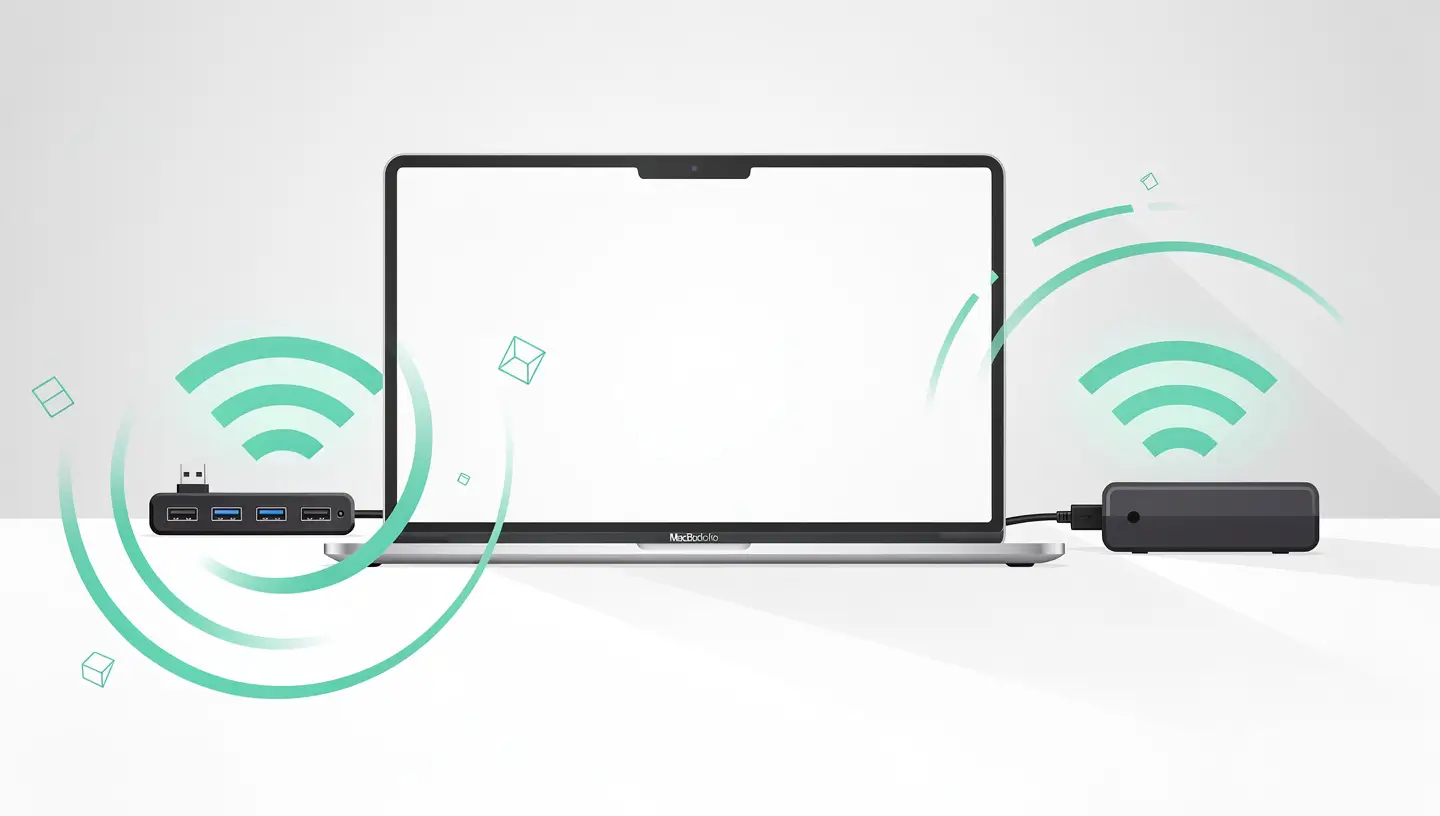
Some USB 3.0 accessories, external hard drives and even some USB-C hubs emit radio interference that disrupts the 2.4 GHz WiFi signal. Temporarily disconnect all peripherals from your Mac and test the connection. If the WiFi returns, reconnect your accessories one by one to identify the culprit.
Le safe mode loads macOS with a minimum of components. If WiFi works in safe mode but not in normal start-up, a third-party extension or security software (antivirus, firewall, VPN) is interfering with the connection. Uninstall the suspect software one by one to isolate the conflict. Our article on Mac antivirus can help you identify security software that is sometimes too intrusive.
After exhausting all software solutions, a WiFi problem that persists generally indicates a hardware fault. Several components may be at fault:
| Component | Typical symptoms | Models concerned |
|---|---|---|
| WiFi antenna cover | Very weak signal, frequent disconnections, WiFi only functional in the immediate vicinity of the router | MacBook Air/Pro all generations |
| AirPort card / WiFi module | WiFi icon greyed out or permanently crossed out, no network detected, «WiFi: no equipment installed».» | MacBook Pro pre-2016, iMac, Mac mini |
| WiFi chip integrated into the motherboard | Same symptoms as the AirPort card, but on recent models where WiFi is soldered to the motherboard. | MacBook Pro 2016+, MacBook Air Retina, Mac Apple Silicon |
| Antenna connector | Intermittent WiFi, signal disappears when the screen is in certain positions | MacBook Air/Pro (antennas in screen cover) |
At MAC repair, the diagnosis is free of charge and can pinpoint the exact cause of the problem in just a few minutes. With over 15 years' experience since 2010, we work on all Mac models with professional quality parts and a 180-day guarantee. You can drop off your Mac in workshop in Brussels or take advantage of our’collection and delivery.
If no network is detected at all, this indicates either a serious software problem (corrupted preference files) or a hardware fault in the WiFi card or antenna array. Start by deleting the network preference files and rebooting. If the message «WiFi: no hardware installed» appears, the problem is hardware and requires professional intervention.
This symptom usually points to a DNS problem or an incorrect IP configuration. Change your DNS servers manually (8.8.8.8 and 8.8.4.4) in the Wi-Fi settings. If this doesn't help, renew the DHCP lease in your WiFi connection details, TCP/IP section.
macOS disables WiFi in standby to save battery power, this is normal behaviour. If reconnection fails on wake-up, reset NVRAM on Intel Macs or create a new network location. Also check that the «Enable network wake-up» option is configured correctly in the battery settings.
Yes, some macOS updates change network drivers or WiFi security settings, which can cause temporary incompatibilities. After a problematic update, delete the network preference files and restart. Apple generally publishes a patch in the weeks following major problems.
Test the WiFi connection with another device (smartphone, tablet). If no device connects, the problem is with the router. If only your Mac is affected, test it on another WiFi network (a neighbour's, at the office, via your phone's connection sharing). If the Mac connects elsewhere but not to you, the problem is linked to the configuration of your router.
This message indicates that macOS no longer detects your Mac's WiFi card. This is a hardware problem: the AirPort card is disconnected or faulty, or the ribbon connecting the card to the motherboard is damaged. On recent Macs where WiFi is integrated into the chip, this may indicate a problem with the motherboard. A professional diagnosis is required.
Changing your DNS does not increase the speed of your Internet connection, but it can significantly speed up web page loading times. Public DNS such as those from Cloudflare (1.1.1.1) or Google (8.8.8.8) often resolve domain names faster than the default DNS of Belgian ISPs.
Your Mac may be connecting at 2.4 GHz instead of 5 GHz, or interference may be coming from connected USB 3.0 peripherals. Check the band used by clicking on the WiFi icon with the Option key held down. Try disconnecting all USB devices and testing again.
The cost depends on the cause: replacing a WiFi antenna pad is relatively affordable, while repairing a motherboard (for models with soldered WiFi) is more complex. At Réparation MAC, our diagnosis is free and we will give you a precise estimate before any work is carried out. All our prices are available on our rates.
Yes, a USB WiFi adapter can help out while you're waiting for a repair, but compatibility with macOS can be tricky. Choose models that are explicitly macOS compatible (no need for a third-party driver). This is an acceptable temporary solution, but it doesn't offer the performance or stability of your Mac's built-in WiFi.


Over 15 years of Apple expertise in Brussels. Free, no-obligation quote and 180-day guarantee on repairs.