

Contents
A slow Mac is not necessarily a Mac at the end of its life. In the vast majority of cases, slowdowns can be explained by causes that can be identified and corrected. Here's what we see most often in the workshop when a customer brings us a Mac. Slow Mac.
| Cause of slowdown | Frequency | Impact |
|---|---|---|
| Saturated or ageing mechanical hard disk drive (HDD) iMac, MacBook Pro pre-2013, Mac mini | ~35 % | Very high |
| SSD storage full (less than 10 % free) All models, especially 128GB and 256GB | ~25 % | High |
| Insufficient RAM for the applications used 4 GB saturated by Chrome, Photoshop, Zoom | ~20 % | High |
| macOS or obsolete applications Compatibility, bugs, performance flaws | ~10 % | Moderate |
| Overheating (dry thermal paste, dirty fan) MacBook Pro 2012-2017, iMac 2009-2015 | ~5 % | Variable |
| Malware or adware Browser extensions, pop-ups, redirects | ~5 % | Moderate |
A point often overlooked: macOS needs at least 15 to 20 % of free space on the disk to function correctly. Below this threshold, the system makes massive use of the swap file and everything becomes painfully slow. This is the first thing to check when a slow Mac makes you lose patience.
Before touching anything, open two macOS built-in tools to find out what's causing the problem on your computer Slow Mac :
Open Applications → Utilities → Activity monitor. Click on the CPU and sort downwards by «% CPU». If a process regularly exceeds 100 %, it's the culprit. The usual suspects: kernel_task (overheating), WindowServer (display), mds_stores (Spotlight in indexing), or a browser with too many tabs.
Then go to the Memory. At the bottom, look at the memory pressure bar :
Go to Apple Menu → About this Mac → Storage. If the storage bar is almost full, you've found the culprit. A full disk is the number one cause of a slow Mac on 128GB and 256GB models.

These operations cost nothing and can radically transform the performance of your machine. Try them out in order.
Every application that launches at start-up consumes RAM and CPU in the background. On a Slow Mac, This is often the most underestimated factor.
Frequent culprits: Spotify, Google Drive, OneDrive, Adobe Creative Cloud, Dropbox. These applications can be launched manually when you need them.
Objective: to find at least 20 % of free space. Start with the big pieces:
Each Chrome or Firefox tab consumes between 100 MB and 500 MB of RAM. With 20 tabs open, that's easily 4 to 6 GB of memory hogged. If your slow Mac is becoming a pain, especially when you're surfing the web, this is probably the cause.
Alternative: Safari uses considerably less RAM than Chrome on macOS, thanks to Apple's optimisation. Consider switching if RAM is a recurring problem.
macOS accumulates cache files that can grow to several gigabytes over time. To clean them up manually :
~/Library/Caches//Library/Caches/ (system cache).If the process mds_stores is consuming a lot of CPU in the Activity Monitor, Spotlight is probably indexing itself in a loop. To force a clean re-index :
Spotlight will reindex itself cleanly. The Mac will be a little slow for 30 to 60 minutes, then performance will return to normal.
macOS updates fix performance bugs and memory leaks. If your Slow Mac is still running on an older version of macOS, a simple update can solve the problem.
Check in System Settings → General → Software Update. You can also update all your applications via the App Store or directly in each application.
If the software solutions weren't enough, the problem is probably hardware. Here are the upgrades that make the biggest difference.
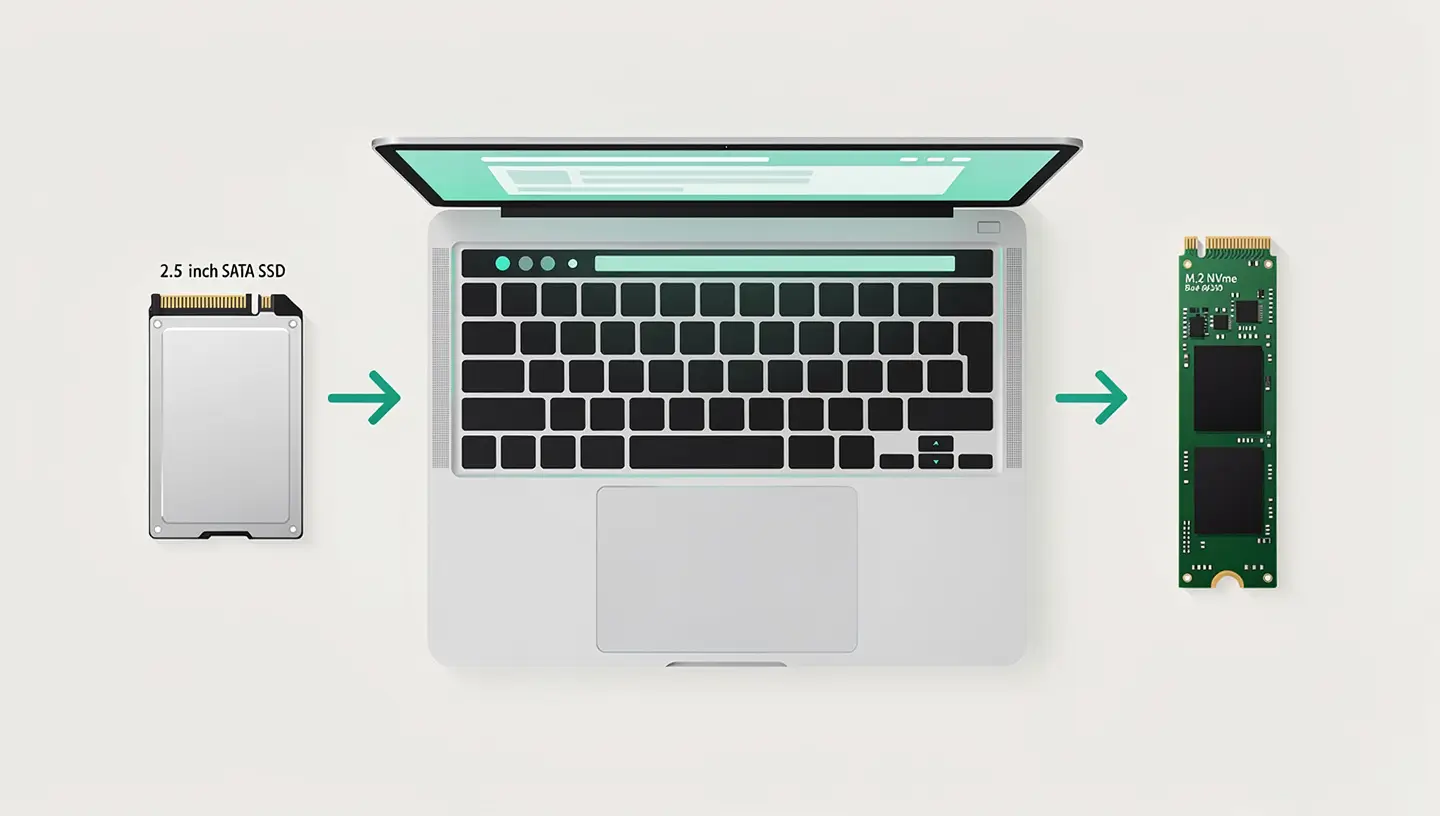
This is the most spectacular solution for a Slow Mac. A mechanical hard disk drive (HDD) reads data at around 80-100 MB/s. An SSD reaches 500 to 3500 MB/s depending on the model. The results are immediate: boot-up in 15 seconds instead of 2 minutes, applications that open instantly, no more rainbow wheels.
| Metric | Front (HDD) | After (SSD) |
|---|---|---|
| Starting macOS | 2 min - 4 min | 12 - 18 sec |
| Opening Photoshop | 45 - 60 sec | 5 - 8 sec |
| Copy file 10 GB | 3 - 5 min | 20 - 40 sec |
| Disc playback speed | 80 - 100 Mb/s | 500 - 3500 Mb/s |
The models most affected: iMac 2009-2019 (all with original HDD), MacBook Pro 2009-2012 (Unibody with HDD) and Mac mini 2009-2014. Our’SSD upgrade includes the complete migration of your data.
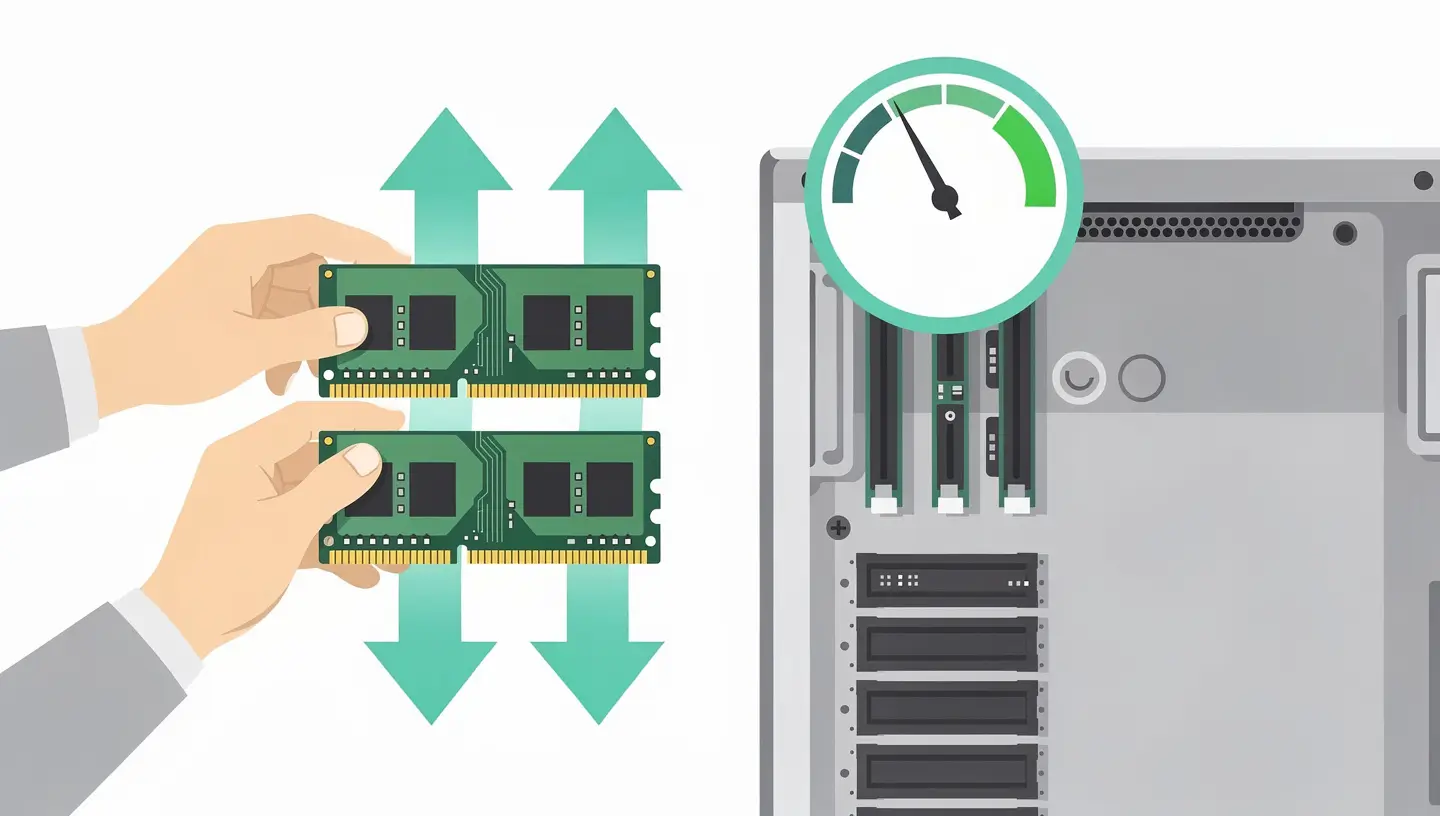
If the Activity Monitor shows yellow or red memory pressure all the time, your Mac needs more RAM. L’RAM upgrade is possible on the following models:
After 3 to 5 years of use, the thermal paste between the processor and the heatsink dries out and loses its effectiveness. The CPU rises in temperature and automatically reduces its frequency to protect itself: this is the thermal throttling. Result: a slow Mac, especially under load.
Our’preventive maintenance includes complete dust removal, replacement of the thermal paste and cleaning of the ventilation grilles. The Mac is restored to its original temperature and nominal performance.
A dying battery can cause MacBook slowdowns. macOS reduces processor performance to preserve a tired battery. Check in System settings → Battery → Battery health. If the status displays «Service recommended» or if the number of cycles exceeds 1000, a battery replacement can boost the speed of your machine.

If your slow Mac has had years of successive updates, a clean installation of macOS can work wonders. Unlike a conventional update, a clean install starts from scratch: no residue of old applications, no corrupted preferences, no obsolete system files.
The procedure preserves your data if you make a Time Machine backup beforehand. Allow around 2 to 3 hours for a complete reinstallation with data migration.
Macs are not immune to malware. Adware and dodgy browser extensions can consume considerable resources in the background and make a Mac inexplicably slow.
Signs of infection: browser redirects, new toolbars, persistent pop-ups, unknown processes in the Activity Monitor. Our virus and malware removal carries out a complete disinfection and provides lasting protection.
Here's an overview of how much it costs to give a slow Mac a facelift, depending on the work required:
| Intervention | Price incl. VAT | Impact on speed |
|---|---|---|
| Full diagnostic | Free | Identifying the cause |
| Upgrade SSD 500 GBHDD replacement + data migration | 149€ | Speed x5 to x10 |
| Upgrade SSD 1Tb | 249€ - 450€ | Speed x5 to x10 |
| Upgrade RAM 8 GB → 16 GB | 89€ - 140€ | Fluid multitasking |
| Complete preventive maintenanceDust removal + thermal paste | 89€ | End of throttling |
| Clean macOS reinstallation | 75€ - 140€ | New system |
| Cleaning viruses and adware | 79€ - 160€ | No more annoying slowdowns |
All prices include professional-quality parts, labour and service. 180-day guarantee. The most popular combo for a slow Mac: SSD upgrade + preventive maintenance. The result is spectacular, often comparable to buying a new machine, for a fraction of the price.
A sudden slowdown is often caused by a macOS update, a storage disk that has become full, or a process stuck in the background. Open the Activity Monitor to identify the culprit. If the problem has arisen just after an update, a Spotlight re-index may be in progress and will resolve itself within a few hours.
In the vast majority of cases, yes. Replacing a mechanical hard drive with an SSD radically transforms a slow Mac: booting up in 15 seconds instead of 3 minutes, applications responding instantly. Combined with a system clean-up, it's like getting a new Mac for a fraction of the price.
Diagnostics are free. After that, solutions range from €0 (software cleaning that you can do yourself) to €450 for a 1TB SSD upgrade with full migration. The most common intervention is the SSD upgrade from €149 including VAT, parts and labour.
It all depends on how you use it. For office, web and email use, a 2015-2017 Mac with an SSD and enough RAM can still be used for 3 to 5 years. The cost of an SSD upgrade (€149-250) is still much lower than buying a new machine (€1299-2499). Our free diagnosis will help you to assess whether the investment is worthwhile.
Yes, Chrome is notoriously RAM-hungry on macOS. Each tab consumes between 100 and 500 MB of memory. With 20 tabs open, that's 4 to 6 GB of RAM. Safari is significantly more economical thanks to its optimisation for macOS. On a slow Mac with little RAM, switching to Safari can make a noticeable difference.
No, unfortunately not. On all Retina MacBooks (since 2012) and all Apple Silicon Macs (M1, M2, M3, M4), the RAM is soldered to the motherboard and cannot be increased after purchase. That's why we recommend you choose at least 16 GB when you buy your Mac. For older Macs (MacBook Pro Unibody, iMac 27″), upgrading is possible and very effective.
Software cleaning involves deleting unnecessary files, disabling start-up programs and optimising macOS. Physical maintenance involves opening up the Mac to remove dust from internal components and replace the processor's thermal paste. The two are complementary: software fixes storage and memory problems, physical fixes overheating.
Fusion Drive combines a small SSD (24 or 128 GB) with a mechanical hard drive. When the SSD is full, performance drops to the level of the HDD. The best solution is to replace the Fusion Drive with a pure 500GB or 1TB SSD. The speed gain is considerable, especially on 2014-2019 iMacs.
Yes, although less frequently than on Windows. Malicious adware and browser extensions can consume a lot of resources and make a Mac slow. If you notice any unusual redirects or persistent pop-ups, professional virus cleaning is recommended.
Yes, our home service is perfectly suited to slow Mac problems. The technician can carry out the diagnosis, software clean-up and certain upgrades directly at your premises. For work requiring complete disassembly (SSD, thermal paste), a workshop visit is preferable.


Over 15 years of Apple expertise in Brussels. Free, no-obligation quote and 180-day guarantee on repairs.