
Resetting a Mac means deleting all its contents (files, apps, accounts, settings) and returning it to its factory defaults. It's a radical operation, but sometimes essential. In 15 years of repairing Macs at Réparation MAC in Brussels, we've found that there are four main situations in which customers perform this operation.
| Situation | Workshop frequency | Level of risk |
|---|---|---|
| Selling or donating your MacProtecting personal data before transfer | 45 % | Low (if saved) |
| Persistent problemsSlowdowns, bugs, unstable macOS | 30 % | Medium |
| Viruses or malwareResistant adware, spyware | 15 % | High |
| A fresh startStarting afresh after years of accumulation | 10 % | Low (if saved) |
Whatever your reason, the procedure will vary depending on your Mac model and macOS version. This guide covers all the methods, from the latest Macs running macOS Sequoia to older Intel models running macOS Catalina or earlier.
An ill-prepared reset can lead to permanent data loss. Before starting anything, follow these 7 steps in order. This is the advice we always give our customers in the workshop.
Connect an external drive and run a full backup via System Settings then General then Time Machine. Check that the backup completes without error. If your Mac refuses to back up, this may be a sign of a disk problem that requires a backup. professional diagnosis before handling.
Open the Finder and check that your Office and Documents files are synchronised in iCloud Drive. The same goes for your photos if you're using iCloud Photos. Files with a cloud icon with a downward arrow are not yet downloaded locally: they can still be accessed from iCloud after the reset.
Go to System Settings then your name (Apple ID) then Logout. This step also disables Locate my Mac, which is necessary for the reset to work. On macOS Catalina or earlier, go to System Preferences then Apple ID.
Open Messages then Settings (Cmd+shift) then iMessage and click Disconnect. If you forget to do this, your messages will continue to arrive on this Mac even after you've sold it.
In the Music app (or iTunes on older macOS), go to Account then Authorisations then Remove authorisation. You have 5 simultaneous authorisations, so retrieving this one is important.
If you're selling your Mac, go to System Settings then Bluetooth and delete all paired devices. This prevents your AirPods or keyboards from trying to reconnect to someone else's Mac.
Go to the Apple menu then About this Mac and note the exact version of macOS installed (for example macOS Sequoia 15.3). This will determine which reset method to use.
Since macOS Monterey (12), Apple has integrated an erase wizard that considerably simplifies the procedure. This is the method we recommend as a priority if your Mac is compatible.
| Condition | Details |
|---|---|
| Processor | Apple Silicon (M1, M2, M3, M4) or Intel with T2 chip |
| macOS minimum | Monterey 12.0 or later |
| Intel Mac with T2 | MacBook Air 2018+, MacBook Pro 2018+, Mac mini 2018, iMac 2020, iMac Pro, Mac Pro 2019 |
| All Mac Apple Silicon | All M1, M2, M3, M4 models (MacBook, iMac, Mac mini, Mac Studio, Mac Pro) |
On macOS Ventura (13) or later (Sonoma, Sequoia) :
Open System Settings from the Apple menu. Click on General in the left-hand sidebar, then scroll down and click on Transfer or Reset. Then click Erase Content and Settings. The erase wizard will ask you for your administrator password, then display a summary of everything that will be deleted: accounts, data, settings, installed apps. You may be asked to create a Time Machine backup. Confirm by clicking on Delete content and settings. The Mac will restart automatically and display the initial configuration screen, exactly as when you purchased it.
On macOS Monterey (12) :
The procedure is identical, but the path differs slightly. Open System Preferences from the Apple menu, then in the top menu bar, click on System Preferences and choose Clear Content and Settings from the drop-down menu.

This method works on all Macs, including older Intel models without a T2 chip. It is also the fallback solution if method 1 fails or if macOS no longer boots correctly.
| Type of Mac | How to access Recovery |
|---|---|
| Apple Silicon (M1/M2/M3/M4)MacBook, iMac, Mac mini, Mac Studio, Mac Pro | Switch off the Mac. Hold down the Power button until you see Options. Click Options then Continue. |
| Intel with or without T2All Intel Macs | Restart the Mac and hold Cmd+R immediately on start-up until you see the Apple logo or a globe. |
Once in Recovery mode, select Disk Utility from the Utilities window. In the left-hand sidebar, select your primary disk (usually named Macintosh HD). Click on Erase at the top of the window. For the format, choose APFS if your Mac is compatible (macOS High Sierra or later) or Mac OS Extended (journalled) for older systems. Give the disk a name (Macintosh HD works very well) and click Delete.
Close Disk Utility to return to the Utilities window. Select Reinstall macOS and follow the instructions. Your Mac must be connected to the Internet (Wi-Fi or Ethernet) to download the installation files. The process usually takes between 30 minutes and 2 hours, depending on your Internet connection and Mac model.
Once the installation is complete, the Mac will restart the configuration wizard. If you're keeping the Mac, configure it as normal. If you're selling it, turn it off at this point by pressing Cmd+Q.
| Key combination | Results | When to use it |
|---|---|---|
| Cmd+R | Reinstalls the currently installed macOS | Standard cases |
| Option+Cmd+R | Installs the latest compatible macOS | Update to the latest macOS |
| Shift+Option+Cmd+R | Installs the macOS that came with your Mac (or the nearest one) | Reverting to the original macOS |
Have you forgotten your administrator password? This is one of the most common problems we encounter in the workshop. Here's how to get started.
The good news is that Recovery mode doesn't require the session password to erase the disk and reinstall macOS. Access Recovery mode using the methods described above, then use Disk Utility to wipe the disk and reinstall macOS.
On the other hand, if Locate My Mac is enabled, the system will ask you for your Apple ID password (not the session password) to deactivate the activation lock. Without this Apple password, the Mac will remain locked to the activation lock even after reinstallation. In this case, you will need to prove that you are the rightful owner to Apple or contact our workshop for a diagnostic.
Your Mac will restart on the Welcome screen. If you keep it, here are the steps to follow to get back to your working environment.
Follow the configuration wizard: language, country, Wi-Fi network, Apple ID. When the wizard asks you to transfer data, you have three options.
| Transfer option | Source | Average duration |
|---|---|---|
| From Time MachineRestores apps, files and settings | External backup disk | 1 to 4 hours |
| From another MacVia cable or Wi-Fi | Old Mac connected to the same network | 1 to 3 hours |
| Configure like newBlank installation, apps to be reinstalled | No source | 15 minutes (without apps) |
If you have reset to solve a problem, we recommend that you configure as new rather than restoring a Time Machine backup. Restoring a backup could reset the file or setting that was causing the problem.
Apps purchased from the Mac App Store can be downloaded free of charge from your account. For third-party apps (Adobe, Microsoft, etc.), you'll need to download them again from the publisher's site or from a package manager such as Homebrew.
After configuration, go straight to System Settings then General then Software Updates. Install all available updates. This will correct security flaws and improve stability.
Resetting is sometimes presented as a miracle cure, but it's not always the right solution. Here's a comparison table to help you decide.
| Symptom | Is resetting enough? | Best solution |
|---|---|---|
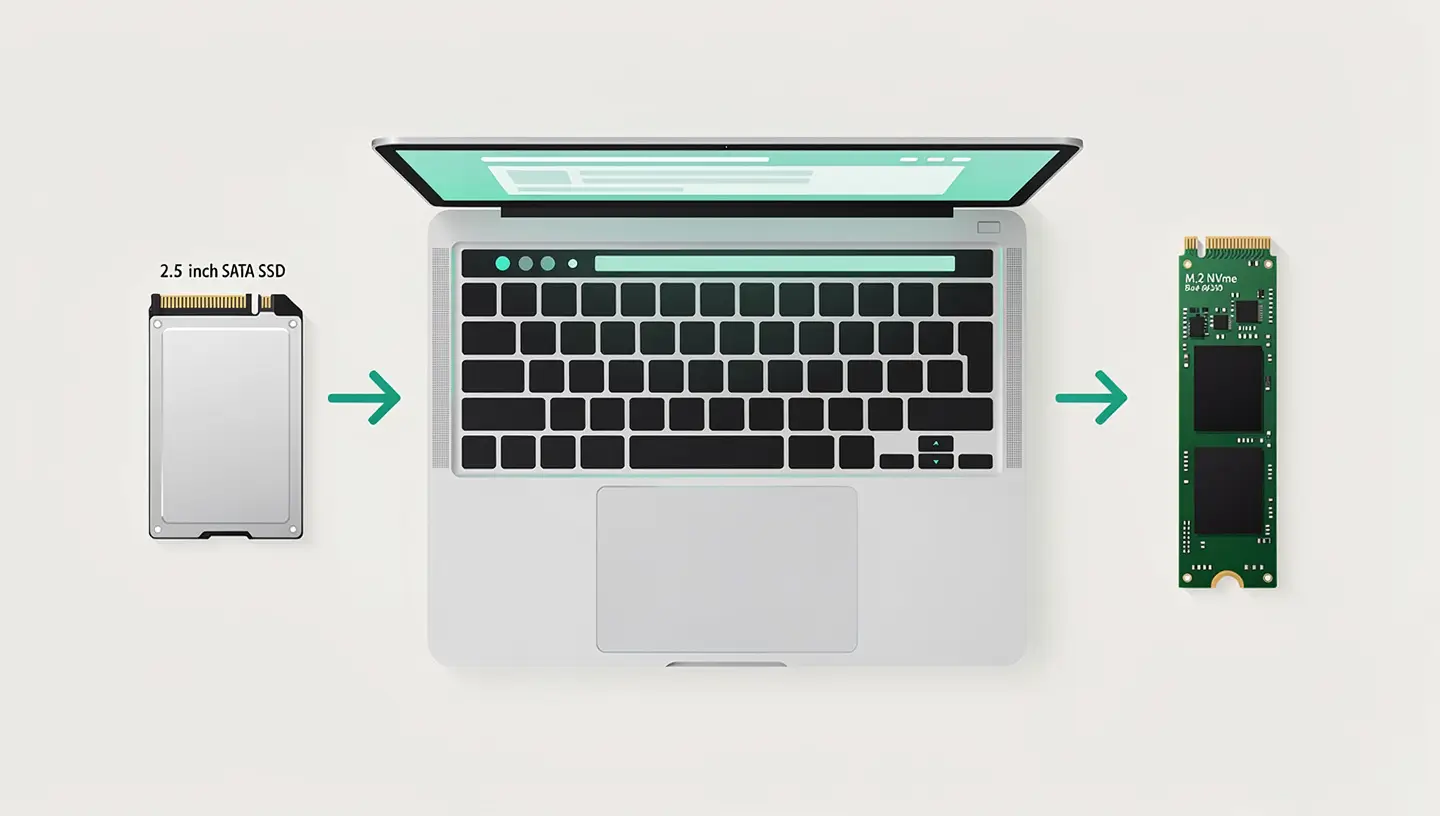
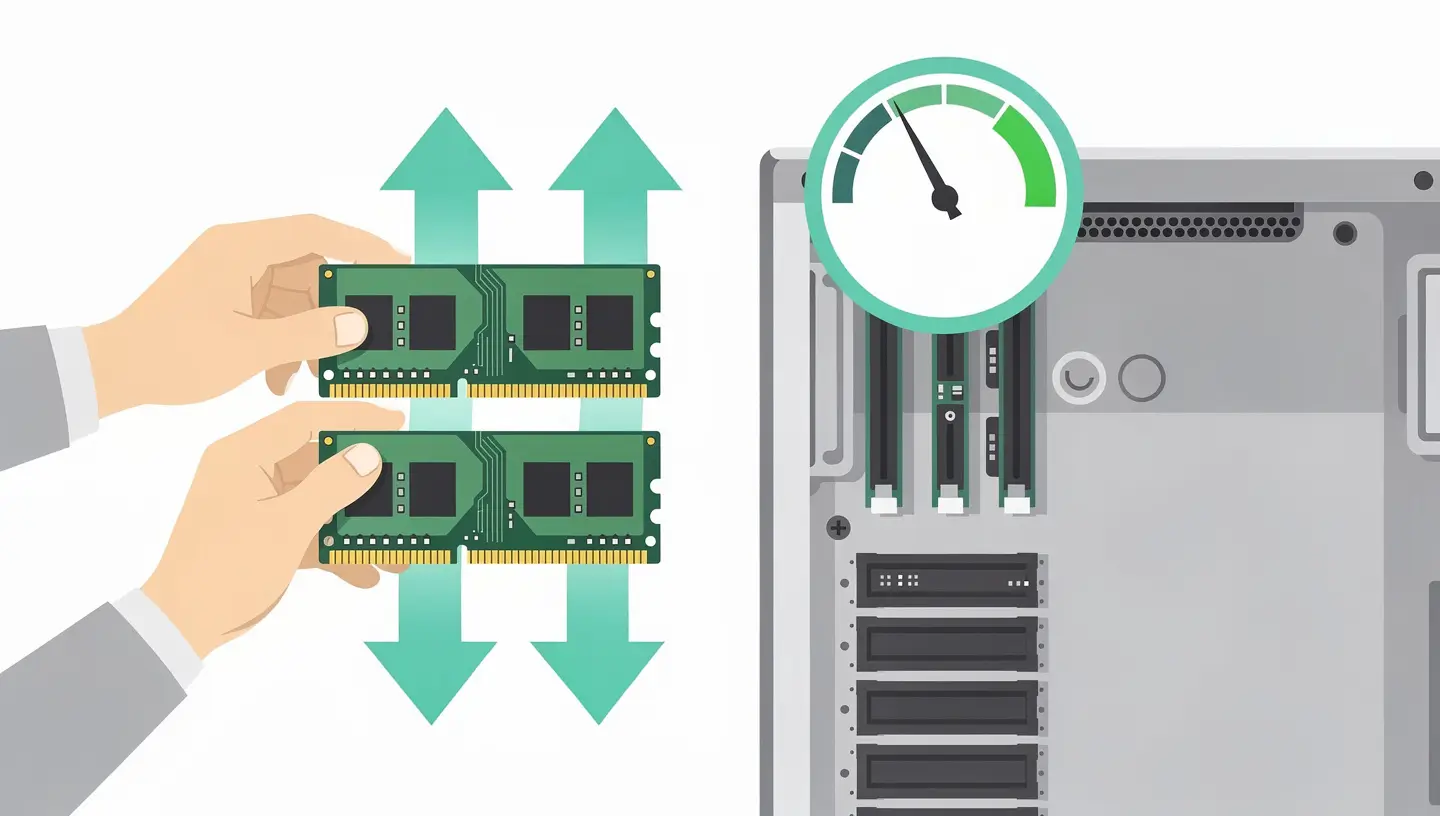
| Mac slow for months | Sometimes | SSD Upgrade or adding RAM |
| Persistent malware or adware | Yes | Reset + virus cleaning pro |
| macOS crashes regularly | Sometimes | Reinstalling macOS own |
| Mac won't turn on | No | Motherboard diagnostics |
| Selling or donating your Mac | Yes | Complete reset mandatory |
| Black screen or artefacts | No | Screen repair |
| Full storage at 95 % | Excessive | Targeted cleaning or SSD upgrade |

Yes, the factory reset deletes all content: files, applications, user accounts, saved passwords and custom settings. The Mac returns exactly as it was when it left the factory, with the latest version of macOS installed. That's why it's essential to back up your data with Time Machine or another medium before starting the procedure.
To sell your Mac safely: back up your data, disconnect from iCloud and iMessage, remove iTunes/Music authorisation, then use Erase Content and Settings (if your Mac is compatible) or Recovery mode. After the reset, leave the Mac on the Welcome screen without configuring it, so that the buyer can enter their own credentials.
Yes, by going into Recovery mode (power button held down on Apple Silicon, Cmd+R on Intel). The disk utility does not ask for the session password to erase the disk. However, if Locate My Mac is enabled, the Apple ID password will be required to disable the activation lock.
Using the Delete Content and Settings method, allow around 30 minutes to 1 hour. Recovery mode with reinstallation of macOS takes between 1 and 3 hours on average, depending on your Internet connection. The longest stage is downloading macOS (around 12 GB for recent versions).
Reinstall macOS only refurbishes the operating system while preserving your personal files, applications and settings. Reset to factory settings goes further: the disk is completely wiped before reinstalling macOS. If you simply want to fix a system bug without losing your data, a reinstall macOS is often enough.
It depends on the cause of the slowdown. If the problem is poorly configured software or accumulated temporary files, resetting may actually improve performance. But if the Mac is slow because of a mechanical hard drive, insufficient RAM or a faulty component, resetting won't make any difference. A SSD upgrade or a adding RAM would be more effective.
On recent Macs with SSDs and APFS encryption, recovery after deletion is virtually impossible. FileVault encryption makes data unreadable as soon as the key is deleted. On older Macs with mechanical hard drives, a data recovery laboratory can sometimes recover files, but there is no guarantee. Conclusion: always back up before resetting.
This option is only available on Macs with an Apple Silicon chip or Intel T2 chip running macOS Monterey or later. If you don't see it, your Mac isn't compatible and you need to go into Recovery mode: restart by holding Cmd+R (Intel) or the power button (Apple Silicon), erase the disk using Disk Utility, then reinstall macOS.
This isn't mandatory for the reset itself, but it's recommended if you're preparing the Mac for sale. NVRAM stores settings such as volume, time zone and boot disk. Reset it by holding Option+Cmd+P+R at startup for 20 seconds. The SMC manages power management and resets itself differently depending on the model. On Apple Silicon, these resets are not necessary.
At MAC Repair in Brussels, reinstallation of macOS is included in our repair service.’macOS installation from €59 incl. VAT. This price includes the backup of your data, secure deletion, reinstallation of macOS and verification of correct operation. If you're not comfortable with the procedure, our technicians will take care of it, with a 180-day guarantee.


Over 15 years of Apple expertise in Brussels. Free, no-obligation quote and 180-day guarantee on repairs.