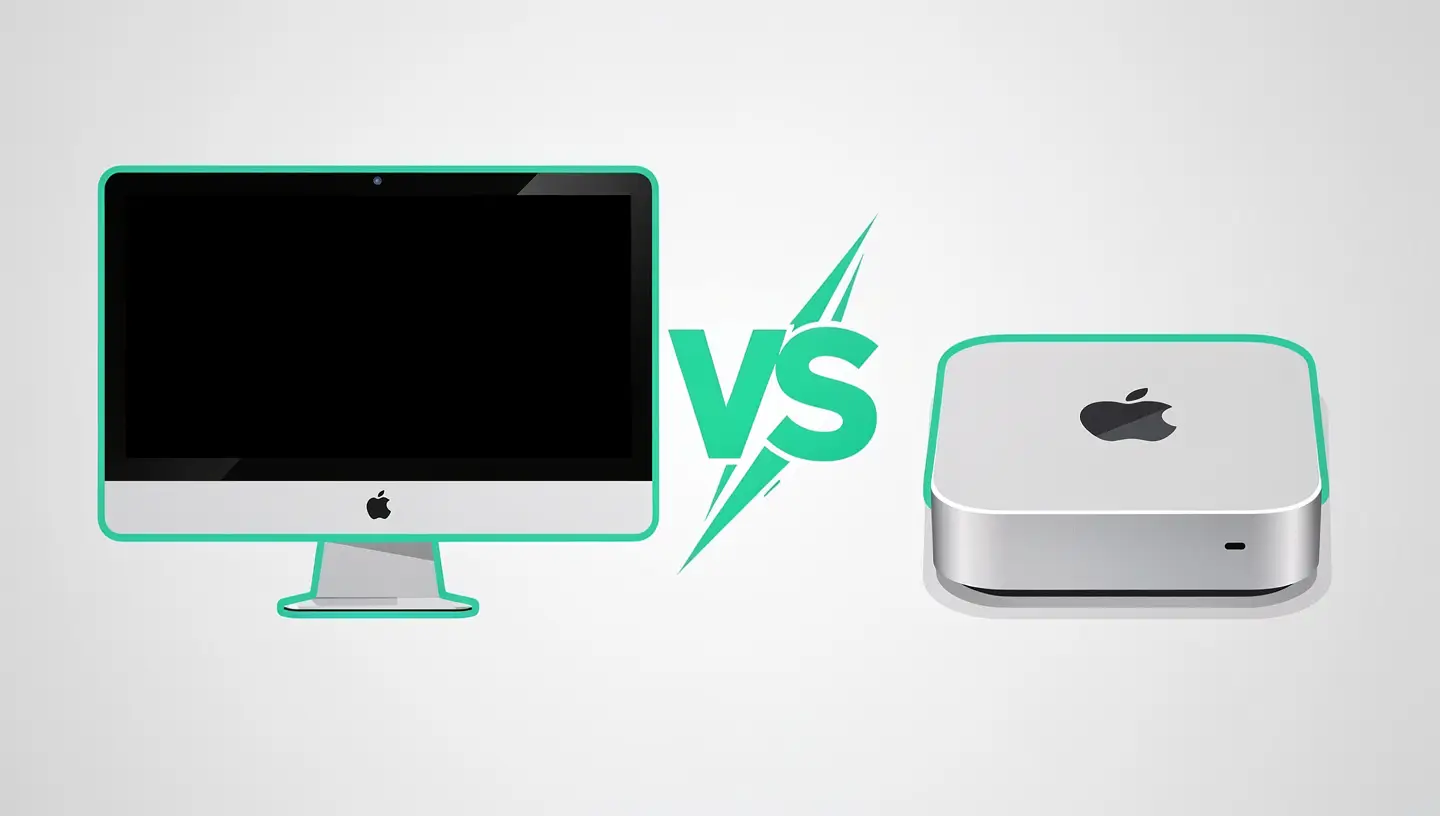

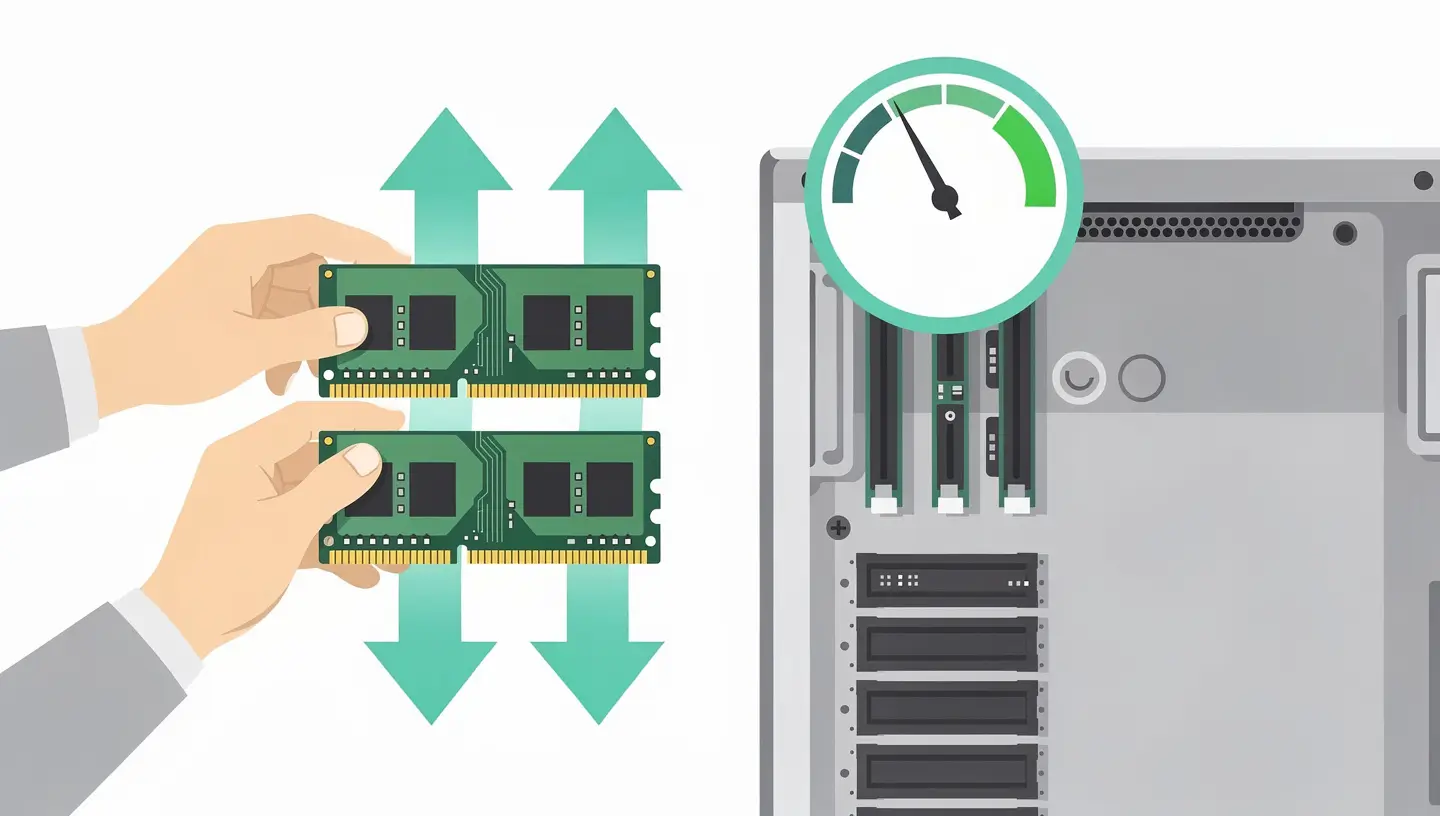
RAM is your Mac's working memory - it temporarily stores data for running applications. When RAM is full, macOS uses the disk as swap memory, which slows down performance considerably because even a fast SSD is much slower than RAM.
Open the Activity monitor → tab Memory. The «Memory Pressure» graph at the bottom of the window is the best indicator: green means there's enough RAM, yellow means the system is starting to use swap, and red means your Mac is desperately short of memory. If the graph is frequently yellow or red during your normal usage, an addition of RAM is justified. For other performance diagnostics, see our article Slow Mac: 12 solutions.
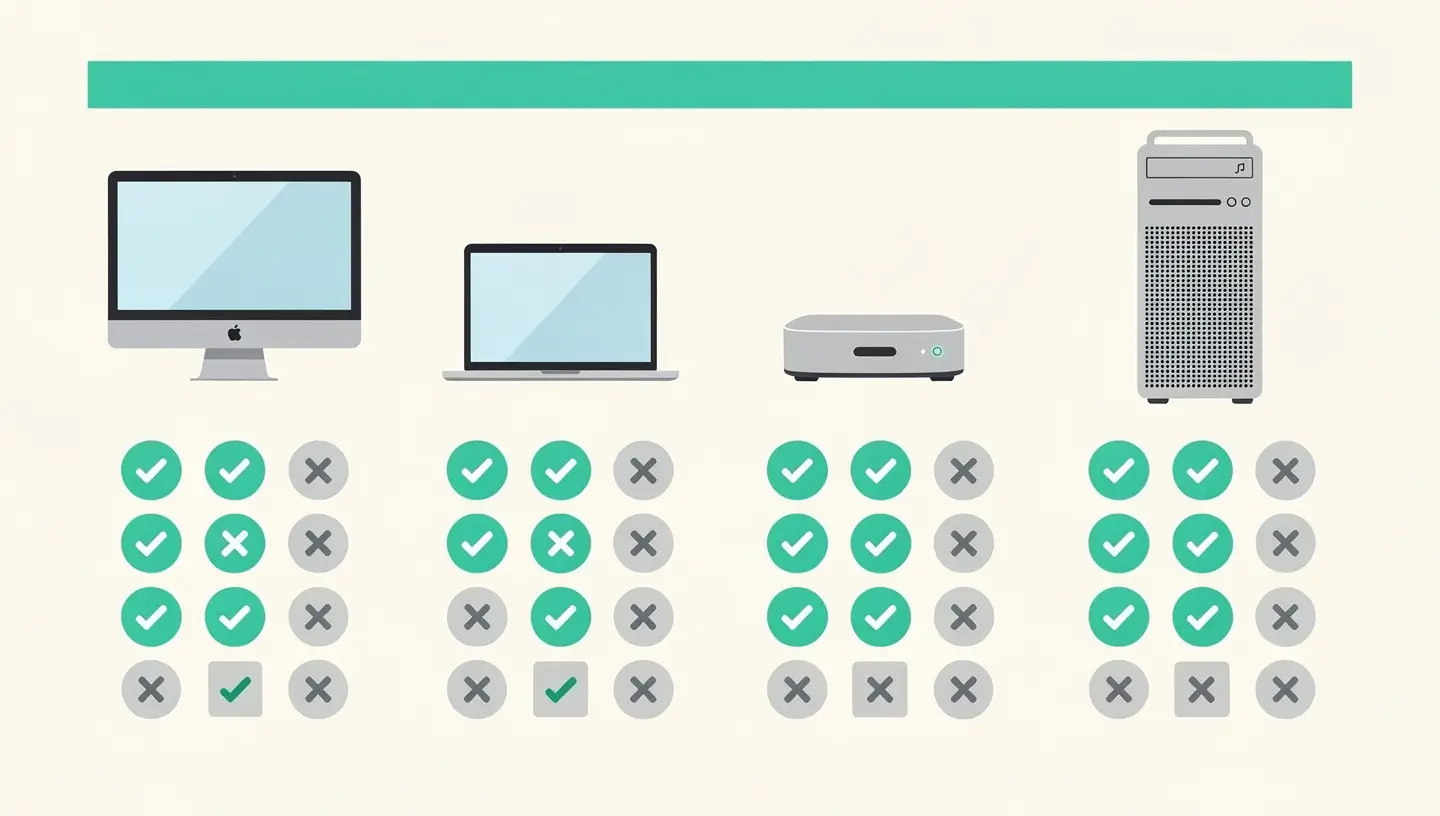
This is the most important question: does your Mac physically allow the addition of RAM? Over the years, Apple has progressively soldered the memory to the motherboard, making it impossible to add RAM to most recent models.
| Model | Years | Modifiable RAM | Access |
|---|---|---|---|
| iMac 27″ | 2012 - 2020 | Yes (tool-free rear hatch) | Easy - 5 minutes |
| iMac 21,5″ | All | No (soldered RAM) | — |
| iMac 24″ (Apple Silicon) | 2021+ | No (unified memory) | — |
| MacBook Pro non-Retina | 2009 - 2012 | Yes (bottom hatch) | Easy - 10 minutes |
| MacBook Pro Retina | 2012+ | No (soldered RAM) | — |
| MacBook Air | All | No (soldered RAM) | — |
| Mac mini | 2012 | Yes (rotary cover) | Moderate - 15 minutes |
| Mac mini | 2014+ | No (soldered RAM) | — |
| Mac Pro (tower and rack) | 2009 - 2019 | Yes (direct access) | Easy - 5 minutes |
| Mac Studio | All | No (unified memory) | — |
Every compatible Mac uses a specific type of RAM strip. Installing the wrong type won't work - in the worst case, it can damage the connector or the motherboard.
| Mac | Type of strip | Speed | Number of slots | Maximum capacity |
|---|---|---|---|---|
| 27″ iMac (2017-2020) | DDR4 SO-DIMM 260 pins | 2666 MHz | 4 | 64 GB (4×16 GB) or 128 GB (4×32 GB unofficial) |
| iMac 27″ (2012-2015) | DDR3 SO-DIMM 204 pins | 1600 MHz | 4 | 32 GB (4×8 GB) |
| MacBook Pro 13″ (2009-2012) | DDR3 SO-DIMM 204 pins | 1333 or 1600 MHz | 2 | 16 GB (2×8 GB) |
| MacBook Pro 15″ (2009-2012) | DDR3 SO-DIMM 204 pins | 1333 or 1600 MHz | 2 | 16 GB (2×8 GB) |
| Mac mini (2012) | DDR3 SO-DIMM 204 pins | 1600 MHz | 2 | 16 GB (2×8 GB) |
| Mac Pro (2019) | DDR4 ECC R-DIMM 288 pins | 2933 MHz | 12 | 1.5 TB |
| Mac Pro (2010-2012) | DDR3 ECC UDIMM 240-pin | 1333 MHz | 4 or 8 | 128 GB |
Choose manufacturers that offer Mac compatibility tools:
On a Mac with 4 GB, upgrade to 8 or 16 GB. On a Mac with 8 GB, go to 16 GB. Beyond that, 32 GB is only justified for demanding professional uses (video editing, virtualisation, databases). Read our article optimising Mac for video editing for recommendations specific to video production.
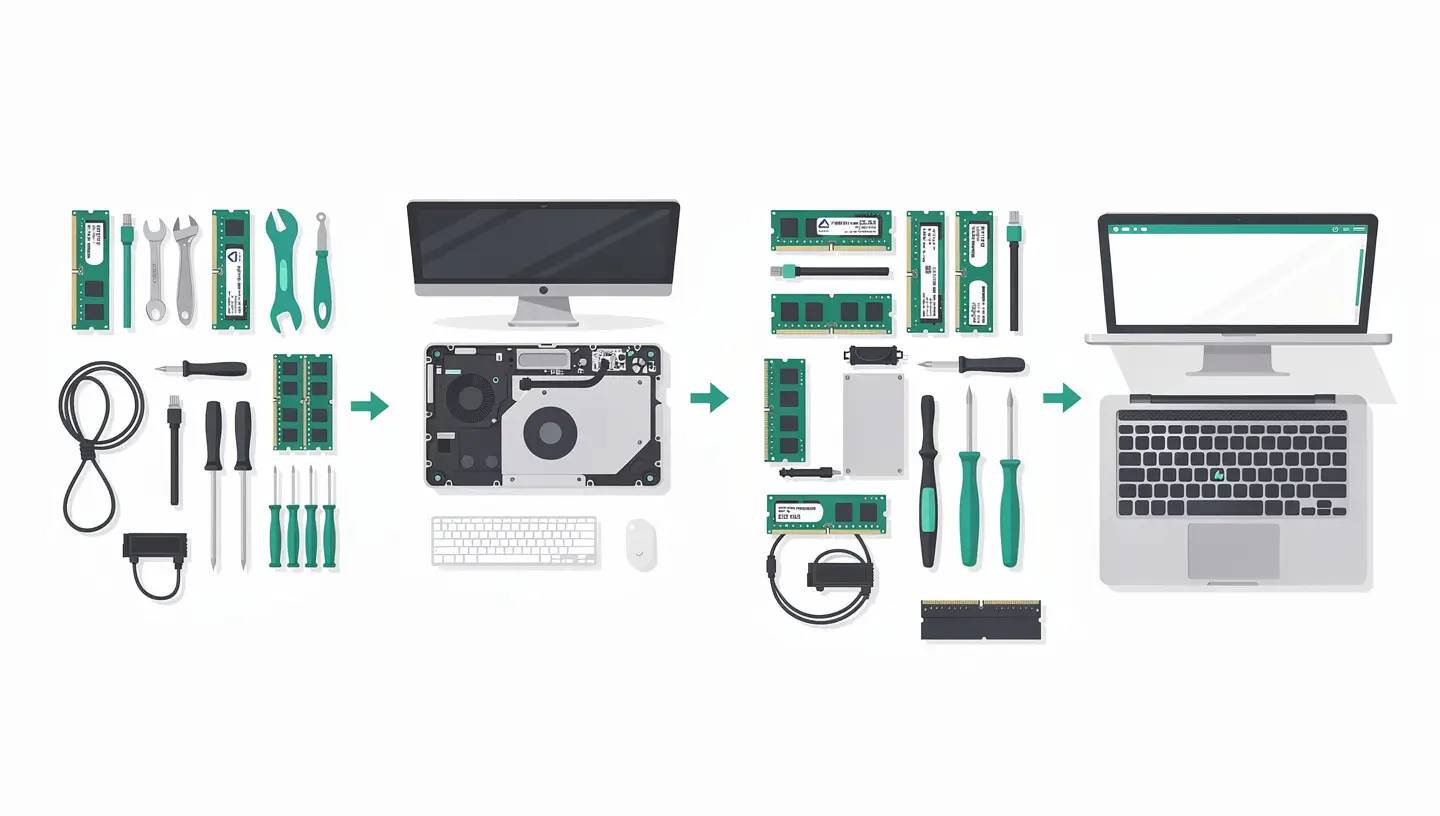
The 27″ iMac is the easiest Mac to add RAM to. Apple has provided a dedicated access hatch - it's even one of the few operations Apple describes in its user manuals.
Check: Apple menu → About this Mac - the amount of memory displayed should correspond to the total installed. If the Mac beeps on start-up, remove the memory sticks and reinstall them, checking the alignment.
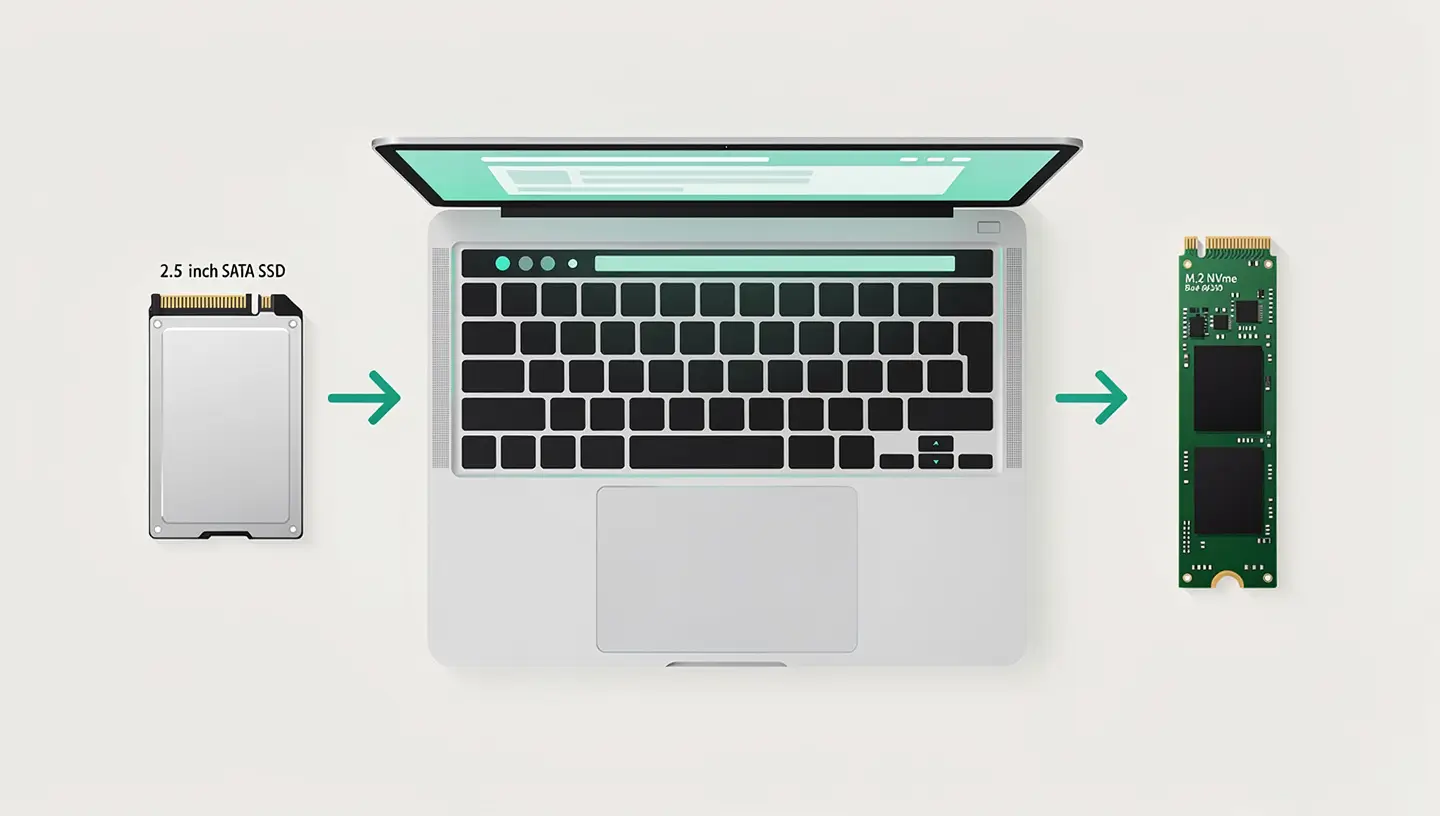
Non-Retina MacBook Pros (2009-2012) allow RAM to be added via the bottom cover - the same hatch gives access to the hard drive, making it possible to perform a double RAM + SSD upgrade in a single operation.
If you are also considering a change of SSD in the same MacBook Pro, consult our guide to choosing and installing an SSD - both operations can be carried out in a single opening of the bonnet. And if you prefer to leave the operation to a professional, our RAM installation service includes modules, labour and stability tests, with a 180-day guarantee.
If you have a Mac with an M1, M2, M3 or M4 chip, the memory is physically integrated into the SoC (System on a Chip) - on the same substrate as the processor and GPU. This is what Apple calls the unified memory, It cannot be changed after purchase.
Unified memory offers higher bandwidth than traditional RAM (up to 800 GB/s on Ultra chips) and reduced latency. The CPU and GPU share the same memory pool, with no data copies between the two. In practice, 16GB of unified memory is often equivalent to 24-32GB of traditional DDR4 or DDR5 in terms of user experience.
Since memory cannot be added afterwards, the choice at the time of purchase is strategic. 8 GB is suitable for office use and browsing. 16 GB is the recommended all-rounder. 32 GB is justified for creative professionals. Beyond that, only the most demanding workflows (film production, scientific simulation) require 64 GB or more. For a full analysis of the modularity of recent Macs, see our article repairability of Apple Silicon Macs.
To find out more about the memory specifications of each chip, Apple details its processors on the Apple chipset technical specifications page. And for models where the addition of RAM is possible, Apple provides instructions in its support page dedicated to memory installation.
Click on the Apple menu → About this Mac. The amount of memory is displayed directly. For more details (type, speed, occupied/free slots), open System Report → Memory.
No. No MacBook Air model has ever had replaceable RAM. Memory is soldered into every MacBook Air, whether Intel or Apple Silicon. The amount of RAM must be chosen at the time of purchase.
8 GB is enough for office, web and video viewing. 16 GB is recommended for multitasking, development and photo editing. 32 GB is for video editing, 3D and virtualisation.
Technically, yes, but it's not recommended. For best performance and maximum stability, use identical strips (same brand, same capacity, same speed). Mixing different capacities disables Dual Channel mode.
Beeps indicate a memory problem. Switch off the Mac, remove the memory sticks and reinstall them, checking the alignment of the slot. Test each strip individually in each slot to identify a faulty strip. If the problem persists, perform an NVRAM reset (Cmd + Option + P + R at startup on Intel Macs).
If your Mac still has a mechanical hard drive, replacing it with an SSD will have a more dramatic impact than adding RAM. If your Mac already has an SSD and the Activity Monitor shows yellow or red memory pressure, RAM is the priority. The ideal solution is to combine the two. Our combined SSD + RAM service offers a preferential pack rate.
On 27″ iMacs and Mac Pros, Apple officially recognises the addition of RAM by the user - it is not covered as a cause for warranty cancellation. On pre-2013 MacBook Pros, Apple tolerates the operation but does not officially document it. Any damage caused during the procedure will not be covered.
The Crucial (crucial.com) and Kingston (kingston.com) websites offer compatibility tools that automatically identify memory sticks for your exact model. Amazon.de and Coolblue.be also offer a good choice. Avoid unbranded memory sticks: the savings of a few euros are not worth the risk of instability.
For office work, web browsing and media consumption, 8GB of unified memory works thanks to the efficiency of the Apple Silicon architecture. But as soon as you open several demanding applications in parallel or work with Apple Intelligence, 8GB shows its limits. If you can invest in 16GB when you buy it, it's the best choice for the long term.
Absolutely. With over 15 years' experience since 2010, our team adds RAM to all compatible models. Professional-quality memory sticks, MemTest stability test after installation and 180-day warranty. Consult our RAM service page for detailed rates or contact appointment.


Over 15 years of Apple expertise in Brussels. Free, no-obligation quote and 180-day guarantee on repairs.