

Before any optimisation, you need to know the state of your battery. A degraded battery will not regain its original autonomy, regardless of the software settings. macOS includes a simple tool for checking this.
Open System settings, click on Battery in the sidebar, then on Battery status (to the right of the graph). You'll see two key pieces of information: maximum capacity as a percentage and general status (Normal, Service Recommended or Needs Replacing).
Hold down the Option and click on the battery icon in the menu bar. The status is displayed directly: Normal, Replace soon, Replace now or Repair battery.
| Maximum capacity | Status | What it means |
|---|---|---|
| 90 to 100 % | Excellent | Battery in perfect condition, near-new autonomy |
| 80 to 89 % | Good | Normal wear and tear, moderate loss of independence |
| 70 to 79 % | Downgraded | Significant loss of autonomy, replacement to be considered |
| Less than 70 % | Used | Replacement recommended, battery life greatly reduced |
A charge cycle corresponds to using 100 % of the battery's capacity, but not necessarily all at once. If you use 60 % of the battery one day and 40 % the next, you have completed one cycle, even if you have recharged in between.
The life of a MacBook battery is measured in cycles:
| MacBook model | Maximum recommended cycles | Typical range new |
|---|---|---|
| MacBook Air M1/M2/M3 | 1000 cycles | 15 to 18 hours |
| MacBook Pro 14/16″ M1 Pro/Max and more | 1000 cycles | 2 to 10 p.m. |
| MacBook Pro 13″ Intel (2016-2020) | 1000 cycles | 8 to 10 hours |
| Intel MacBook Air (2018-2020) | 1000 cycles | 10 to 12 hours |
| MacBook Pro 15″ Retina (2012-2015) | 1000 cycles | 7 to 9 hours |
To find out how many cycles your battery has: click on the Apple menu, keep Option and click on System information, then select Power supply in the sidebar. The number of cycles is displayed under «Battery information».
The battery icon in the menu bar is your best ally. Click on it and macOS will show you the applications that are currently using the most energy. If you see «Applications using a significant amount of energy», click on the name of the application to bring it to the foreground and decide whether you can close it.
For a more detailed view, open the Activity monitor (Applications, Utilities, Activity Monitor) and click on the Energy. The «Energy impact» column shows current consumption, while «Energy averaged over 12 hours» gives an overview of the day.
The applications that consume the most energy on a daily basis are generally browsers with lots of tabs, videoconferencing tools (Zoom, Teams), creative software (Photoshop, Final Cut Pro), email clients that are constantly synchronising and applications that run in the background without you knowing it (Dropbox indexing, Spotlight rebuilding, etc.).
The display is the component that consumes the most energy on a MacBook. Reducing brightness from 100 % to 50 % can add one to two hours of battery life, depending on the model. This is the setting that has the biggest immediate impact.
To adjust brightness, use the F1 (decrease) and F2 (increase) on the keyboard. You can also go to System settings, then Screens, and drag the brightness slider.
Also activate the automatic brightness In System settings, then Displays, tick «Automatically adjust brightness». The ambient light sensor will adapt the brightness to the lighting in the room, saving energy in dark environments.
Le True Tone, available on MacBooks since 2018, adapts the colour temperature to the ambient lighting. It consumes very little energy and improves visual comfort, so leave it on.
macOS offers specific settings to extend battery life. Here are the settings to check:
Open System settings and click on Battery. Activate the Energy saving mode when you need maximum autonomy. This mode reduces the processor frequency, reduces brightness and disables certain background tasks.
You can set the power-saving mode to activate automatically when MacBook is not plugged in: choose «Battery only» from the drop-down menu next to «Power-saving mode».
| Setting | Where to find it | Impact on autonomy |
|---|---|---|
| Energy saving mode | System settings, Battery | Savings of 1 to 3 hours depending on the load |
| Put disks on standby if possible | System settings, Battery, Options | Modest gain, useful on Macs with hard disk |
| Turn off the screen after 2-3 min | System settings, Lock screen | Significant gain if you often leave the office |
| Reducing animations | System settings, Accessibility, Display | Marginal but cumulative gain |
| Dark mode | System settings, Appearance | Significant gains on MacBooks with OLED screens (M3 Pro/Max and above) |
Bluetooth and Wi-Fi consume energy even when no device is connected, because the chips remain in search mode. If you're working offline on a document or creative project, switching off these connections can save 30 to 45 minutes of battery life.
To quickly deactivate Bluetooth, click on the Bluetooth icon in the menu bar and select «Deactivate Bluetooth». For Wi-Fi, click on the Wi-Fi icon and select «Deactivate Wi-Fi».
Don't forget the Bluetooth devices that are permanently connected: AirPods, Magic Mouse, external keyboards, speakers. Each active connection consumes some energy. Disconnect any devices you're not actively using.
Each push notification requires a network connection, processor processing and screen display. Multiplied by dozens of applications, these micro-sollicitations accumulate over the course of the day.
Go to System settings, then Notifications. Go through the list and deactivate notifications for applications that don't really need them. Keep only email alerts, calendar alerts and work-critical applications.
You can also activate the Concentration mode (the moon icon in the Control Centre) to temporarily block non-essential notifications. This is effective during periods of intensive work when you don't need to be interrupted.
The choice of browser has a direct and measurable impact on the battery life of your MacBook. Safari, developed by Apple and optimised for macOS, consumes significantly less energy than Chrome or Firefox.
| Browser | Relative consumption | Remarks |
|---|---|---|
| Safari | Reference (lowest) | Optimised for macOS, native power management, suspends inactive tabs |
| Firefox | +15 to 25 % vs Safari | Better than Chrome, strict protection mode reduces ad scripts |
| Chrome | +25 to 40 % vs Safari | Processes separated by tab, extensions often greedy |
| Arc | +20 to 30 % vs Safari | Based on Chromium, overconsumption linked to Boosts and spaces |
If you can't give up Chrome (professional extensions, compatibility), at least reduce the number of tabs you open and deactivate unnecessary extensions (Menu, Extensions, Manage extensions). Some extensions, such as ad blockers, paradoxically reduce consumption by preventing advertising scripts from running.
MacOS updates often include power management optimisations that improve battery life. Apple regularly fixes bugs that cause abnormal discharge: a system process that runs in a loop, a poorly optimised graphics driver, a bug in the management of standby states.
Open System settings, then General, then Software updates. Install the available updates and restart your MacBook.
After a major update, it is normal for the battery to drain faster for 24 to 48 hours. The system re-indexes Spotlight, optimises caches and performs compilations in the background. Leave the MacBook plugged in during this period so as not to distort your judgement of actual battery life.
The SMC (System Management Controller) manages the battery, charge and power on Intel Macs. A malfunction of the SMC can cause an accelerated discharge, a battery percentage that jumps erratically or a charger that is not detected.
The reset procedure depends on your model:
MacBook with T2 chip (2018-2020) : switch off the MacBook Ctrl + Option + Shift (left side) for 7 seconds, then add the power button and hold the four buttons for 7 seconds. Release, wait a few seconds and switch on again.
MacBook without T2 chip (before 2018) : switch off the MacBook Shift + Ctrl + Option (left) and the power button for 10 seconds. Release and switch back on.
Since macOS Big Sur, Apple has been offering a feature that extends battery life over the long term: the optimised load. This feature learns your charging habits and delays charging beyond 80 % until you need to use the MacBook.
Why it's important: keeping a lithium-ion battery at 100 % all the time accelerates its chemical degradation. Optimised Charging keeps the battery around 80 % when the MacBook is plugged in most of the time, and only fully charges it when it anticipates that you're going to need it.
To check that the function is activated, go to System settings, then Battery, then Battery status. The «Optimised battery charge» option must be activated. This is the default setting, but some users unknowingly deactivate it.
When software optimisation is no longer enough and the maximum capacity has fallen below 80 %, replacing the battery is the definitive solution. This is the most popular procedure at MAC Repair, and it literally gives your MacBook a new lease of life.
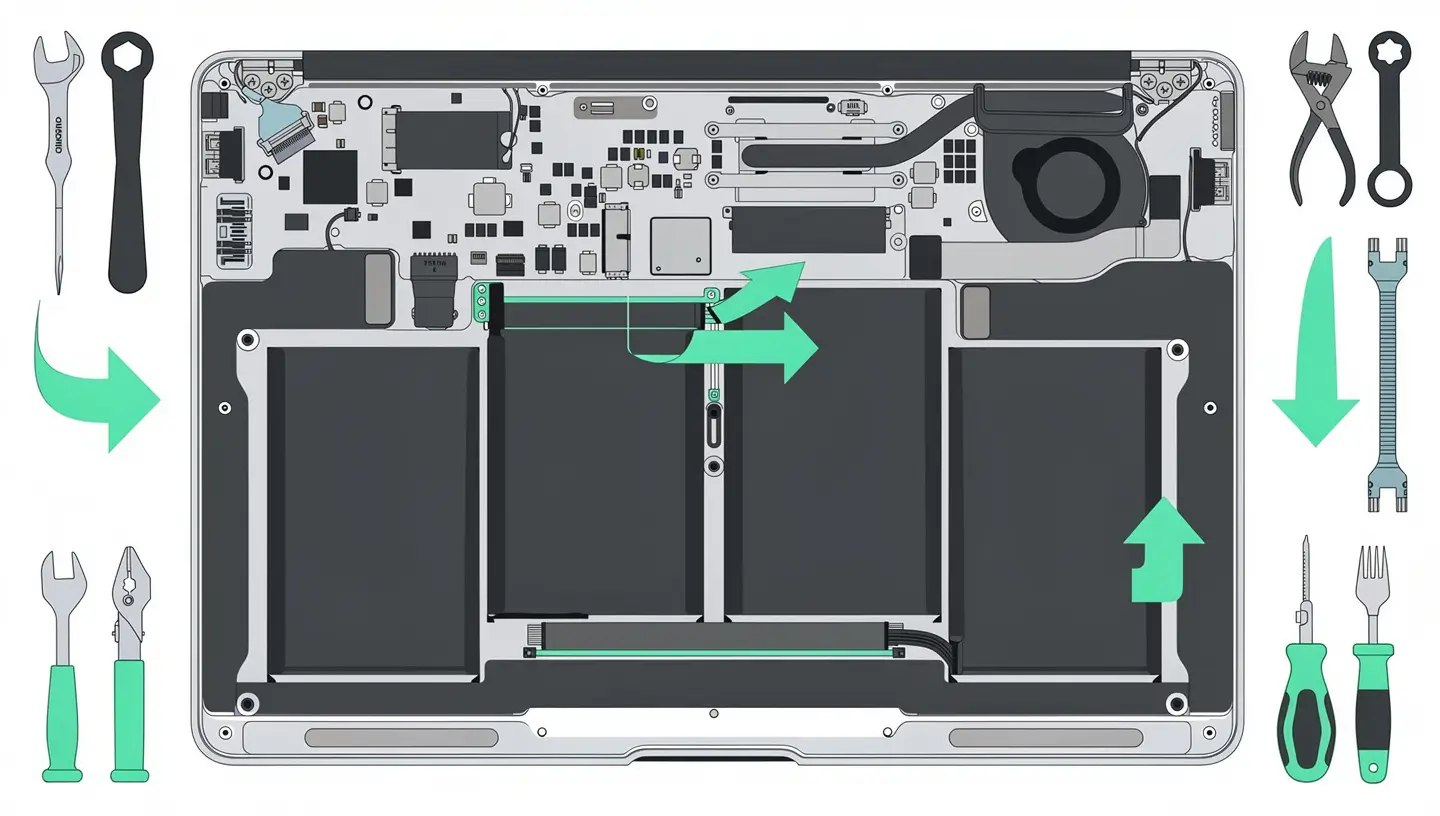
Signs that a replacement is needed :
| Symptom | What it means |
|---|---|
| Maximum capacity at 80 % | Advanced chemical wear, irreversible loss |
| MacBook shuts down at 20-30 % battery life | Faulty calibration or damaged cells |
| Battery swollen (trackpad raised, shell deformed) | Urgent replacement, safety risk |
| Autonomy of less than 2 hours in light use | End-of-life battery |
| Service recommended« message in macOS | Apple detects a significant deterioration |
At Réparation MAC, we use professional quality batteries with a 180-day guarantee. Replacement usually takes 1 to 2 hours, depending on the model. See our rates by model or take a online appointment. You can also consult our page dedicated to Mac battery replacement for more details on the procedure.
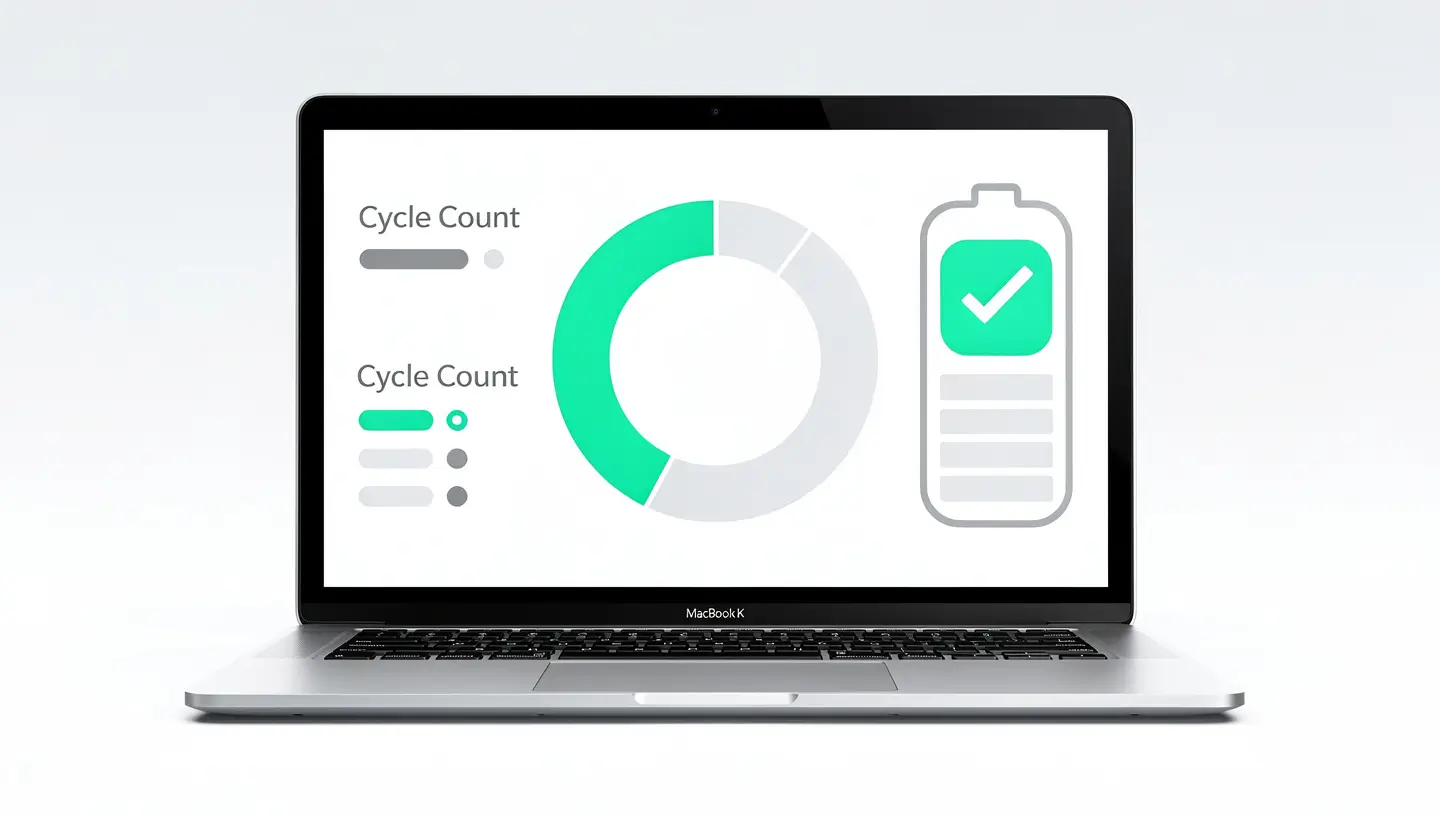
Apple designs its batteries to retain 80 % of their capacity after 1,000 charge cycles. In normal use, this represents around 3 to 5 years, depending on your habits. An Apple Silicon MacBook typically offers 15 to 22 hours of new battery life, while an Intel model will last around 8 to 12 hours.
With optimised charging enabled (by default from macOS Big Sur), you can leave your MacBook plugged in without too much worry. The system limits charging to 80 % and only tops up when it anticipates that you're going to need it. Without this feature, a battery maintained at 100 % at all times will degrade faster.
Yes, the energy-saving mode slightly reduces the processor frequency and brightness. For office work, web browsing and email, the difference is imperceptible. For video editing, 3D or code compilation, you will feel a slowdown. Activate it only when autonomy is a priority.
This behaviour generally indicates a hardware problem: the battery has damaged cells which are not discharging evenly. Resetting the SMC can sometimes improve calibration, but if the problem persists, a battery replacement is necessary.
Prices vary depending on the exact MacBook model. At MAC Repair, our prices include the professional-quality battery, labour and a 180-day guarantee. See our detailed rates to find out the price for your model.
Yes, the difference is documented and measurable. Chrome can consume 25 to 40 % more energy than Safari for comparable use. This is due to Chrome's multi-process architecture and the fact that Safari benefits from optimisations specific to macOS and Apple chips.
It depends on your screen. On MacBook Pros with OLED screens (M3 Pro/Max and later), yes: black pixels consume less energy. On LCD screens (the majority of MacBooks), the impact is negligible because the backlight remains active regardless of the colour displayed.
After a major macOS update, the system performs optimisation tasks in the background for 24 to 48 hours. Leave your MacBook plugged in during this time. If the abnormal discharge persists after 3 days, check the Activity Monitor to identify a process that is consuming power abnormally.
On older models (MacBook Pro Retina 2012-2015, MacBook Air pre-2018), this is technically feasible with the appropriate tools. On recent models, the battery is glued to the chassis and disassembly requires acetone or controlled heat, which can cause damage. We recommend a professional workshop for this work.
Enable optimised charging, avoid exposing your MacBook to extreme temperatures (above 35°C or below 0°C), don't let the battery discharge completely repeatedly and keep macOS up to date. These simple habits can add one to two years of useful life to your battery.


Over 15 years of Apple expertise in Brussels. Free, no-obligation quote and 180-day guarantee on repairs.