
When the sound suddenly disappears from your Mac, the cause may be software (the vast majority of cases) or hardware (rarer but more serious). Before you panic, you should know that in around 90 % of situations, the problem is due to an unintentional setting, a temporary software conflict or a bug in the audio controller - all of which can be resolved in a few minutes.
The most common causes are: volume muted by mistake (the F10 key on some keyboards), the wrong audio output selected (external speakers, disconnected AirPods, HDMI screen), a temporary malfunction of the Core Audio process, a conflict with an application that monopolises audio output, or a bug following a macOS update. More rarely: oxidation of the speakers after liquid damage, a disconnected internal cable, or a fault in the audio chip on the motherboard.
Before carrying out any technical operation, systematically go through this checklist. These checks may seem obvious, but on their own they solve most problems.
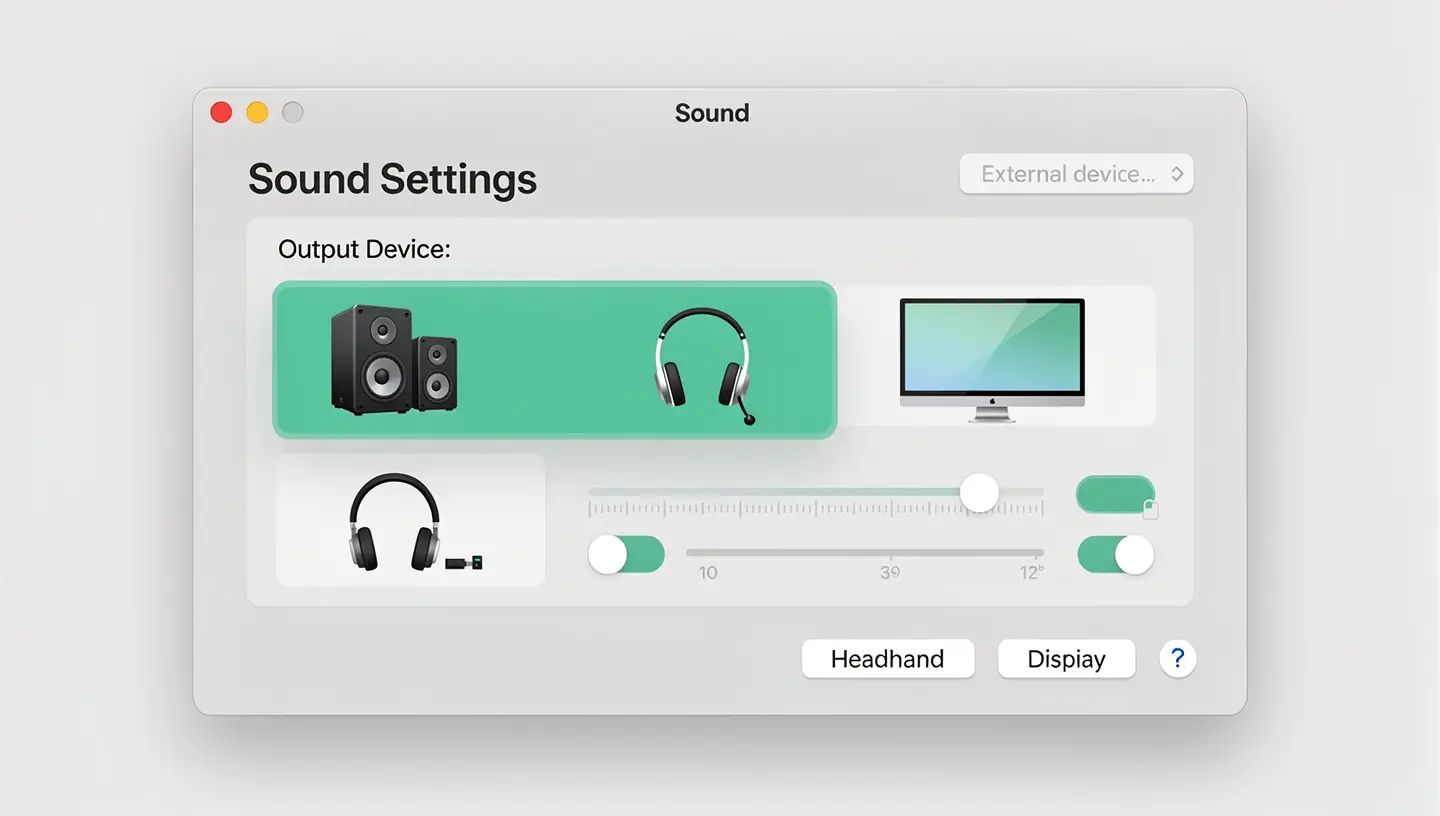
This is the number 1 cause of «no sound» on the Mac: macOS sends sound to an output that isn't the one you're listening to. This very often happens after connecting an HDMI display, AirPods, a Bluetooth speaker or a Thunderbolt cable.
If you see more than one device in the list (e.g. «HDMI Display», «AirPods», «MacBook Pro Speakers»), click on the one that corresponds to what you want to use. The sound should switch immediately.
If the output is correctly selected but the sound still doesn't work, the problem is probably with the coreaudiod, which manages the entire audio chain on macOS. Restarting it forces the system to reset the controller without having to restart the entire Mac.
This operation is completely risk-free: macOS immediately relaunches coreaudiod after it has been forced to close, but this time with a clean configuration. In the majority of cases where the sound was stuck, this trick unblocks it immediately.
If the previous solutions have not worked, the NVRAM (which stores certain audio settings) or the SMC (which manages the hardware) may contain corrupted values. A reset erases these values and forces the system to regenerate them cleanly.
On a MacBook with a non-removable battery: switch off the Mac, hold down Shift + Option + Ctrl + power button for 10 seconds, release everything, then switch on again as normal.
If the sound works in some applications but not others, the problem is isolated to the application concerned. There are several possible causes.
~/Library/Preferences/ then relaunch it.To identify exactly which application is blocking sound, open the Activity monitor and sort by CPU usage - an application that is consuming abnormal resources for no reason may be freezing the audio chain. For more techniques for diagnosing problem applications, see our article Slow Mac: 12 solutions.
If all software solutions have failed, the problem probably lies with the hardware. Here are the warning signs and the components likely to be at fault.
| Symptom | Probable cause | Solution |
|---|---|---|
| No sound, even after reset | Speaker failure or audio chip out of order | Technical diagnosis required |
| Sizzling, distorted or sputtering sound | Damaged loudspeaker (often after liquid damage) | Replacing the loudspeaker |
| Red light in the jack | Optical sensor blocked or port damaged | Port cleaning or replacement |
| Muted sound after liquid damage | Oxidation of audio components | Emergency deoxidation and ultrasonic cleaning |
| Only one speaker works | Speaker out of order or cable disconnected | Internal diagnosis and replacement |
| Sound OK on jack but not internally | Internal speaker failure | Replacing speakers |
Diagnosing a hardware audio fault involves opening the Mac to check the cables, test the speakers and inspect the soldering of the audio chip on the motherboard. If you suspect a hardware problem, our free diagnosis will identify the exact cause, with no obligation. In the event of recent liquid damage, time is of the essence: consult our emergency guide immediately. Mac in the water and our liquid damage repair.
Apple also offers its own resources on sound problems on Mac in its official guide.
MacOS updates sometimes change the internal audio drivers, which can cause temporary incompatibilities with certain configurations. Start by restarting coreaudiod via the Activity Monitor, then check the audio output in System Settings → Sound. If the problem persists, wait for the next minor update (10.x.1) which often fixes these regressions, or reset NVRAM on Intel Macs.
The red light in the headphone jack indicates that macOS detects a digital optical (S/PDIF) connection plugged in. If no cable is plugged in, the port sensor is blocked - often by dust, lint or a faulty sensor. Insert and remove a jack plug several times to unblock the sensor. If this doesn't work, clean the port with compressed air. As a last resort, the port should be replaced.
This is the classic symptom of a crashed coreaudiod or the wrong output selected. First check that the correct audio output is selected in System Settings → Sound → Output. If this is correct, restart the coreaudiod process via the Activity Monitor. This double check resolves 80 % of cases where «the volume moves but no sound comes out».
On Apple Silicon Macs (M1, M2, M3, M4), there is no longer a user-accessible SMC. All SMC functions are managed automatically by macOS. To resolve equivalent problems, a simple restart is sufficient in most cases. If the problem persists, boot into Safe Mode (hold down the power button until you reach the boot options, then Shift + Continue).
The crackling can come from both. Software source: application incompatibility after an update, background process saturating the audio bus, incorrect sampling rate in MIDI audio configuration. Hardware: speaker damaged by prolonged excessive volume, oxidation after liquid damage, faulty soldering. If the crackling disappears with headphones plugged in, the problem is in the internal speakers.
This almost always indicates a hardware fault in the internal speakers or their connection cable. The audio chip is working (since the jack is emitting sound), but the signal is no longer reaching the speakers. Possible causes: disconnected cable after a fall, internal oxidation after liquid damage, or burnt-out speakers. Most models are simple to replace.
Open the Activity Monitor and search for coreaudiod. If the process consumes more than 10 % of CPU continuously for no reason, or if it appears in red (Does not respond), it has crashed. Force it to close and it will restart automatically. You can also type : sudo killall coreaudiod to force it to restart immediately.
First check the internal volume of the application concerned. Then check the permissions in System Settings → Privacy and Security → Microphone and Audio. Some applications (Safari in particular) automatically mute tabs - right-click on the tab to reactivate. If a professional audio application (Logic, Pro Tools) is running in the background, it may monopolise the output: quit it completely.
If you've tried all the software solutions to no avail, it's probably a hardware fault. The components to check are: the internal speakers, the audio connection cable, the audio chip on the motherboard, and the headphone port. Our free diagnosis will identify the precise faulty component and provide you with a no-obligation quotation.
Yes, with over 15 years' experience since 2010, we diagnose and repair Mac audio faults: speaker replacement, repair of the audio chip using micro-soldering, deoxidation after liquid damage, jack port replacement. All our work is covered by a 180-day guarantee. Take appointment for a free diagnosis.


Over 15 years of Apple expertise in Brussels. Free, no-obligation quote and 180-day guarantee on repairs.