
Before trying to repair, determine whether the problem is software or hardware. The quickest test is to use Siri or Voice Dictation, which are built into macOS and independent of third-party applications.
Maintain Cmd + Space or click on the Siri icon in the menu bar. Ask a simple question like «What time is it? If Siri responds and displays your command as text, your microphone is working in hardware - the problem is with an application or authorisation.
If the bars move when you speak, the microphone is working. The problem lies elsewhere: authorisation denied to an application, the wrong input selected by the application itself, or a software conflict. If the bars don't move at all, go on to the next troubleshooting steps.
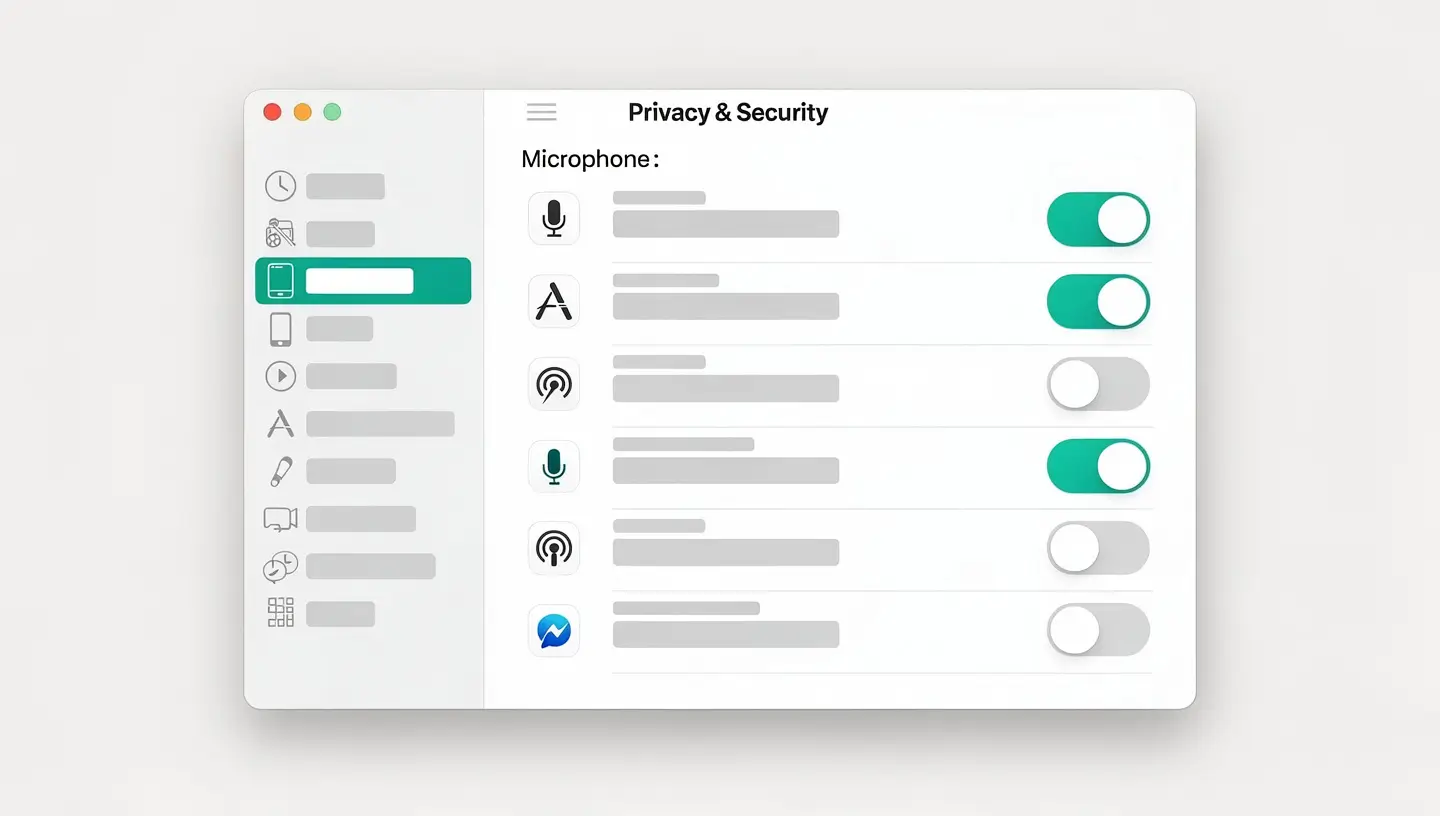
Since macOS Mojave, every application has to request permission to access the microphone. If you've accidentally refused during an installation, the application simply can't use your microphone - even if everything else is configured correctly.
If the application does not appear in the list, it has never requested authorisation. Launch the application and try to use the microphone - a system dialogue box should appear asking for authorisation. Click on Authorise.
If the authorisations are correct but the microphone still doesn't work, check the system settings.
If you're using USB headphones, AirPods or a Bluetooth speaker with a microphone, macOS sometimes automatically selects this device as the default input. If the device is incorrectly connected, unplugged or broken, you won't get any input sound. Solution: explicitly select Internal microphone in the list, or unplug the external device.
Each videoconferencing application has its own microphone settings which can overload those of the system. Here are the specific checks.
FaceTime automatically uses the system microphone. If FaceTime doesn't pick up your voice, the problem is with the system settings (Authorisations or System Settings → Sound → Input), not FaceTime itself. Check these settings first before reinstalling the application.
It's a little-known but often effective trick: activate the Voice dictation macOS forces the system to reload audio drivers and microphone permissions. This resolves persistent bugs that resist other methods.
This works particularly well after a macOS update that has disrupted the audio drivers. You can disable Dictation immediately afterwards if you don't want to use it.
If all the software solutions have failed and Siri itself can no longer hear you, the microphone may be physically faulty. There are several possible causes.
| Symptom | Probable cause | Solution |
|---|---|---|
| No microphone response, even via Siri | Microphone disconnected or faulty | Diagnosis and replacement |
| Very weak and distorted sound | Damaged microphone membrane | Replacing the microphone |
| Micro HS after liquid damage | Oxidation of contacts | Deoxidation or replacement |
| Microphone out of order after a fall | Disconnected or broken tablecloth | Reconnection or replacement of water table |
| Constant noise or murmur | Internal short circuit | Motherboard diagnostics |
On most recent MacBooks, the microphone is integrated into the top case (the keyboard + top chassis assembly) and cannot be replaced individually. On iMacs, the microphone is more accessible. In all cases, a professional diagnosis is required to confirm the fault and assess the cost of repair. Our free diagnosis precisely identifies the origin of the problem, and our expertise in micro-welding can repair even complex audio chip faults. In the event of recent liquid damage, contact us quickly via our liquid damage repair service.
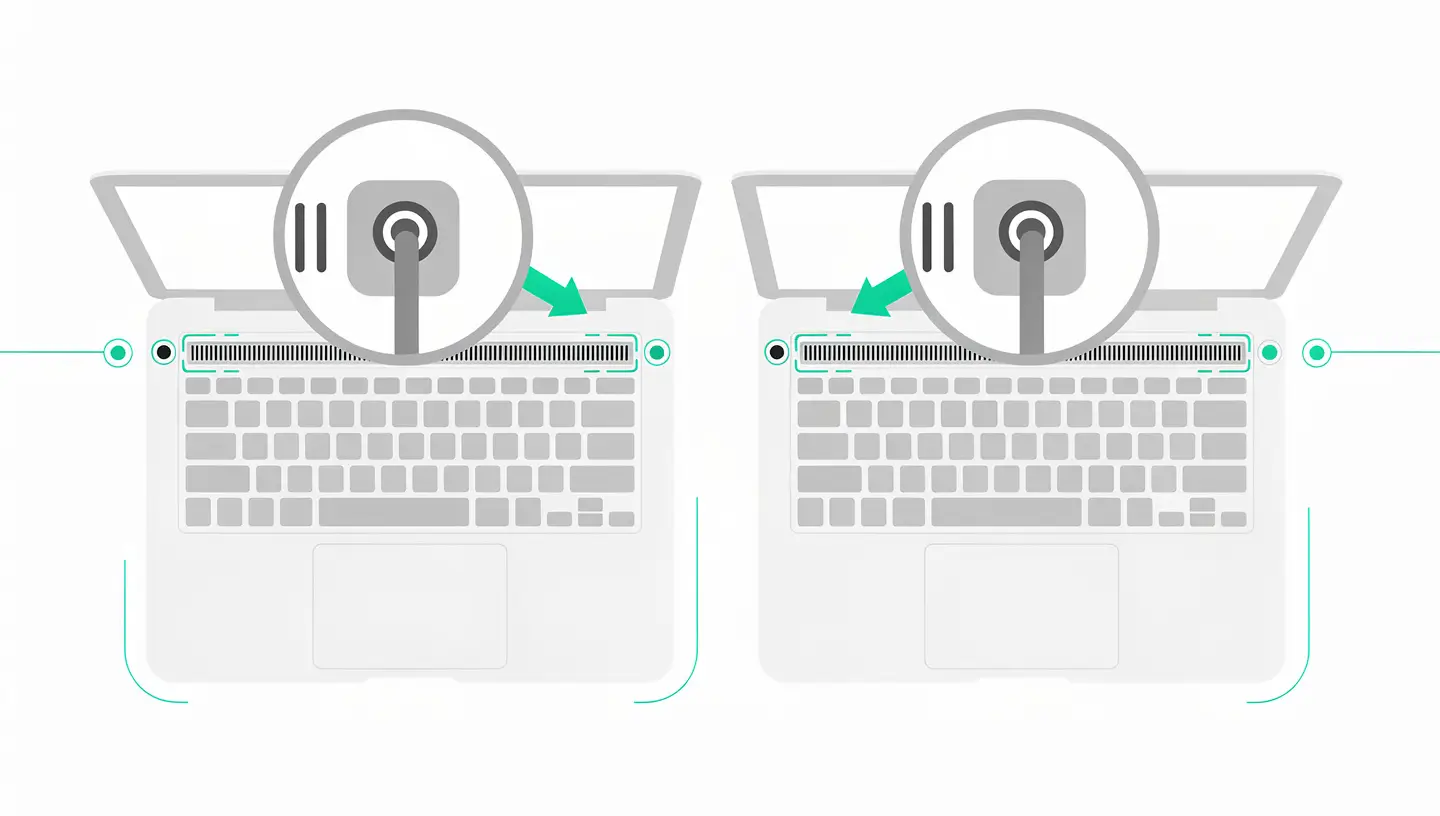
Apple offers its own resources on audio input settings on Mac.
Each application manages its authorisations and audio sources independently. First check that Teams is authorised in System Settings → Privacy and Security → Microphone. Then, in Teams, go to Settings → Devices and select the correct microphone. Exit and relaunch Teams after each change.
Yes, that's quite normal. The Mac mini, Mac Pro and Mac Studio don't have a built-in microphone. To use a microphone with these machines, you'll need to plug in a USB headset with a mic, a dedicated USB mic or use AirPods. Once plugged in, the device appears in System Settings → Sound → Input.
MacOS updates sometimes reset Confidentiality authorisations. Go to System Settings → Privacy & Security → Microphone and check that your applications are still authorised. Enable Voice Dictation to force the audio drivers to reload. If the problem persists on an Intel Mac, reset the NVRAM.
The most reliable test is Siri. If Siri hears you and transcribes your commands correctly, the microphone is working in hardware - the problem is software. If Siri doesn't respond at all, and no bars move in System Settings → Sound → Input even when speaking loudly, the microphone is probably faulty or disconnected.
Check the Input Volume in System Settings → Sound → Input - it should be around 75 %. Uncheck Ambient Noise Reduction, which can muffle your voice. Make sure nothing is physically obstructing the microphone (case, sticker, dust in the grille). On recent MacBooks, gently clean the microphone grille with compressed air.
There are several possible causes: input volume too high which saturates the microphone (reduce to 60-70 %), interference from a Bluetooth device, a physically damaged microphone (pierced membrane), or incorrectly configured audio filters in the videoconferencing application. Test with a USB headset to isolate the problem.
Open Terminal and type : tccutil reset Microphone. Press Enter and enter your password. This command deletes all existing microphone authorisations. The next time you launch an application that uses the microphone, it will ask you for authorisation again.
Siri uses a specific audio processing chain. Check that Siri is activated in System Settings → Siri and Spotlight. Also check that Siri's language matches your spoken language. Deactivate then reactivate Siri to force a reset. If the problem persists, disconnect and then reconnect to your Apple ID.
First check in System Settings → Sound → Input that headphones are selected as the input source. Then check MIDI Audio Configuration (Applications → Utilities) to see if the device is correctly detected. Test the headphones on another computer to confirm that they work. If so, the problem is a driver or USB conflict on your Mac.
Yes, with over 15 years' experience since 2010, we diagnose and repair microphone faults: reconnection of the mat, deoxidation after liquid damage, replacement of the microphone module, micro-soldering of the audio chip. 180-day guarantee on all repairs. Take appointment for a free diagnosis.


Over 15 years of Apple expertise in Brussels. Free, no-obligation quote and 180-day guarantee on repairs.