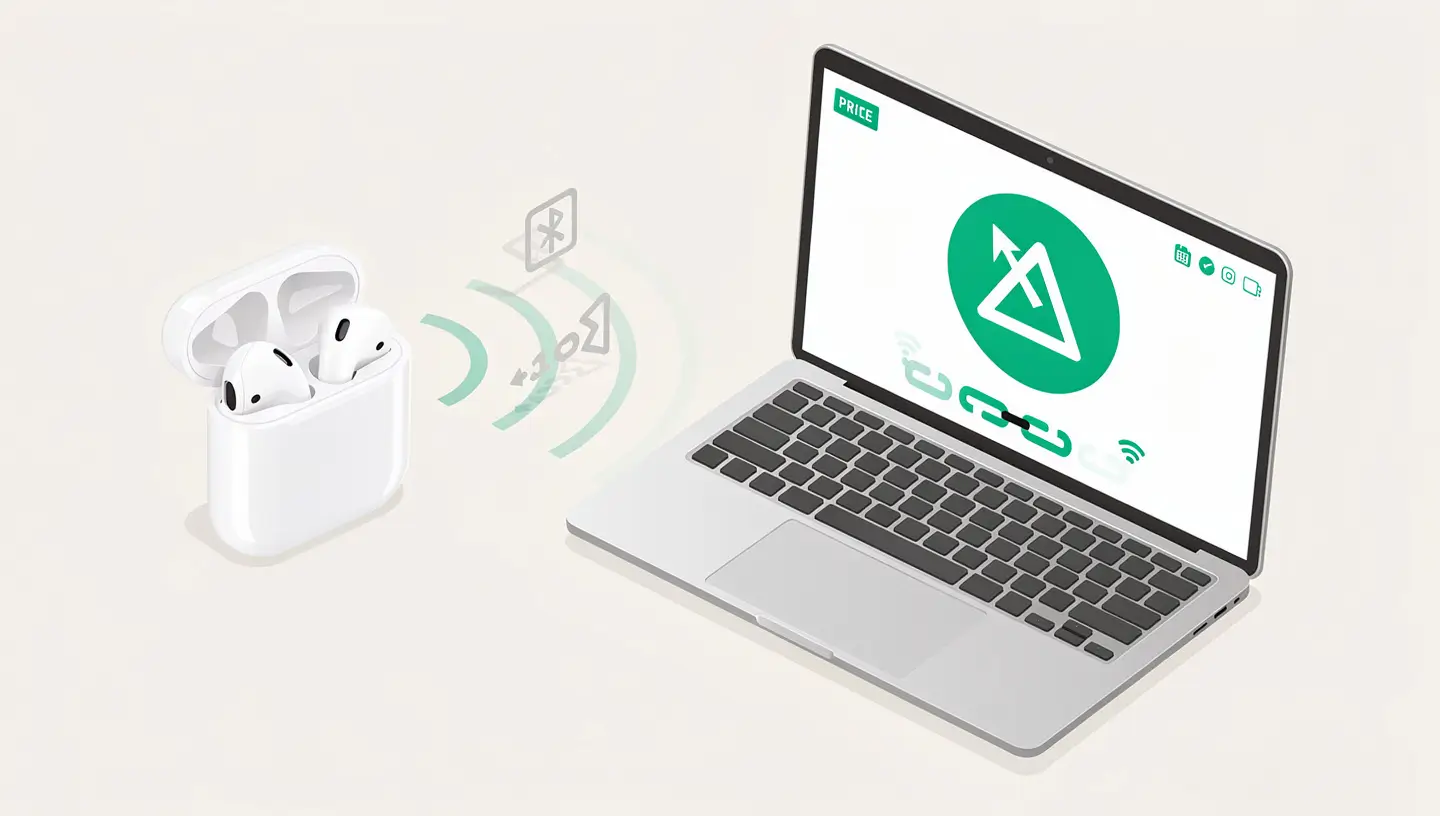

Bluetooth is a temperamental technology that can fail for a variety of reasons. On the Mac, the symptoms range from the mild («my AirPods sometimes disconnect») to the critical («Bluetooth not available», preventing any connection). In most cases, the problem is software-related and can be resolved in a few minutes.
The most common causes: a corrupted Bluetooth preferences file (.plist) after a macOS update, too many devices paired simultaneously (the practical limit is 7), interference with Wi-Fi sharing the 2.4 GHz band, a conflict with a connected USB-C device, or a Bluetooth module that has gone into standby mode incorrectly. More rarely, the physical Bluetooth module (integrated into the motherboard on recent Macs) has failed.
Before any advanced manipulation, try the basic solutions. They solve most cases on their own.
If simply disabling it wasn't enough, restart the Mac completely (Apple menu → Restart). This will force a reset of all system services, including the Bluetooth controller. This simple procedure solves a large number of temporary problems.
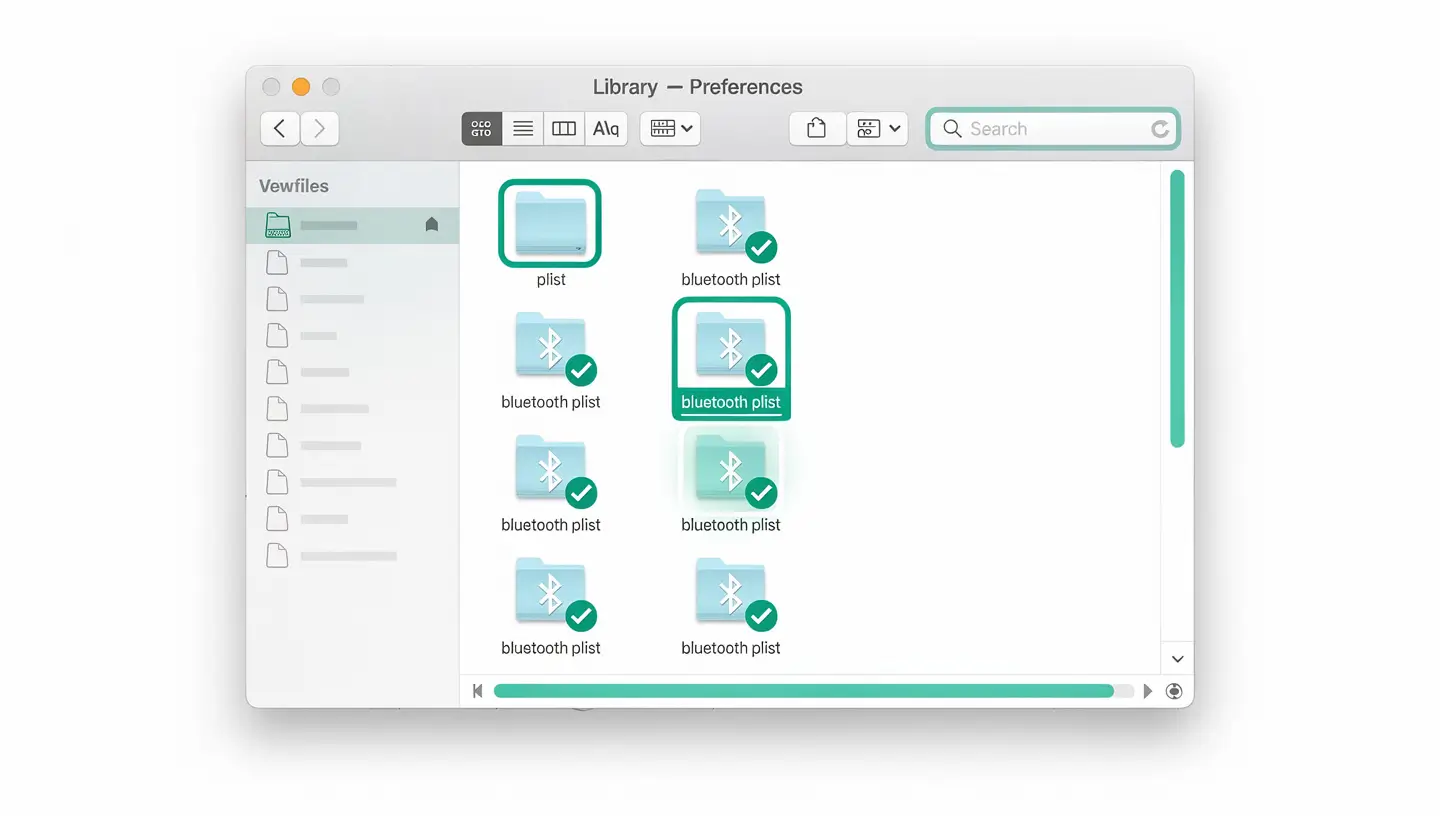
The .plist files contain the Bluetooth preferences - the list of paired devices, their configurations and authorisations. When one of these files is corrupted (which happens quite often after a macOS update), the whole Bluetooth system can crash. The solution: delete them to force macOS to regenerate them properly.
/Library/Preferences/ and press Enter.~/Library/Preferences/ByHost/ - delete all files starting with com.apple.Bluetooth.macOS will regenerate these files automatically on start-up. You'll need to re-pair all your Bluetooth devices - that's normal and that's the whole point.
On Intel Macs equipped with older versions of macOS, there used to be a hidden menu that allowed you to reset the Bluetooth module with one click. This option has disappeared on recent versions, but is still accessible via Terminal on certain configurations.
sudo pkill bluetoothdOn macOS Ventura and later, the hidden menu option is no longer available - the Terminal command is still the most reliable method.
For persistent Bluetooth problems on Intel Macs, the NVRAM/SMC reset can solve the problem by erasing hardware settings that may be corrupted.
Switch off the Mac. Turn it on by holding Cmd + Option + P + R for about 20 seconds (until the second start-up sound is heard). Release and allow to start normally.
On a MacBook with a non-removable battery: switch off, hold down Shift + Option + Ctrl + power button for 10 seconds, release, then switch on again.
On Apple Silicon Macs, neither NVRAM nor SMC are accessible - Apple has replaced them with system-integrated management. For persistent Bluetooth problems, boot into Safe Mode:
Safe mode clears some system caches and disables third-party extensions, which can resolve Bluetooth conflicts. If Bluetooth works in safe mode, restart normally and test again - often, simply switching to safe mode fixes the problem.
Bluetooth uses the 2.4 GHz band, which it shares with WiFi and many domestic devices. Interference is an underestimated cause of Bluetooth problems.
To confirm interference, move your Mac to another room, remove all USB devices and try the connection. If Bluetooth works in this neutral environment, you've got your culprit.
On recent Macs, the Bluetooth module is integrated into the motherboard and cannot be replaced on its own. Hardware failure is rare but possible, usually after water damage, a fall, or a macOS update that has «fried» the module's firmware.
| Symptom | Probable cause | Solution |
|---|---|---|
| Bluetooth not in the System Report | Module not detected by macOS | Motherboard diagnostics required |
| Bluetooth not available after liquid damage | Oxidation of the wifi/Bluetooth module or cable | Urgent deoxidation |
| Bluetooth AND wifi down simultaneously | Faulty wifi/BT combo card | Replacing the card (on compatible models) |
| Very unstable connections, constant disconnections | Bluetooth antenna disconnected or broken | Reconnecting or replacing an antenna |
| Bluetooth out of order after macOS update | Corrupted firmware (rare) | Reinstalling macOS via Recovery mode |
If the Bluetooth section is empty or displays «No information available», this is a sure sign of a hardware problem. Our free diagnosis precisely identifies the component in question, and our expertise in micro-welding allows us to repair complex faults linked to the wifi/Bluetooth controller. If the problem follows recent liquid damage, contact us urgently via our liquid damage repair.
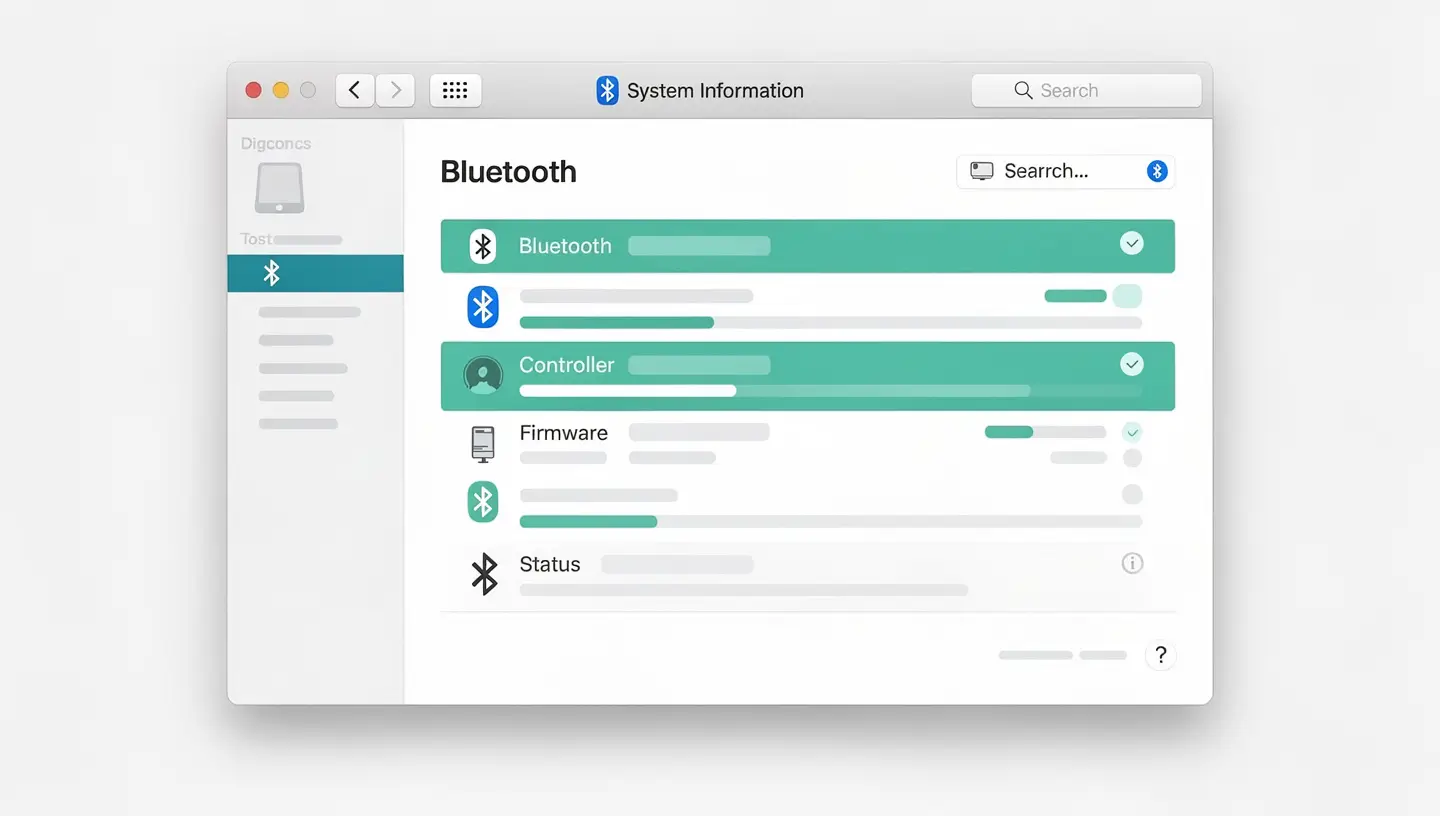
Apple offers its own resources on the Bluetooth configuration on Mac.
This message indicates that macOS cannot communicate with the Bluetooth controller. This may be due to a crashed system service (restart with sudo pkill bluetoothd), corrupt .plist files (delete and restart), or more rarely a hardware failure. Always restart your Mac before doing anything else.
Theoretically 7 simultaneous devices, but in practice the comfortable limit is 3 to 4 active devices. Beyond that, you'll run into problems with bandwidth, latency and unwanted disconnections. If you have a lot of devices paired up, delete the ones you no longer use.
Main causes: interference with a USB 3.0 or USB-C port (move USB peripherals further away), 2.4 GHz Wi-Fi interference (switch to 5 GHz), low Bluetooth device battery, too great a distance from the Mac, or too many devices paired simultaneously. Test by deleting unused devices.
Check System Settings → Sound → Output: your AirPods should be selected. If they are, but the sound still comes through the internal speakers, delete the AirPods (Bluetooth → Forget) and pair them again. For details specific to AirPods, see our article AirPods that don't connect to the Mac.
On Apple Silicon Macs, there is no longer a hidden reset menu. Use the Terminal command sudo pkill bluetoothd which forces the Bluetooth service to be restarted. In addition, delete the Bluetooth .plist files in /Library/Preferences/ and restart. Safe mode is also very effective.
This is a classic problem. Solutions in order: restart the Mac, delete the Bluetooth .plist files, start up in safe mode then restart normally, wait for the next minor update (10.x.1) which generally corrects these regressions. If nothing works, restore the previous version of macOS from Time Machine.
Bluetooth loads late when macOS starts, which may prevent you from using the keyboard/mouse to enter the FileVault password. Workaround: temporarily connect a wired keyboard to log in, or enable auto unlock with your Apple Watch in System Settings → Security.
A greyed-out Bluetooth switch usually indicates a hardware problem or corrupted firmware. Try the Terminal command first sudo pkill bluetoothd. If this doesn't work, delete the Bluetooth .plist files and restart. As a last resort, if the switch remains greyed out, it's probably the Bluetooth controller that's faulty - a technical diagnosis is required.
On recent Silicon Apple Macs, the Bluetooth module is integrated into the SoC (System on a Chip) and cannot be replaced separately. On older Intel Macs (notably iMac and pre-2016 MacBook Pro), the wifi/Bluetooth combo card is sometimes replaceable. A diagnostic is required to confirm feasibility based on your exact model.
Yes, with over 15 years' experience since 2010, we diagnose Bluetooth faults: antenna reconnection, deoxidation after liquid damage, replacement of wifi/Bluetooth combo card on compatible models, micro-soldering of the controller on the motherboard. 180-day guarantee. Take appointment for a free diagnosis.


Over 15 years of Apple expertise in Brussels. Free, no-obligation quote and 180-day guarantee on repairs.