
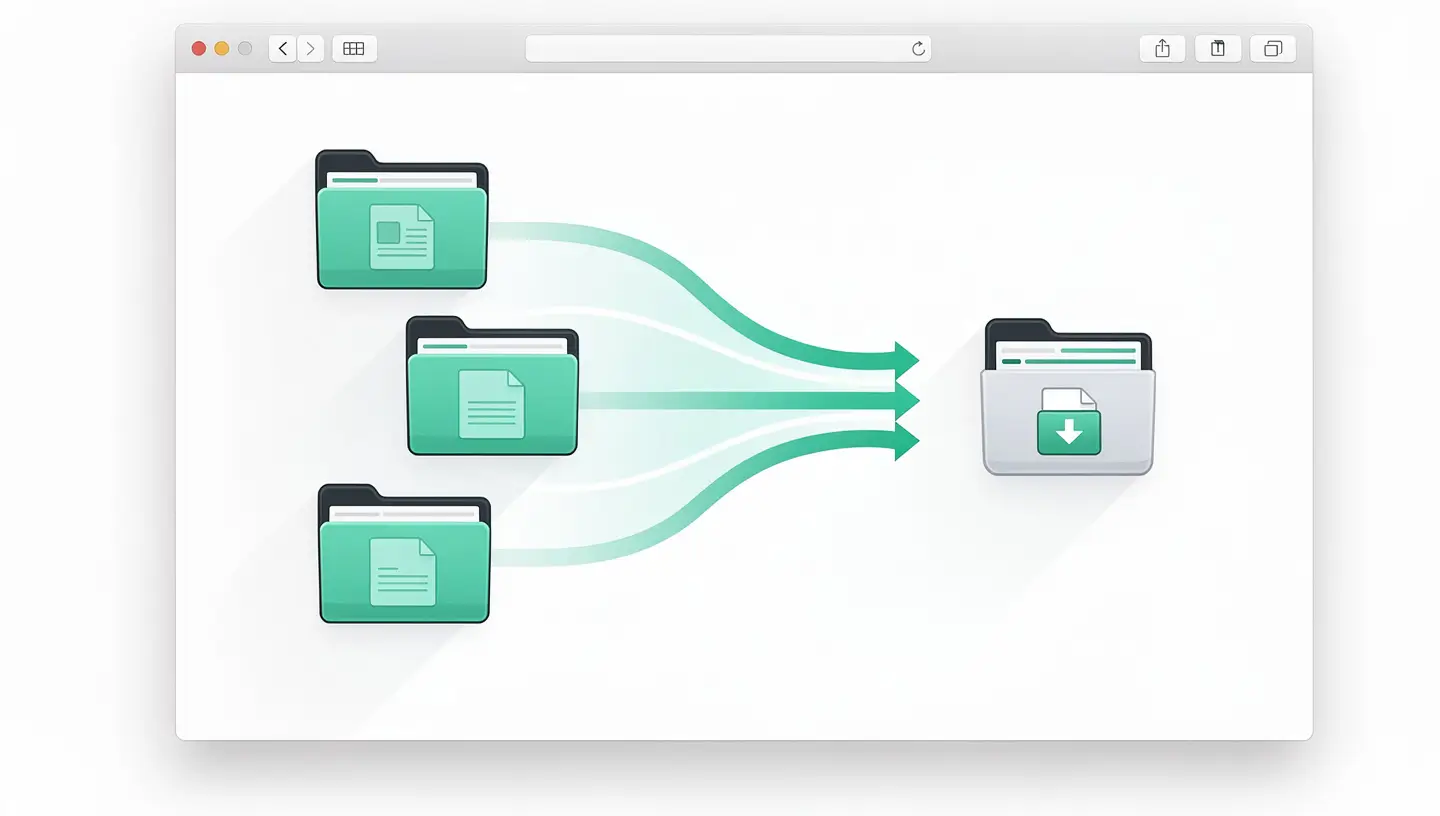
File compression is an essential skill for any Mac user. Whether you're emailing a folder of photos, sharing a business project via a cloud service or freeing up space on your disk, compression reduces the size of your files while consolidating them into a single, easy-to-handle archive.
In practical terms, compression brings three major benefits. The first is obvious: lighter files mean faster transfers, whether by email, AirDrop or to a cloud service. The second is organisational: grouping a hundred or so files in a single archive prevents errors and oversights. The third, often overlooked, is preservation: a ZIP archive preserves the structure of your folders and the metadata of your files, which is invaluable for long-term archiving.
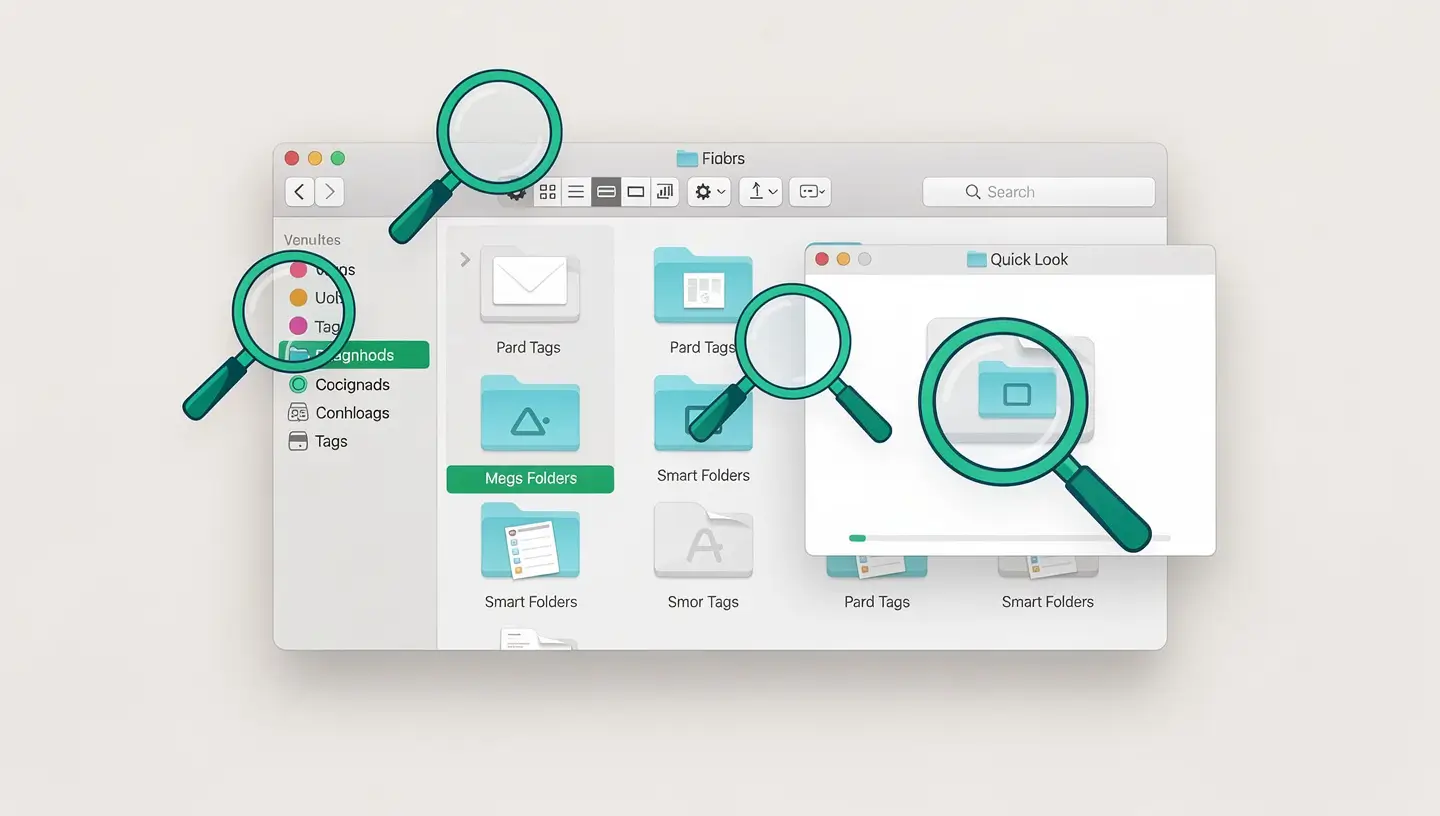
macOS natively integrates ZIP compression directly into the Finder. No need to install anything - it's the fastest method for most needs.
Terminal offers more powerful compression options than Finder, including compression ratio control, password protection and exclusion of specific files. For users who are comfortable with the command line - and if you're not yet - our guide to Mac Terminal commands is a good place to start.
Open Terminal (Applications → Utilities → Terminal) and use the command zip :
zip -r archive.zip /path/to/folder/
The -r means «recursive» and includes all sub-folders and their contents.
To protect an archive with a password :
zip -er archive-protegee.zip /path/to/folder/
The -e activates encryption. The Terminal will ask you to enter and confirm a password. Warning: this standard ZIP encryption (ZipCrypto) is considered weak. For robust protection, prefer a third-party tool with AES-256 encryption.
To exclude certain files (for example .DS_Store files created by macOS) :
zip -r archive.zip /path/to/folder/ -x "*.DS_Store"
The Finder and Terminal manage the ZIP format perfectly, but certain situations require more powerful tools: better compression rate, additional formats, graphical interface for AES-256 encryption or management of segmented archives.
| Application | Prices | Supported formats | Highlights |
|---|---|---|---|
| Keka | Free (site) / €5.99 (App Store) | ZIP, 7z, TAR, GZIP, BZIP2, XZ, LZIP, DMG, ISO | AES-256 encryption, superior 7z compression, simple interface |
| The Unarchiver | Free | ZIP, RAR, 7z, TAR, GZIP, BZIP2, and 40+ formats | Universal decompression, character encoding management |
| BetterZip | 24,95 € | ZIP, 7z, RAR, TAR, and more | Preview without extraction, archive editing, Quick Look |
| Archive 4 | 24,99 € | ZIP, 7z, RAR, and more | Archive segmentation, drag-and-drop interface |
Our recommendation for most users: Keka to complement the Finder. It's free from the official website, supports the 7z format (better compression ratio than ZIP) and offers strong AES-256 encryption. See our full selection in the article essential Mac applications 2026.
Not all compression formats are created equal. Choosing the right format depends on your objective: maximum compatibility, maximum compression or advanced features.
| Format | Compression | Compatibility | Encryption | Ideal for |
|---|---|---|---|---|
| ZIP | Correct | Universal (Mac, Windows, Linux) | ZipCrypto (weak) or AES-256 | Daily sharing, compatibility |
| 7z | Excellent (20-40 % more than ZIP) | Good (requires 7-Zip on Windows) | Native AES-256 | Archiving, large files |
| RAR | Very good | Good (WinRAR on Windows) | AES-256 | Segmented archives, error recovery |
| TAR.GZ | Good | Excellent (native macOS and Linux) | No (use GPG in addition) | Development, servers, Unix transfers |
| DMG | Variable | Mac only | AES-128 or AES-256 | Mac software distribution, encrypted disk images |
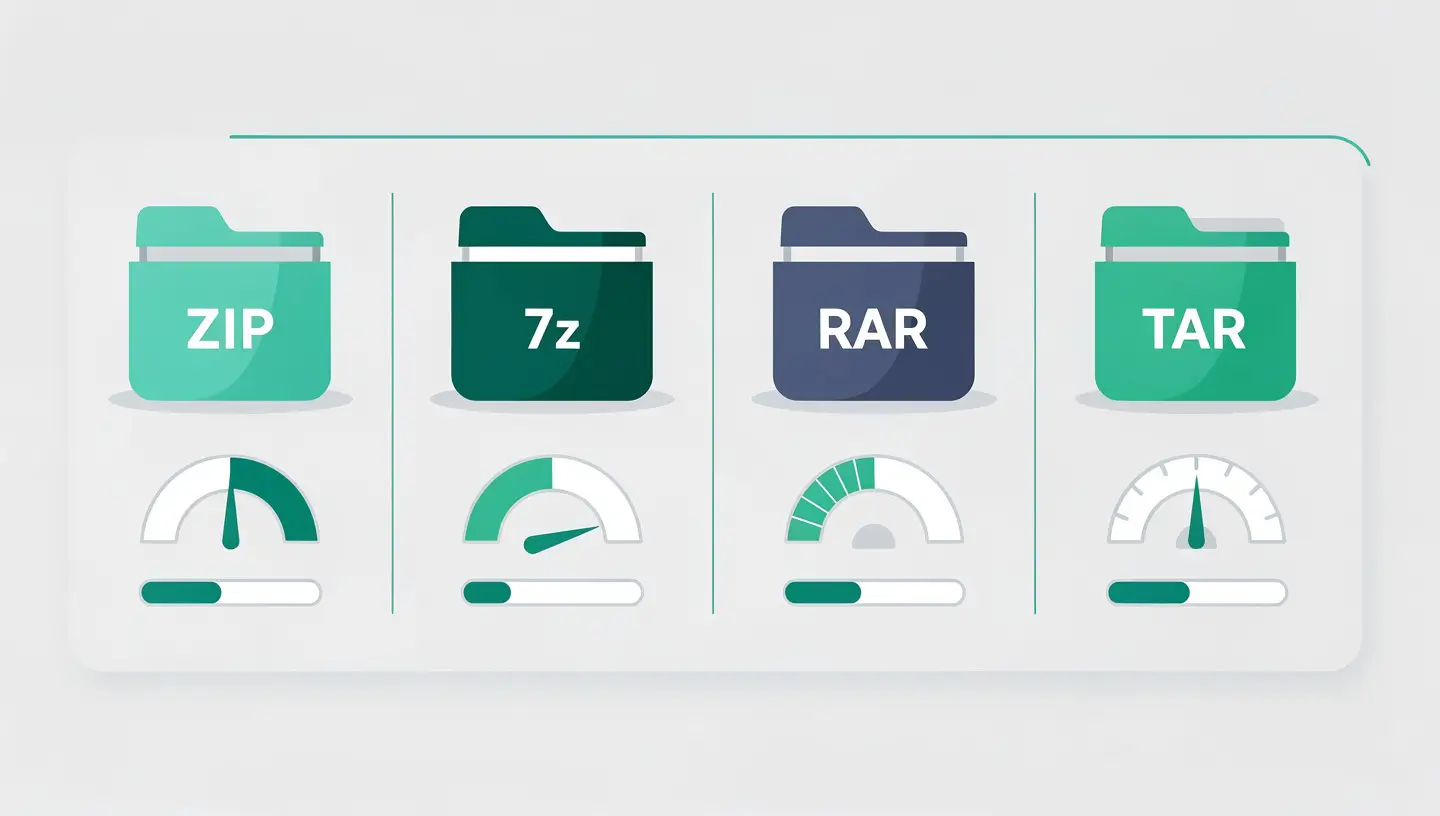
The compression ratio varies enormously depending on the type of file. Understanding these differences avoids disappointment and allows you to choose the right approach.
Office documents generally compress well, with a gain of 50 to 80 %. .docx and .xlsx files are already ZIP archives internally, but a folder containing several documents still benefits from significant compression thanks to deduplication. For large PDFs, ZIP compression does little to reduce the size - better to use the «Reduce file size» function in Preview (File → Export → Quartz Filter → Reduce file size). To handle your PDFs on the Mac, see our guide merge PDF Mac.
JPEG, HEIC and PNG formats are already compressed. Putting them in a ZIP only reduces their size by 1 to 5 %. The advantage of compression here is mainly organisational: grouping 200 photos in a single file for sending. To really reduce the size of your images, you need to resize them or convert them to a more efficient format (HEIC rather than JPEG, for example).
Video files (MP4, MOV, MKV) are already highly compressed by their codecs (H.264, H.265, AV1). ZIP compression adds virtually nothing - sometimes 0 % of gain. To reduce the size of a video, you need to re-encode it with a tool like HandBrake, adjusting the resolution, bitrate or codec.
Uncompressed raw files benefit most from compression: a WAV file can be reduced by 50 to 60 %, a BMP file by 70 to 90 %. If you work with RAW files in photography, the 7z format is particularly effective.
macOS natively supports decompression of ZIP files and certain common formats. Double-click on a .zip file and Archive Utility will automatically extract it to the same folder. For non-native formats such as RAR or 7z, install The Unarchiver (free on the App Store) or Keka.
For a ZIP file :
unzip archive.zip -d /path/destination/
For a TAR.GZ file :
tar -xzf archive.tar.gz
To find out how the macOS Disk Utility can also create compressed disk images, see our Disk Utility guide. And to find out more about the archiving formats supported natively by macOS, Apple details the features in its compression and decompression documentation.
Right-click on the file or folder in the Finder and select «Compress». macOS will automatically create a .zip file in the same location. This function is built into macOS and requires no installation.
The 7z format generally offers the best compression ratio, with 20 to 40 % more reduction than the classic ZIP. It is particularly effective for text files, documents and uncompressed files. Use Keka to create 7z archives on your Mac.
The Finder does not offer this option natively. Two solutions: use the Terminal command zip -er archive.zip file, or install Keka, which offers AES-256 encryption via a simple graphical interface. Keka is recommended because ZipCrypto Terminal encryption is considered weak.
JPEG, HEIC and PNG formats are already compressed. Applying ZIP compression to data that is already compressed will not reduce it any further. To reduce the size of your photos, you need to resize them (reduce the resolution) or convert them to a more efficient format such as HEIC.
macOS does not natively support the RAR format. Install The Unarchiver (free from the App Store) or Keka (free from the official website). Once installed, double-click on the .rar file to extract it automatically.
No. The ZIP, 7z, RAR and TAR formats use lossless compression. Your files are bit-for-bit identical after decompression. Lossy compression only comes into play when you re-encode a photo or video with lower quality settings - which is a completely different process.
The classic ZIP format manages files up to 4 GB per individual file (ZIP64 up to 16 EB theoretically, supported by macOS). If you encounter size limits when sending by email, use Keka or Archiver to create split archives that the recipient can reconstitute.
Yes, files stored in iCloud Drive can be accessed via the Finder just like local files. Select them, right-click, «Compress», and the archive will be created in the same location in iCloud Drive. Note that if the files are downloaded from the Mac (cloud icon), macOS will download them first before compressing them.
Open Disk Utility (Applications → Utilities), click File → New Image → Blank Image. Choose AES-256 encryption, a «SparseBundle disk image» format for an expandable volume, and set a password. This .dmg disk image works like a digital safe that you can assemble and disassemble at will.
Archiving combines several files into one (such as TAR), without necessarily reducing the size. Compression reduces data size using mathematical algorithms (such as GZIP, DEFLATE). In practice, common formats (ZIP, 7z) do both simultaneously: they archive and compress in a single operation.


Over 15 years of Apple expertise in Brussels. Free, no-obligation quote and 180-day guarantee on repairs.