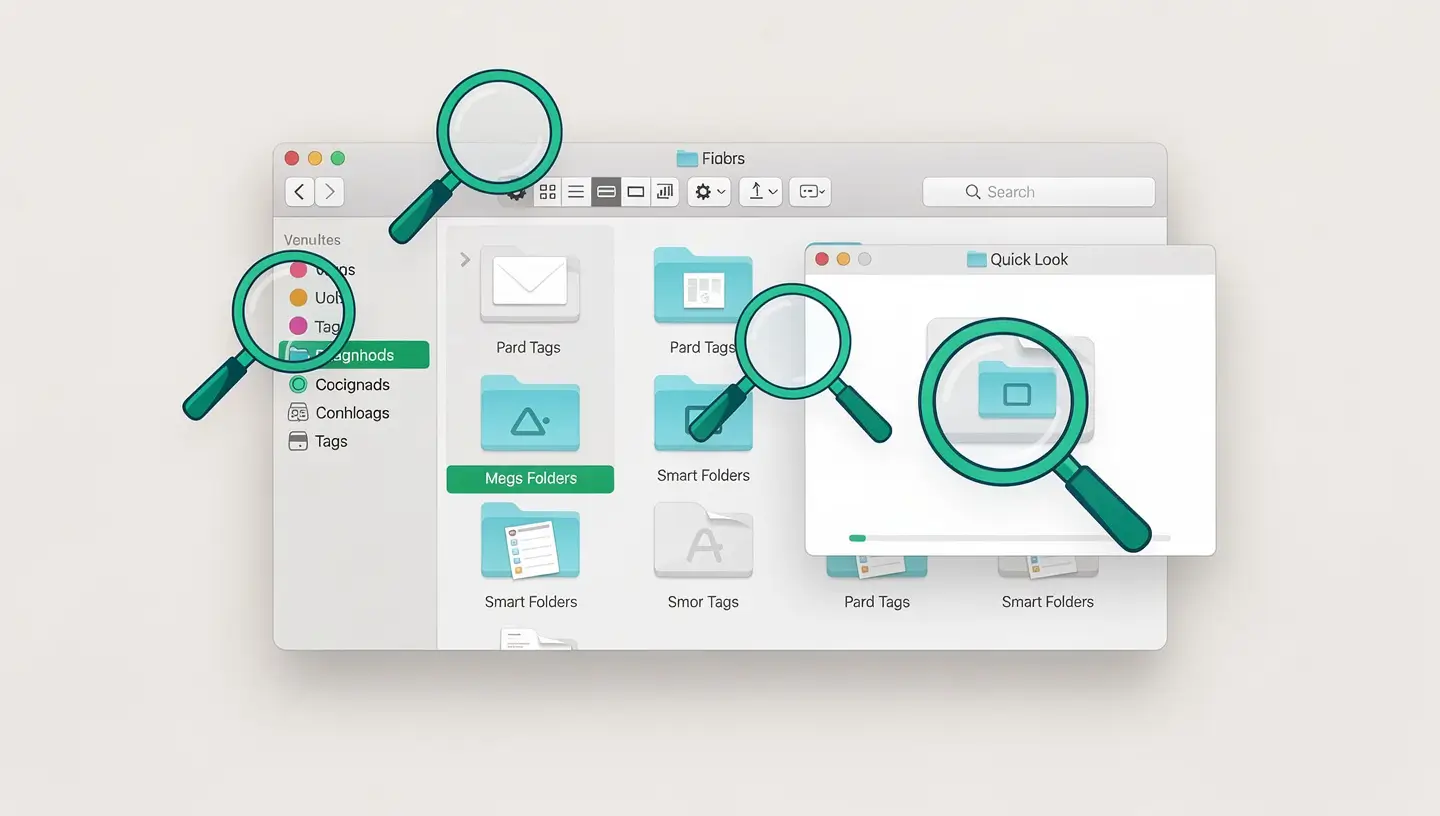

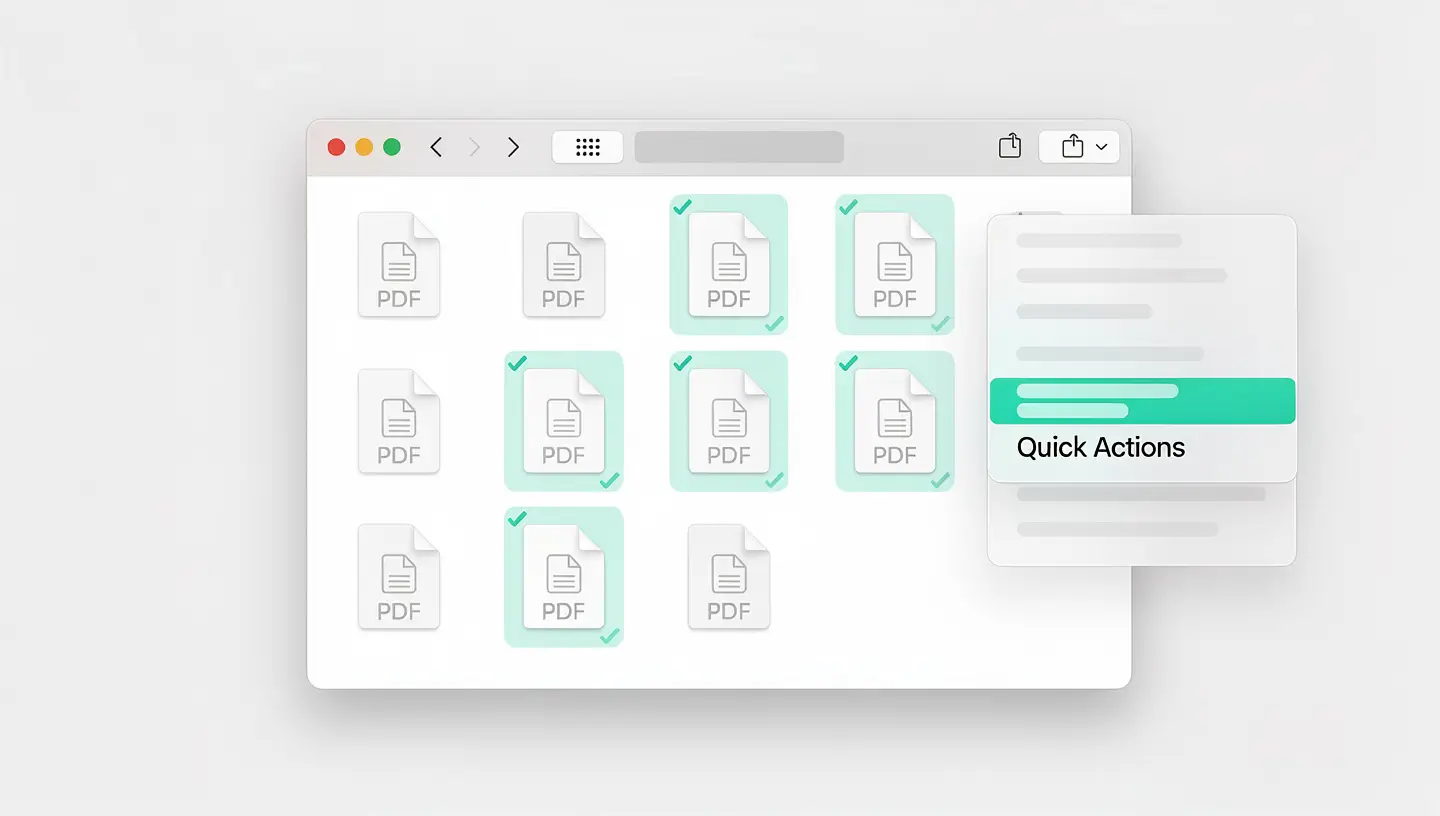
Since macOS Mojave (10.14), Apple has integrated a PDF merge function directly into the Finder via Quick Actions. No need to open anything: everything is done from the folder window. This is the approach we recommend as a priority in the MAC Repair workshop when a customer simply needs to assemble complete documents without retouching.
Go to the folder containing your PDFs. Holding down the Cmd key, click successively on each file to be included. Note: the order in which you click them will become the page order in the final document. Once your selection is ready, right-click on it, open the Quick Actions submenu and choose Create PDF. macOS will immediately generate a new file in the same folder, containing all the documents.
| Its advantages | Its limits |
|---|---|
| Extremely fast (less than a minute) | Assembles documents in their entirety |
| No need to open any application | No choice on each page |
| Also handles input images | No reorganisation after the event |
| Generates a new file, leaving the originals in place | Reserved for macOS Mojave (10.14) and subsequent versions |
Preview is the PDF and image viewer that comes as standard with macOS. As well as simply reading documents, it offers surprisingly comprehensive editing capabilities: inserting, deleting, reorganising and rotating pages. It's the most flexible solution, and above all it works on absolutely all versions of macOS still in circulation.
Start by double-clicking on the first PDF to open it in Preview. To display the side column listing the pages, go to Presentation then Thumbnails (shortcut: Cmd+Option+2). Select the very last thumbnail to indicate where the second document will be inserted. Then open the Edit menu, then Insert and finally Page from file. In the dialogue box, point to the second PDF and confirm. Its pages will follow those of the first. At this stage, you can always reorganise the whole thing by simply dragging and dropping it into the thumbnail column. When everything is to your liking, go to File then Export as PDF to save under a new name.
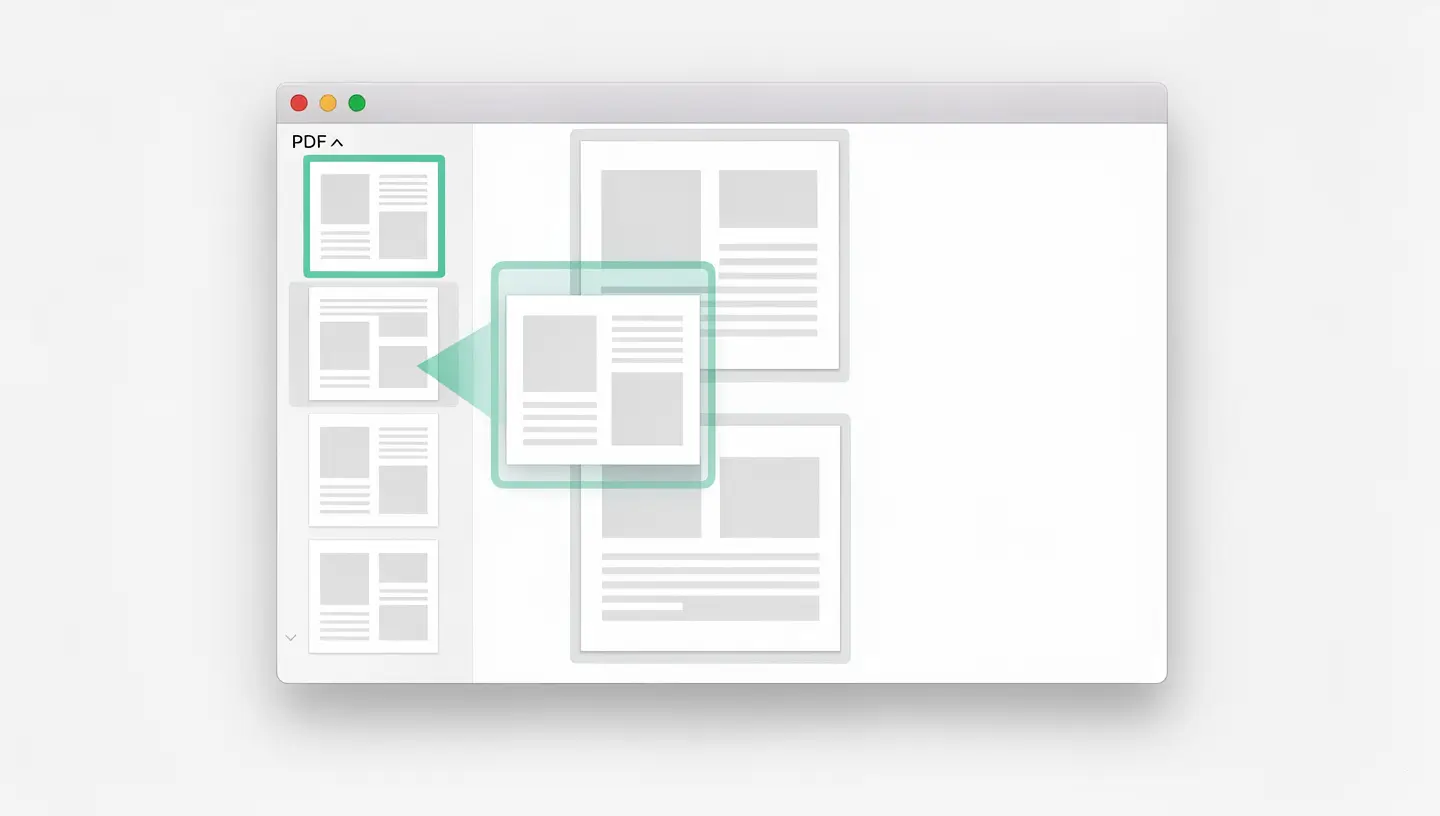
If you prefer to view the two documents side by side, open each PDF in its own Preview window and enable thumbnails for both. In the source file, click on the thumbnails you want to transfer (Cmd + click to choose several), then drag them directly into the sidebar of the destination file, where you want them. Then remember to export the result via File then Export as PDF.
If you regularly need to process several dozen documents or automate the task in a script, macOS has a little-known command-line tool dedicated to PDF merging. This approach requires a minimum of comfort with the Terminal, but it is formidably effective for large batches.
Within macOS is a Python script delivered with Automator, capable of combining PDFs in a single command. Open Terminal (Applications then Utilities then Terminal) and type :
/System/Library/Automator/Combine\ PDF\ Pages.action/Contents/MacOS/join --output resultat.pdf file1.pdf file2.pdf file3.pdf
Replace «resultat.pdf» with the name of the output file, then list the documents to be combined in the desired order. If the files are located elsewhere, enter the full path or go to the correct folder first using the command cd.
To process all the PDFs in a directory at once, one variant uses the wildcard asterisk :
/System/Library/Automator/Combine\ PDF\ Pages.action/Contents/MacOS/join --output resultat.pdf *.pdf
The character * means «all the PDF files in the current folder». Documents are then processed in alphabetical order; to control this order, rename your files by prefixing them with 01_, 02_, 03_ and so on.
Often you don't need an entire document, just a few specific pages. Here again, Preview is up to the task.
Open the two files concerned in separate windows with the Thumbnails view active. Select the pages you want in the source document (Cmd + click to select more than one), then drag them into the sidebar of the target document, exactly where you want them to appear. The operation is a copy: the original file remains exactly the same. Once you're satisfied, save using File then Export as PDF.
| What you want to do | Manipulation in Preview |
|---|---|
| Choose several pages | Cmd + click on each thumbnail concerned |
| Choose a continuous range | Click on the first, then Shift + click on the last |
| Changing the order | Drag the thumbnails to their new position |
| Remove a page | Thumbnail selected, Delete key |
| Turning a page | Thumbnail selected, Tools menu then Rotate |
| Criteria | Finder (Quick actions) | Overview | Terminal |
|---|---|---|---|
| Time required | About thirty seconds | 2 to 5 minutes | 10 seconds once the order is ready |
| Page selection | No, full documents | Yes, on every page | No, full documents |
| Reorganisation | Impossible | Drag and drop | Impossible |
| Can be automated | No | No | Yes (scripts, Automator, Shortcuts) |
| macOS version required | Mojave (10.14) or later | All versions | All versions |
| Preserved originals | Yes, new file | To be monitored (prefer Export) | Yes, new file |
| Ideal scenario | 2 to 10 documents for quick assembly | Precise editing, page by page | Large batches, repetitive tasks |
When you combine several PDFs rich in high-resolution images, it's not unusual to exceed 50 MB. In Preview, after merging, go to File then Export and choose «Reduce file size» from the Quartz Filter menu. Be aware that this compression is destructive: it degrades the quality of the illustrations. Check the rendering before deleting the originals.
This is the most common error. An ill-intentioned Cmd+S is enough to overwrite the original version. Don't panic: macOS maintains a version history for each file. Go to File then Revert to then Browse all versions to go back in time. If recovery by this route fails and the data is strategic, our data recovery can be involved in certain scenarios.
First make sure you're running at least macOS Mojave (10.14). If this is the case, open System Settings then Extensions then Finder and check that Quick Actions are enabled. Restarting the Finder (Option + right-click on its icon in the Dock then Restart) is sometimes enough to put things back in order.
Reopen the combined PDF in Preview, display the Thumbnails, select the misaligned page and go to Tools then Rotate left or Rotate right. Save via File then Export as PDF.
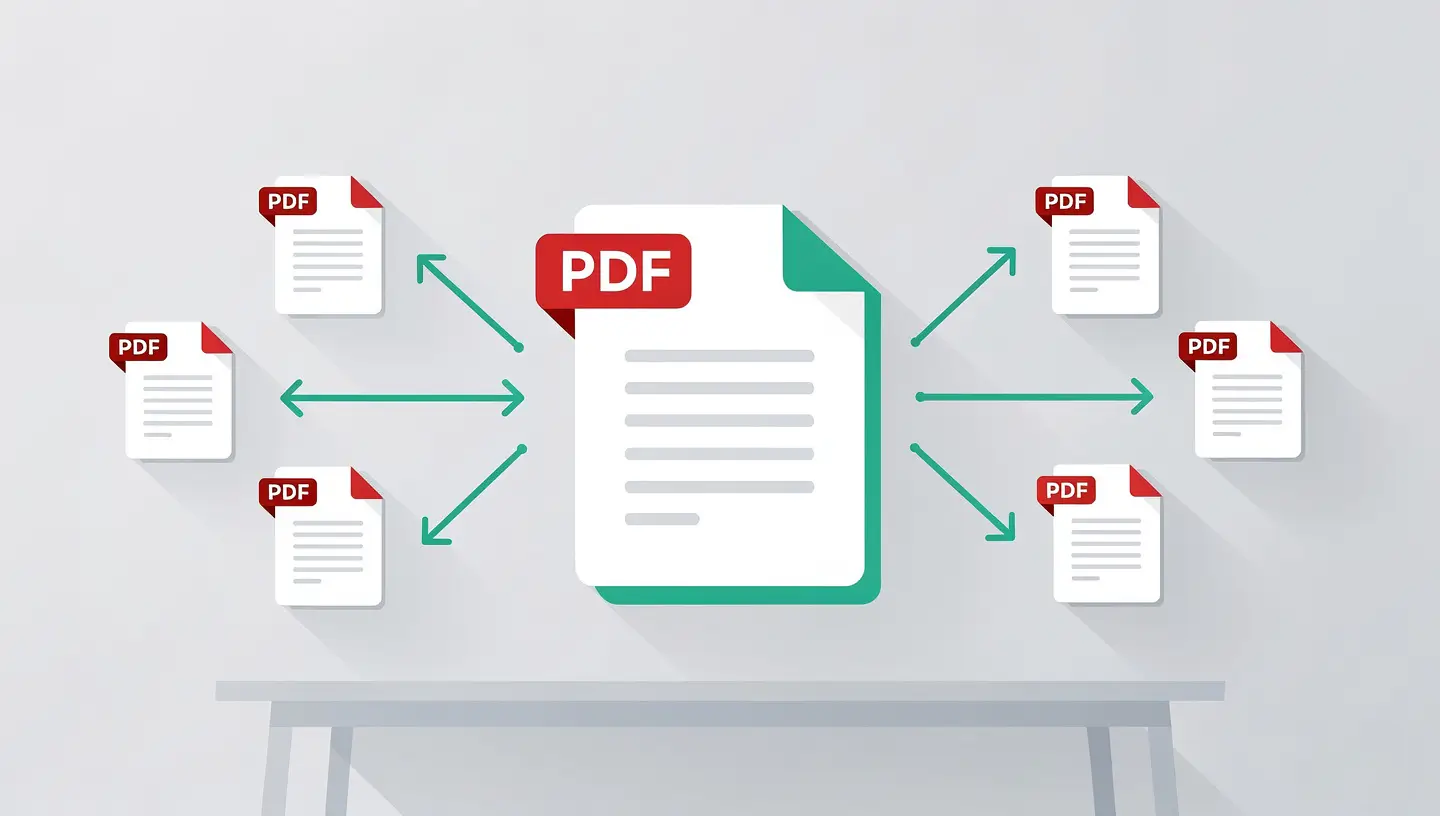
A merged document that's too big can quickly become a headache when it comes to sending it by e-mail, with most messaging systems capping it at around 25 MB. Here are the native options available on your Mac.
| Approach | Tools used | Usual gain |
|---|---|---|
| Quartz filter integrated into OverviewFile then Export then Quartz filter | Preview (native) | Between 50 % and 80 % less, with visible loss |
| Colorsync utilityApplications then Utilities then Colorsync | Colorsync (native) | Variable, customisable filters |
| ZIP archive around the PDFRight-click on the file, then Compress | Finder | 10 to 30 % less, without degradation |
Absolutely. macOS offers two entirely free paths: the Finder, via Quick Actions then Create PDF for express merging of complete documents, and Preview, which lets you combine by checking each page individually (Presentation then Thumbnails then Edit then Insert then Page from file). No download is required.
Open the first PDF, activate the thumbnail display (View then Thumbnails), then go to Edit then Insert then Page from file to load the second document. Rearrange the pages by dragging and dropping if necessary, then save using File then Export as PDF to create a new document without touching the original.
Yes, since macOS Mojave (10.14). Select the documents by holding down Cmd, right-click then Quick Actions then Create PDF. A new file instantly appears in the same folder, with the order of the pages following that of your selection.
Open the two PDFs in separate Preview windows, with the thumbnails displayed. In the source document, select the required pages with Cmd + click, then drag them into the side column of the target document, at the required position. The operation is a copy; the source file remains unchanged.
In Preview, open the document then go to File then Export. In the Quartz Filter field, choose «Reduce file size»: Aperçu recompresses the images contained, which greatly reduces the size of the PDF at the cost of a loss of quality. For non-destructive compression, right-click on the file in the Finder then Compress to generate a ZIP.
Yes, the Finder method (Quick Actions then Create PDF) supports JPG, PNG, HEIC and TIFF images mixed with PDFs in the same selection. macOS automatically converts them into PDF pages. With Preview, you can also export an image as a PDF and then combine it with your other files.
Each protected PDF must first be unlocked individually. Open it in Preview, enter the password, then go to File then Export as PDF, making sure to leave the Encrypt option unchecked. The resulting file is unprotected and can be merged normally with the other documents.
macOS automatically keeps a history of the versions of each document. Go to File then Revert to then Browse all versions: you can navigate back in time and restore the pre-merge state. If this doesn't work and the data is critical, our data recovery can sometimes intervene successfully.
Several free alternatives exist: PDFsam Basic (open source, very good for batch merging), Skim (advanced PDF reader for annotations), or online services such as SmallPDF and iLovePDF (to be avoided with confidential documents). For the majority of everyday uses, however, the tools built into macOS cover most needs.
No problem at all. The three methods presented here (Finder, Preview and Terminal) work identically on Apple Silicon Macs and older Intel Macs. The Finder's Quick Actions require macOS Mojave or later, which is automatically the case for all Apple Silicon Macs, which come with Big Sur as a minimum.


Over 15 years of Apple expertise in Brussels. Free, no-obligation quote and 180-day guarantee on repairs.