
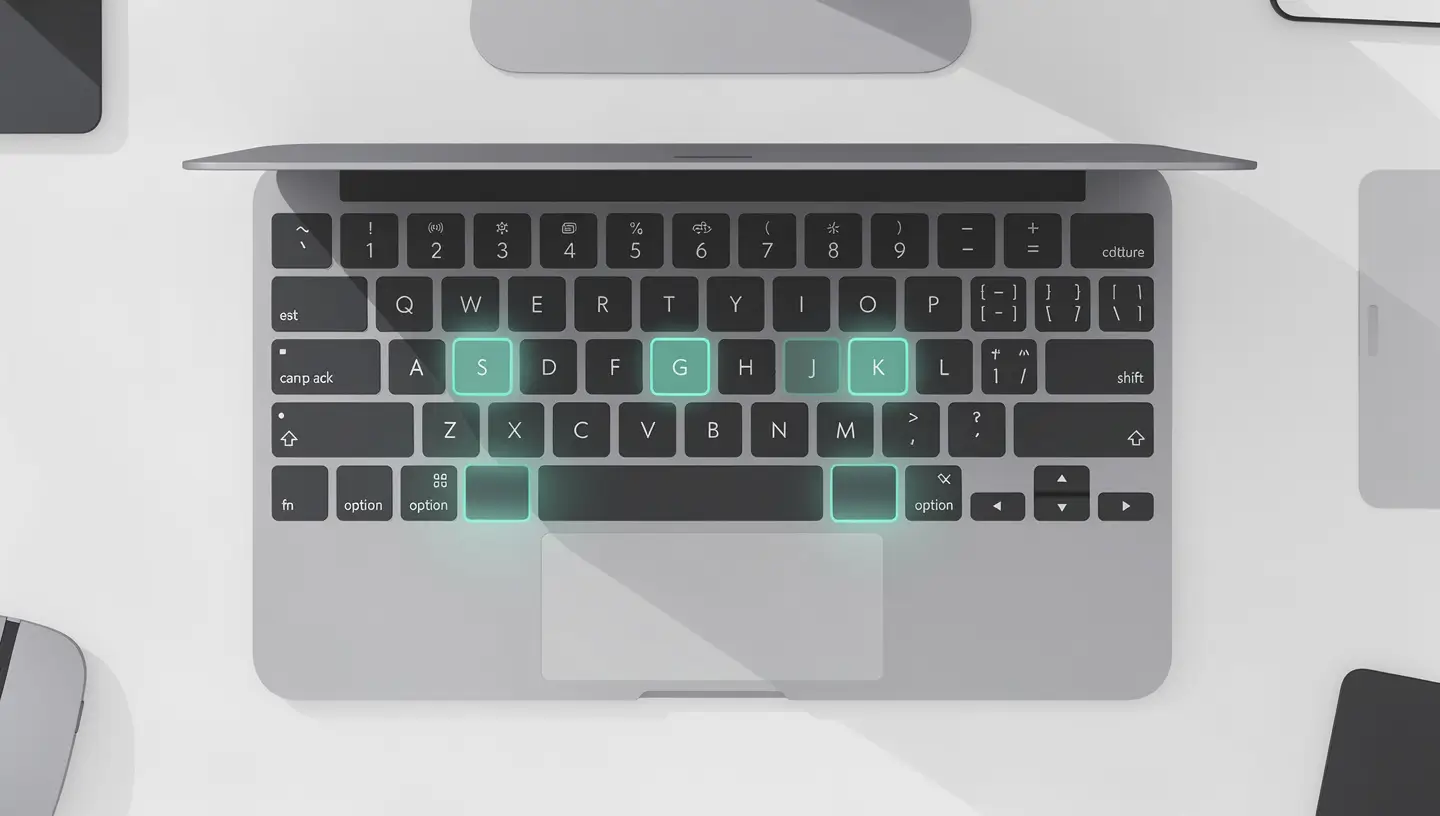
Before diving into the shortcuts, you need to master the keys specific to the Apple keyboard. If you're coming from Windows, this is often the first source of confusion we observe among the customers of our workshop in Brussels. The good news is that once you understand the principle, Mac shortcuts are often more intuitive.
| Symbol | Key name | Windows equivalent | Position on the keyboard |
|---|---|---|---|
| ⌘ | Command (Cmd) | Ctrl (for most shortcuts) | On either side of the space bar |
| ⌥ | Option (Alt) | Alt | Between Ctrl and Cmd |
| ⇧ | Shift | Shift | Above Ctrl / Fn |
| ⌃ | Control (Ctrl) | No direct equivalent | Bottom left corner |
| Fn | Function | Fn | Bottom left corner (next to Ctrl) |
| ⏏ / ⌽ | Ejection / Power | Power button | Top right corner (or Touch ID) |
These are the shortcuts you will use dozens of times a day. Get to grips with them before moving on to the next categories.
| Shortcut | Action | When to use it |
|---|---|---|
| Cmd+Space | Open Spotlight | Launch an app, search for a file, do a quick calculation |
| Cmd+Tab | Switching between open apps | Switch quickly from Safari to Mail, etc. |
| Cmd+Q | Quit the active application | Close an app completely (not just the window) |
| Cmd+W | Close the active window | Close a tab or window without leaving the app |
| Cmd+H | Hide active application | Quickly hide a window without closing it |
| Cmd+M | Minimise in the Dock | Move the window to the right-hand corner of the Dock |
| Cmd+compound (,) | Open app preferences/settings | Works in almost all Mac applications |
| Ctrl+Cmd+Q | Lock screen | When you leave your office |
| Cmd+Option+Escape | Forcing you to leave an app | When an application stops responding |
| Ctrl+Left/right arrow | Change virtual desktop (Space) | Navigating between Mission Control offices |
The Cmd+Option+Escape shortcut is the Mac equivalent of Windows« Ctrl+Alt+Delete. It opens the »Force Quit' window, which lists all active applications. Select the one that's frozen and click Force Quit. If your Mac regularly freezes to the point where you need this shortcut, it may be a sign of a hardware problem that needs attention. diagnostic.
The Finder is the equivalent of Windows File Explorer. These shortcuts will save you a considerable amount of time in the day-to-day management of your documents.
| Shortcut | Action | Mac special features |
|---|---|---|
| Cmd+N | New Finder window | Also works in most apps (new document) |
| Cmd+Shift+N | New folder | Creates a folder in the current location |
| Cmd+Delete | Trash | The Delete key alone does not delete files |
| Cmd+Shift+Delete | Empty the bin | Add Option to empty without confirmation |
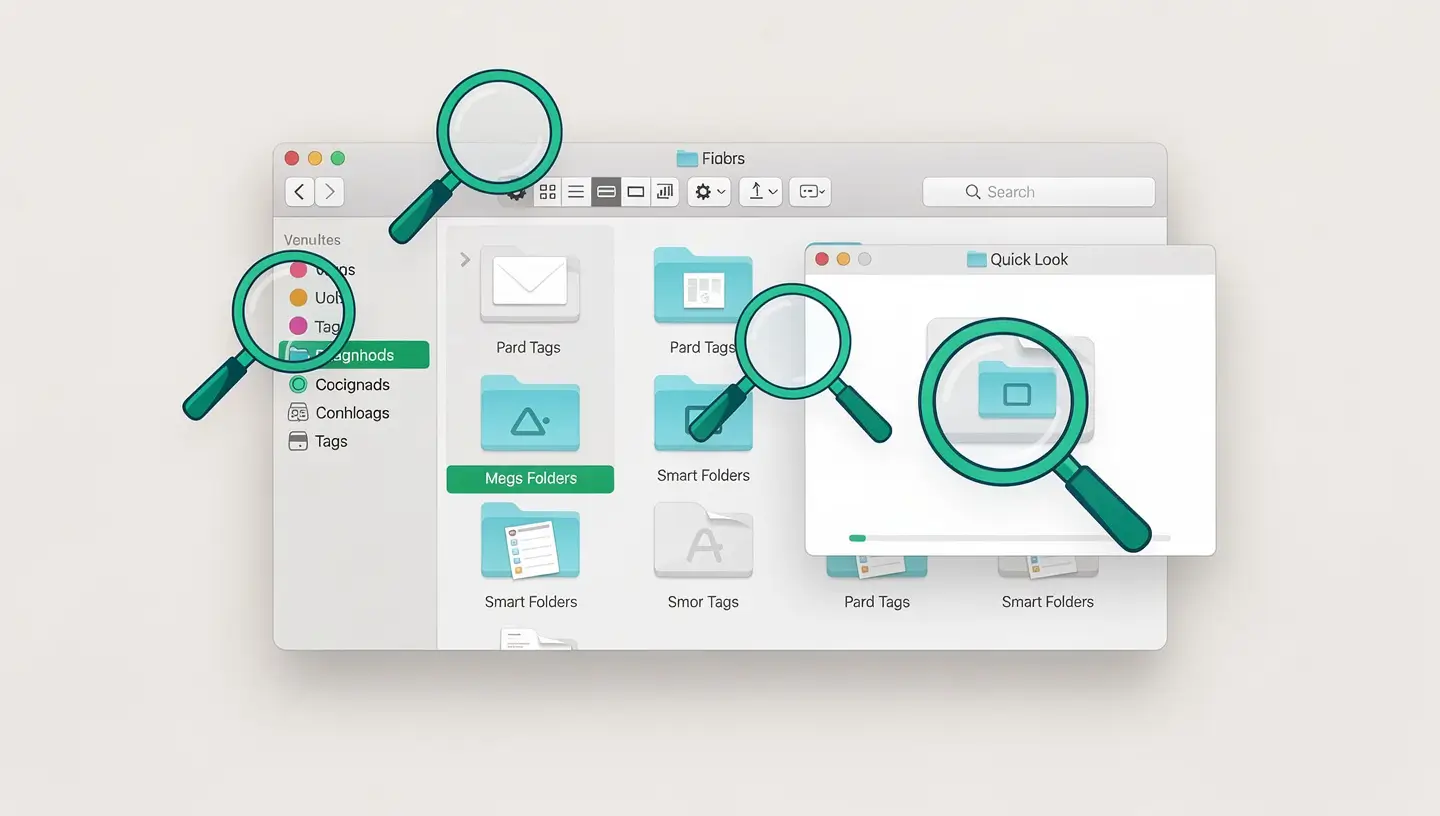
| Espace | Quick Look | Previews any file without opening it. Unique to macOS. |
| Input | Rename the selected file | Note: on the Mac, Enter renames, Cmd+O opens |
| Cmd+I | Obtaining information | Size, type, permissions, date modified |
| Cmd+D | Duplicate the file | Creates a copy in the same folder |
| Cmd+Option+V | Move (cut and paste) | macOS doesn't have Cmd+X for files. Use Cmd+C, then Cmd+Option+V to move. |
| Shortcut | Destination |
|---|---|
| Cmd+Shift+H | Home folder |
| Cmd+Shift+D | Desktop |
| Cmd+Shift+A | Applications |
| Cmd+Shift+U | Utilities |
| Cmd+Shift+G | Go to folder (type path) |
| Cmd+Shift+R | Recent |
These shortcuts work in virtually every application where you type text: Mail, Pages, Notes, Safari, Word, Google Docs, etc.
| Shortcut | Action |
|---|---|
| Cmd+C / Cmd+V / Cmd+X | Copy / Paste / Cut |
| Cmd+Z | Undo last action |
| Cmd+Shift+Z | Redo (cancel cancellation) |
| Cmd+A | Select all |
| Cmd+B / Cmd+I / Cmd+U | Bold / Italic / Underline |
| Cmd+F | Search in document |
| Cmd+G | Next search occurrence |
| Option+Delete | Delete the whole word to the left of the cursor |
| Fn+Delete | Delete the character to the right of the cursor (like Delete on Windows) |
| Cmd+Up/Down arrow | Go to start/end of document |
| Option+Left/right arrow | Move word by word |
| Cmd+Option+Shift+V | Paste without formatting (plain text) |
The shortcut Cmd+Option+Shift+V (paste without formatting) is particularly useful when you copy text from a website and want to integrate it into a document without keeping the original colours, sizes and fonts.
These shortcuts work in Safari and most are identical in Chrome and Firefox on the Mac.
| Shortcut | Action |
|---|---|
| Cmd+T | New tab |
| Cmd+W | Close the active tab |
| Cmd+Shift+T | Reopen the last closed tab |
| Cmd+L | Select the address bar |
| Cmd+R | Reload page |
| Cmd+click | Open a link in a new tab |
| Cmd+Shift+click | Open a link in a new tab and go there |
| Cmd+1 to 9 | Go to tabs 1, 2, 3... 9 |
| Cmd+Option+Arrows | Previous / next tab |
| Cmd+D | Add to bookmarks |
macOS offers a complete screen capture system accessible from the keyboard, without any third-party applications. For an in-depth guide to the Terminal customisation commands, see our dedicated article on the Mac screenshot.
| Shortcut | Action |
|---|---|
| Cmd+Shift+3 | Capture the entire screen (save to desktop) |
| Cmd+Shift+4 | Capture a selected area |
| Cmd+Shift+4 then Space | Capture a specific window |
| Cmd+Shift+5 | Open the full tool (video capture and recording) |
| Ctrl+Cmd+Shift+3 or 4 | Copy capture to clipboard (without file) |
The Mac keyboard hides many special characters behind the Option key (⌥). Here are the most popular, with the combinations for the Belgian and French AZERTY keyboards used in Belgium.
| Character | AZERTY shortcut | Common use |
|---|---|---|
| @ | Option+2 (FR) or @ direct (BE) | E-mail addresses |
| # | Option+Shift+3 (FR) or Shift+3 (BE) | Hashtags, programming |
| [ ] | Option+Shift+( and Option+Shift+) | Code, formulas |
| { } | Option+( and Option+) | Code, JSON |
| | | Option+Shift+L | Programming (pipe) |
| \ | Option+Shift+/ or Option+/ (varies according to keyboard) | File paths, code |
| ~ | Option+N | Terminal, paths (Home folder) |
| € | Option+$ (FR) or Option+2 (BE) | Amounts in euros |
| © | Option+C | Copyright |
| ™ | Option+Shift+D | Trademark |
macOS lets you create custom shortcuts for any menu command in any application. It's a powerful and often overlooked feature.
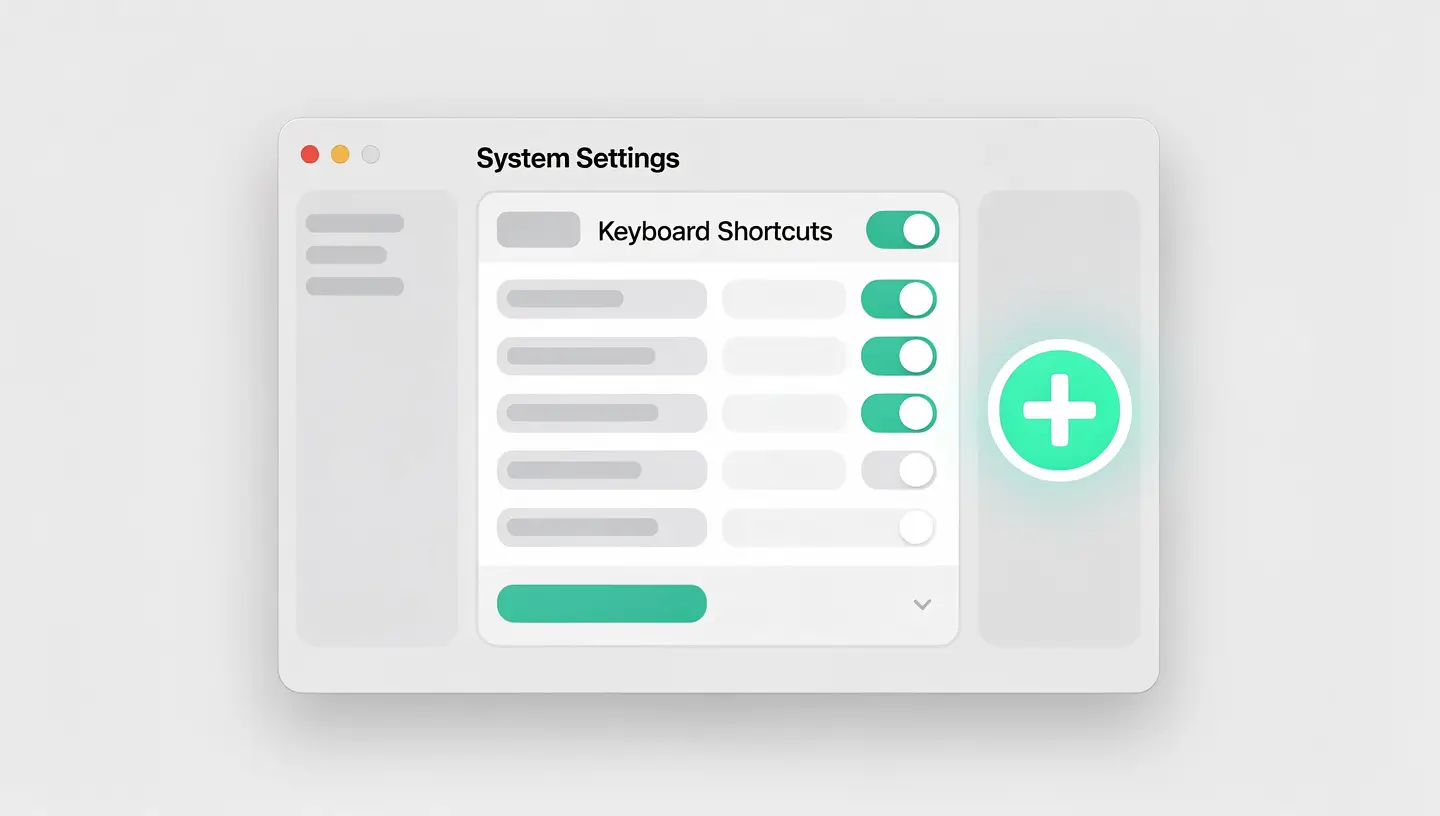
Open System Settings then Keyboard then Keyboard Shortcuts then App Shortcuts. Click on the + button at the bottom of the list. Choose the application concerned (or All applications). In the Menu title field, type the exact name of the menu command as it appears in the application, respecting the case, spaces and suspension points. In the Keyboard shortcut field, press the desired key combination.
In the same Keyboard Shortcuts panel, you can change the shortcuts for Screenshots, Spotlight, Mission Control, Services and Accessibility. If a shortcut conflicts with a third-party application, this is where you can change it.
| Tool | Function | Prices |
|---|---|---|
| CheatSheetFree, light | Hold down Cmd in any app to display all its shortcuts | Free |
| RaycastAlternative to Spotlight | Advanced app launcher with customisable shortcuts and extensions | Free (Pro payant) |
| Keyboard MaestroAdvanced automation | Create complex macros triggered by a keyboard shortcut | Charge (€36) |
The Mac equivalent is Cmd+Option+Escape. This shortcut opens the «Force Quit» window, which lists all the applications currently running. Select the blocked application and click Force Quit. For a complete forced restart, hold down the power button for 10 seconds.
Use Cmd+C to copy and Cmd+V to paste, exactly like Ctrl+C/Ctrl+V on Windows but with the Cmd key (⌘). To cut text, use Cmd+X. To cut a file in the Finder, do Cmd+C then Cmd+Option+V at destination (there is no Cmd+X for files in the Finder).
Press Ctrl+Cmd+Q to instantly lock your screen. You can also set up an active corner: go to System Settings then Desktop & Dock then Active Corners, and assign «Lock Screen» to one of the four corners of your screen. Then simply drag the cursor to that corner.
On a Belgian Mac AZERTY keyboard, the @ key is generally accessible directly (engraved on the key). On a French QWERTY Mac keyboard, use Option+2 (the é key). If in doubt, activate the Keyboard Viewer in System Settings then Keyboard to see the exact layout of your keyboard.
Go to System Settings then Keyboard then Keyboard Shortcuts then App Shortcuts. Click on the + button, choose the application, type the exact name of the menu command and define your key combination. This feature allows you to assign a shortcut to any command accessible from the menu bar.
On the Mac, closing a window (Cmd+W or the red button) does not quit the application. The app continues to run in the background (its icon retains a dot in the Dock). To quit an application completely, use Cmd+Q. This is a fundamental difference from Windows, where closing the window generally closes the program.
Select the file in the Finder and press Cmd+Delete to send it to the recycle bin. To empty the recycle bin, press Cmd+Shift+Delete. Add Option (Cmd+Option+Shift+Delete) to empty without asking for confirmation. Please note: the Delete key alone does not delete files on the Mac, it works like a backspace.
Install the free CheatSheet app. Then hold down the Cmd key for a few seconds in any application: a window appears with a complete list of all the keyboard shortcuts available for that app. It's the ideal tool for discovering shortcuts you don't know.
On Intel Macs: Cmd+R (Recovery mode), Option (choice of boot disk), Cmd+Option+P+R (NVRAM reset), Shift (safe mode), D (Apple Diagnostics). On Apple Silicon Macs (M1/M2/M3/M4), simply hold down the power button to access the boot options. See our guide to Mac safe mode for more details.
First check in System settings then Keyboard then Keyboard shortcuts that the shortcut is still activated. Then check that no third-party application has taken control of this key combination. If some physical keys are no longer responding, this is a hardware problem (common on 2016-2019 butterfly keyboards) that requires a keyboard replacement.


Over 15 years of Apple expertise in Brussels. Free, no-obligation quote and 180-day guarantee on repairs.