
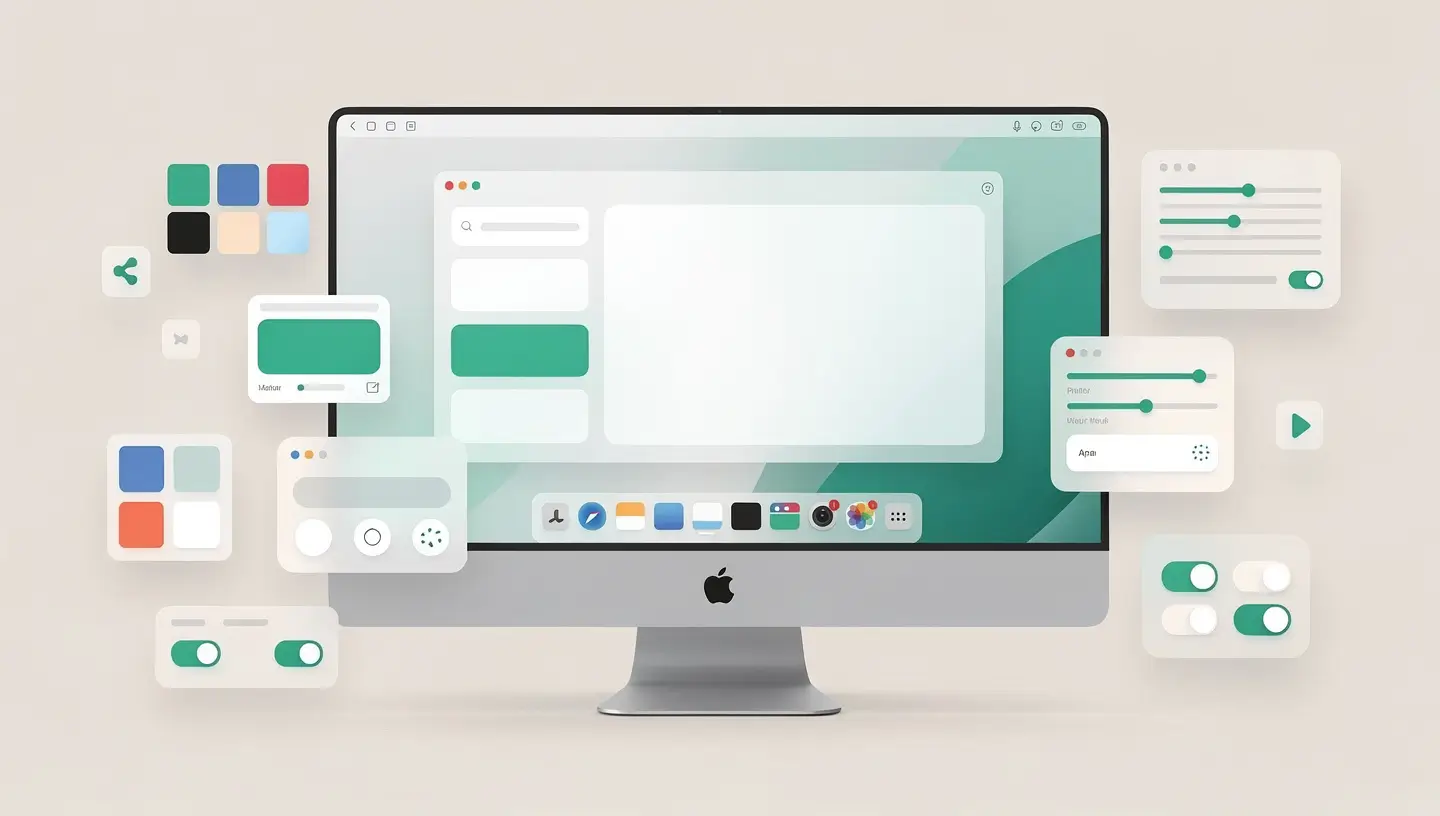
Customizing a Mac starts with the visual appearance of the system. macOS offers a surprising level of customization for those who take the time to explore the settings - far beyond the simple choice of wallpaper.
Go to System Settings → Appearance to choose between three modes. Light mode is the classic macOS look with white windows. Dark mode transforms the entire interface into shades of grey and black - more relaxing for the eyes in the evening and particularly elegant on the OLED screens of recent MacBook Pros. Automatic mode switches between the two depending on the time of day, tracking sunrise and sunset.
The accent colour defines the hue used for buttons, checkboxes, drop-down menus and selection elements throughout macOS. By default set to «Multicolour» (each Apple application uses its own colour), you can set it to blue, purple, pink, red, orange, yellow, green or graphite. The highlight colour, which is independent, defines the shade of the text selection. It's a subtle detail, but one that gives visual coherence to the whole system.
macOS offers dynamic wallpapers that change throughout the day - some follow the position of the sun and change lighting between morning, afternoon and night. For a personalised wallpaper, you can use any image: right-click on a photo in the Finder → Set desktop image. The optimum resolutions correspond to the native resolution of your screen (checkable in System Settings → Displays).
The Dock is the most visible part of macOS, and it's completely customisable:
To organise the Dock, drag and drop the icons in the desired order. Remove an application by dragging it out of the Dock until you see «Delete» appear - this does not uninstall the application, it remains in the Applications folder.
The menu bar at the top of the screen can be cluttered with third-party application icons. Hold down the Cmd and drag the system icons to rearrange them or remove them from the bar. Some third-party icons resist this manipulation - which is where tools like Bartender (see third-party applications section) come in handy.
Since recent versions of macOS, you can also automatically hide the menu bar in System Settings → Desktop and Dock → Hide and show menu bar automatically.
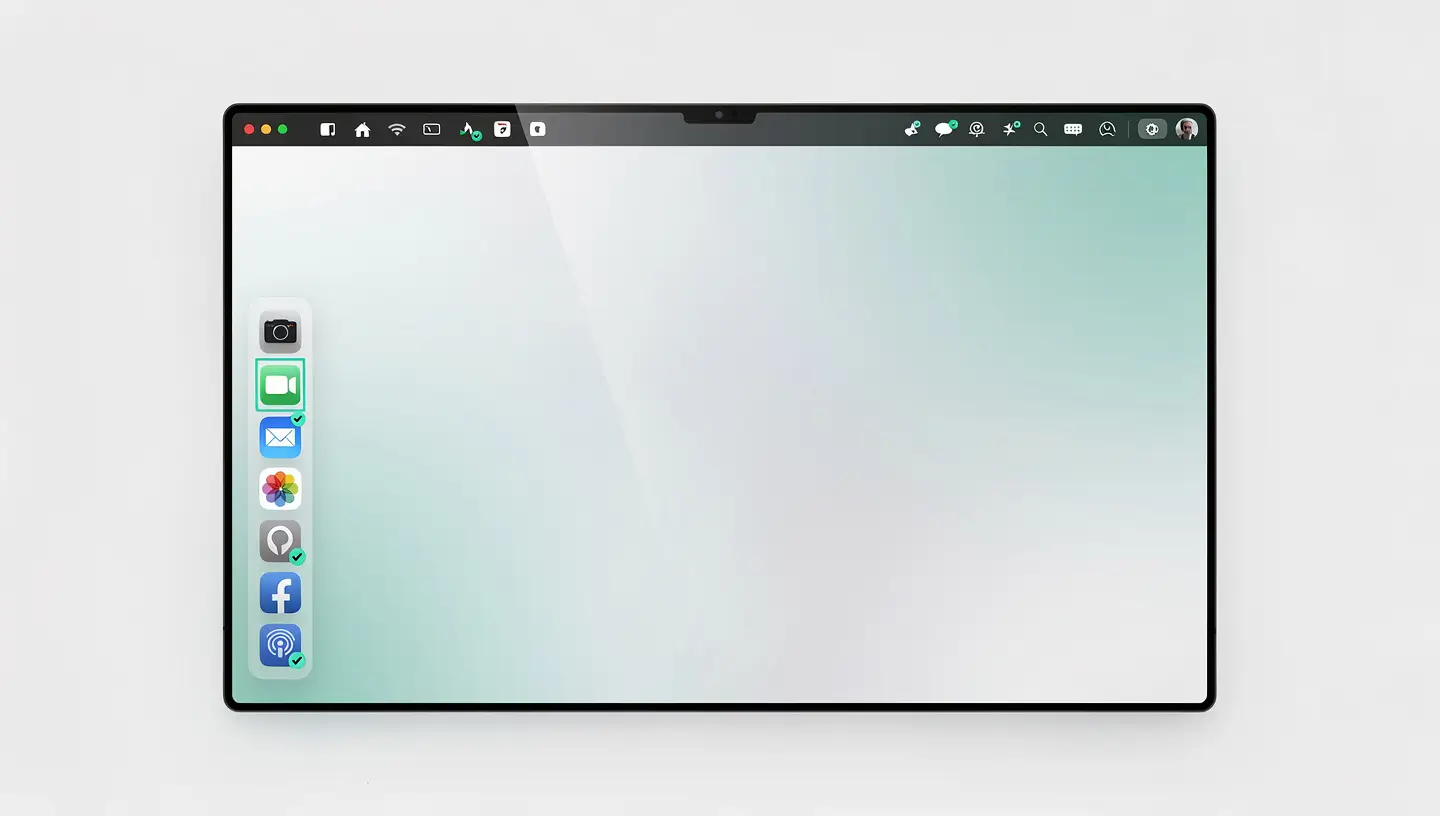
Since macOS Sonoma, the Mac desktop has welcomed interactive widgets - a major change in the personalisation of the workspace. Click on the desktop to reveal the widgets, or add them by right-clicking on the desktop → Edit widgets.
Widgets can be resized (small, medium, large, extra-large) and positioned freely on the desktop. They become semi-transparent when an application is in the foreground, so they remain visible without distraction.
The Finder is the application you use most on the Mac, often without thinking about it. Customizing it correctly can considerably improve your productivity.
Open Finder → Settings (Cmd + comma) → Sidebar. Tick the items you want to appear: Desktop, Documents, Downloads, AirDrop, hard drives, external drives, network servers. You can also drag and drop any folder into the sidebar for permanent quick access.
The Finder offers four display modes: icons, list, columns and gallery. Choose your preferred view, then go to Presentation → Use as default view. The column view is particularly effective for navigating deep trees, while the list view with sorting by date modified is ideal for quickly finding recent files.
Activate the path bar (Overview → Show path bar) to always see the exact location of the current folder at the bottom of the window. Activate the status bar (Overview → Show status bar) to see the number of items and disk space available. Customise the toolbar by right-clicking on it → Customise toolbar.
For even more Finder productivity tips, see our article dedicated to Finder Mac tips.
Active Corners (System Settings → Desktop and Dock → Active Corners) assign an action to moving the cursor to each corner of the screen. This is one of the most underrated features of macOS. Four corners, four quick actions - without clicking or keyboard shortcuts.
Suggestions for efficient configuration :
The Mac trackpad is the best on the market, and its multi-touch gestures are fully customisable in System Settings → Trackpad. The three tabs (Point and Click, Scroll and Zoom, Other Gestures) allow you to enable or disable each gesture and modify its behaviour. The most useful gestures to master: three-finger swipe up for Mission Control, four-finger pinch for Launchpad, and two-finger swipe from the right edge for Notification Centre.
macOS lets you create custom keyboard shortcuts for any menu command in any application - a little-known but extremely powerful feature.
For example, if you often export PDFs from Safari, you can assign Cmd + Shift + P to the «Export in PDF format...» command. - a gesture that normally takes three clicks. To discover the essential keyboard shortcuts built into macOS, check out our guide to Mac keyboard shortcuts.
Native macOS settings cover the essentials, but some third-party applications unlock a higher level of customisation - without compromising system stability or security.
| Application | Function | Prices | Why it's useful |
|---|---|---|---|
| Rectangle | Window management | Free | Keyboard shortcuts for positioning windows as half-screen, quarter-screen, etc. |
| Alfred | Advanced application launcher | Free / £34 (Powerpack) | Replaces Spotlight with custom workflows, clipboard history, snippets |
| Bartender | Menu bar management | 16 $ | Hide and organise menu bar icons |
| Raycast | Launcher and productivity | Free / Pro 8 $/month | Modern alternative to Spotlight with community extensions |
| Shottr | Advanced screen capture | Free | Annotations, measurements, OCR, scrolling capture - replaces native capture |
| TopNotch | Hide notch | Free | Black background on the menu bar to visually integrate the notch of recent MacBooks |
For a fuller selection of must-have applications, see our article essential Mac applications. And if you're looking for even greater day-to-day efficiency, Apple's Shortcuts application lets you automate complex sequences of actions without any programming knowledge. Apple details the customisation possibilities of macOS in its Mac user guide.
Right-click on the application in the Finder → Read information. Click on the icon at the top left of the information window to select it, then paste (Cmd + V) a new image you've previously copied. To return to the original icon, select it and press Delete. Note that some system applications resist this modification for security reasons.
macOS does not natively support third-party themes like Windows. Visual customisation options are limited to what System Settings offers: light/dark mode, accent colour, wallpaper and transparency. Third-party tools such as TinkerTool provide access to hidden settings, but profoundly modifying the appearance of macOS is not recommended - it can cause instabilities and compatibility problems.
Go to System Settings → Desktop and Dock → Position on screen and choose Left, Bottom or Right. Placing the Dock on the left or right is particularly useful on 16:9 or 16:10 aspect ratio screens, where vertical space is precious - you get back several centimetres of useful height.
No. Active corners are a native macOS feature with zero impact on performance. They work by simply detecting the position of the cursor and triggering system actions already present in memory. It's one of the best utility/resource cost ratios in all of macOS.
Go to System Settings → Sound → Sound Effects and choose from the available alert sounds. For custom sounds, place .aiff files in ~/Library/Sounds/ - they will appear in the list of available sounds. For application-specific notifications, visit System Settings → Notifications and select the relevant application.
Yes. Each workspace (virtual desktop) in Mission Control can have its own wallpaper. Switch to the space you want, then change the wallpaper via System Settings → Wallpaper or right-click on the desktop → Change Wallpaper. The setting only applies to the active space.
There is no single button to reset all customisations. You can reset the Dock to its default values via Terminal with the command defaults delete com.apple.dock; killall Dock. For a complete reset, create a new user account - it will have all the default settings. Or perform a complete reset to factory settings.
Recent versions of macOS include native management of tiled windows, which covers basic needs: half screen, quarter screen. Rectangle is still relevant if you need quick keyboard shortcuts, customised positions or advanced multi-screen configurations. If native tiling is all you need, Rectangle is not essential.
The native macOS customisation options have no measurable impact on performance. Resident third-party applications (such as Bartender or Alfred) consume very few resources (a few dozen MB of RAM). The only setting that can have a slight visual impact is enabling transparency and animations - disabling them (System Settings → Accessibility → Display) can slightly smooth the experience on an older Mac.
Absolutely. With over 15 years' experience since 2010, our team configures and optimises Macs according to your needs: installing essential applications, configuring system settings, setting up backups and customising the working environment. All our services are covered by a 180-day guarantee.


Over 15 years of Apple expertise in Brussels. Free, no-obligation quote and 180-day guarantee on repairs.