
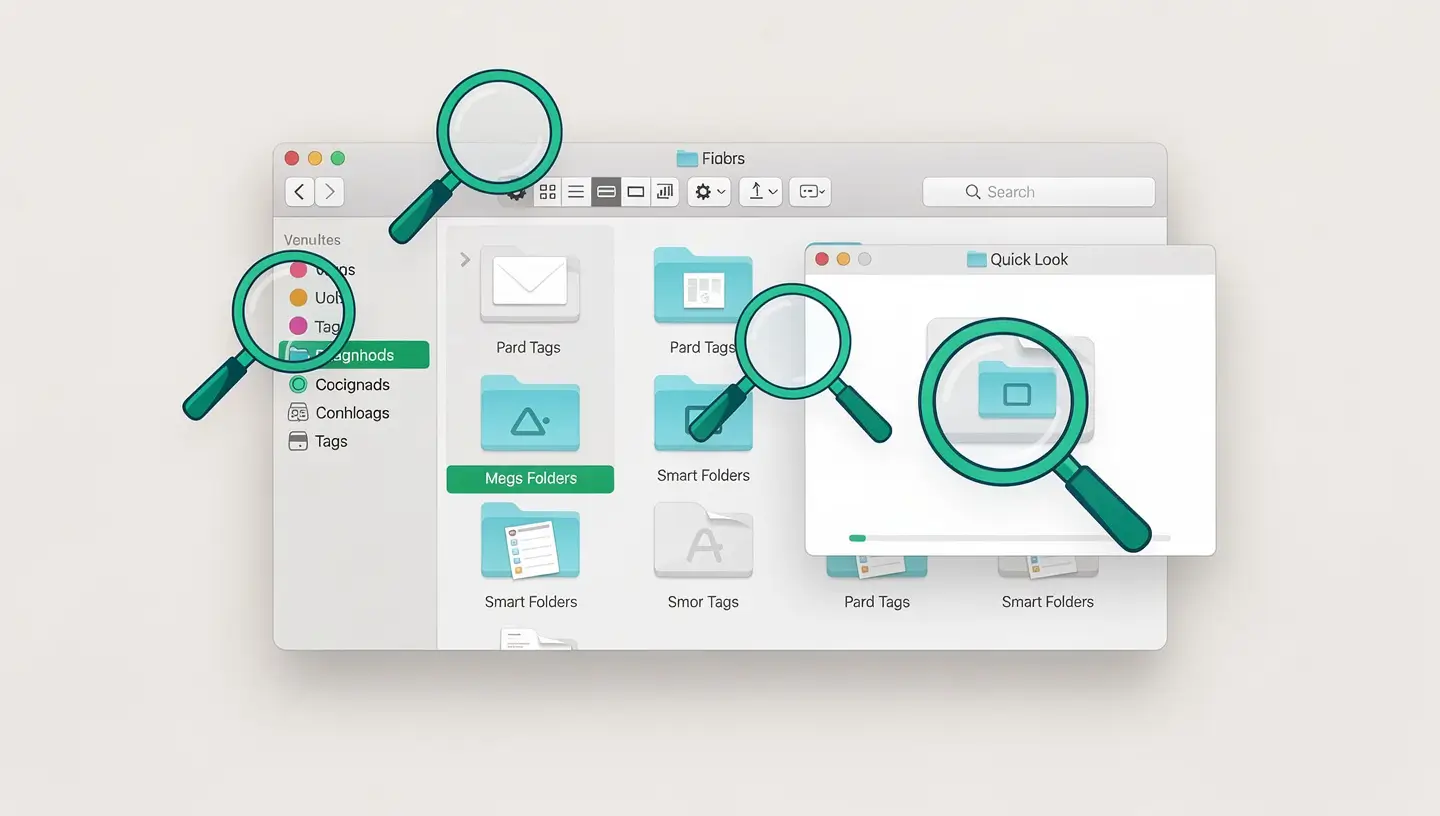
Quick Look is perhaps the most underrated feature of macOS. Select any file in the Finder and press the Espace content is instantly displayed in a preview window, without launching the associated application. Documents, photos, videos, PDFs, spreadsheets, presentations - virtually any file type is supported.
Tags are a transversal organisation system that goes beyond the logic of folders. A file can only be in one folder, but it can have as many tags as you need. This means you can organise your files by project, priority, status or any other criterion - regardless of their physical location.
Professionals use tags in different ways. Some create tags by project (Client_X, Project_Y), others by status (In progress, To be reviewed, Completed, Urgent). The default colour tags (red, orange, yellow, green, blue, purple, grey) are perfect for a quick visual system: red for urgent, green for finished, yellow for waiting, for example.
To customise the tags available, go to Finder → Settings → Tags. You can rename the default tags, create new ones and choose which ones appear in the right-click context menu.
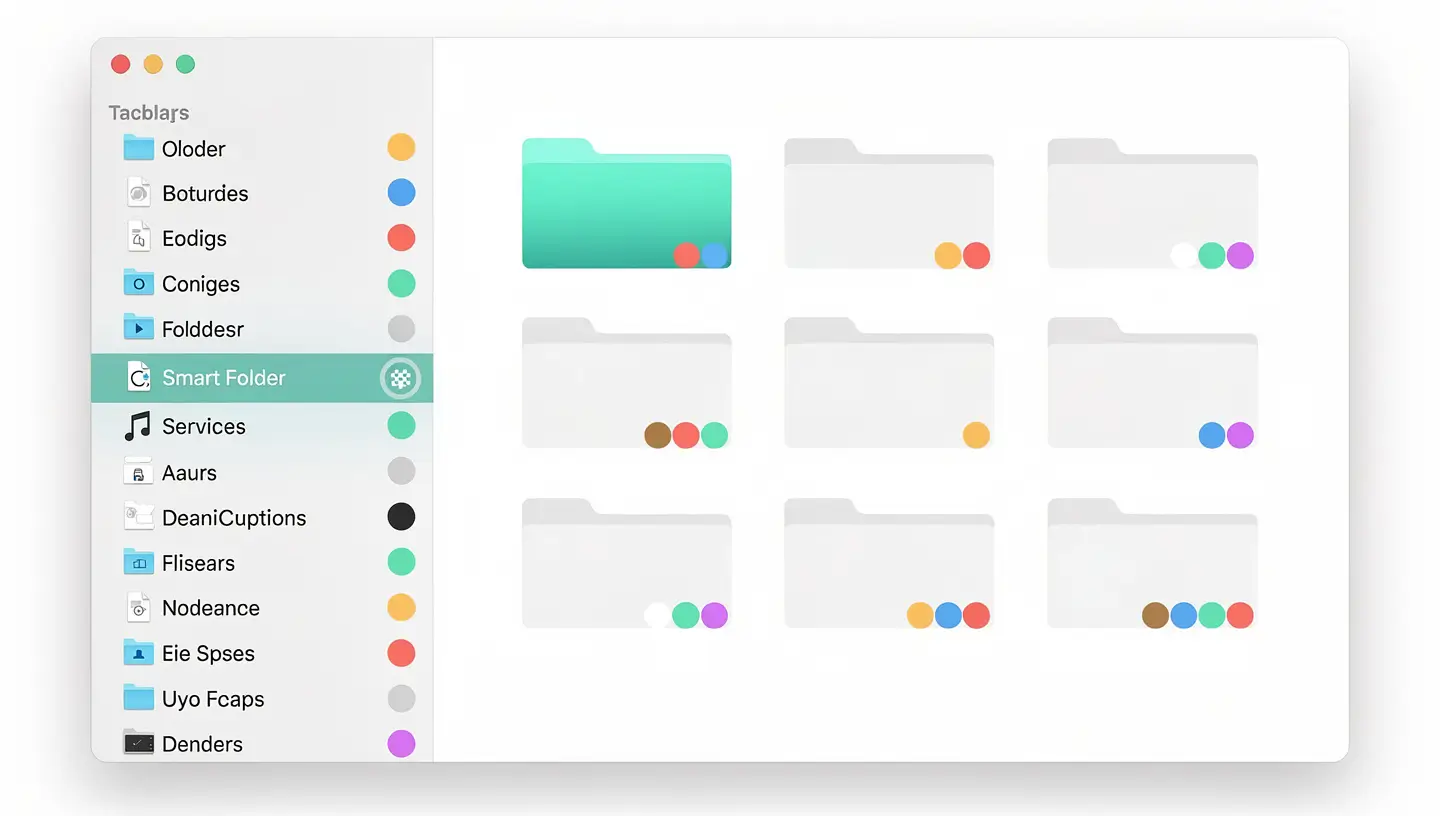
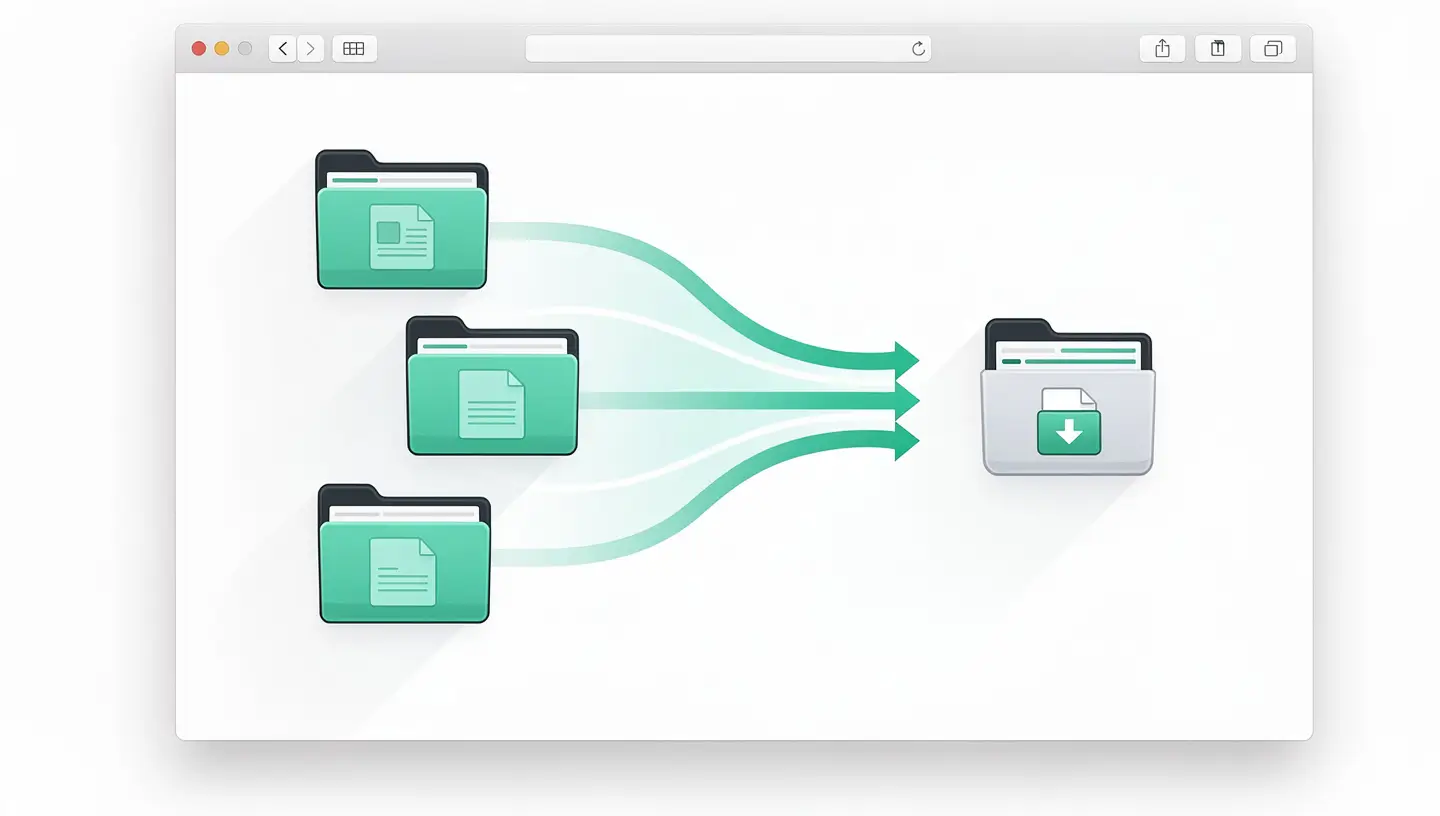
Smart Folders are saved searches that update automatically. They display all the files matching your criteria in real time, wherever they are on your Mac - without physically moving the files.
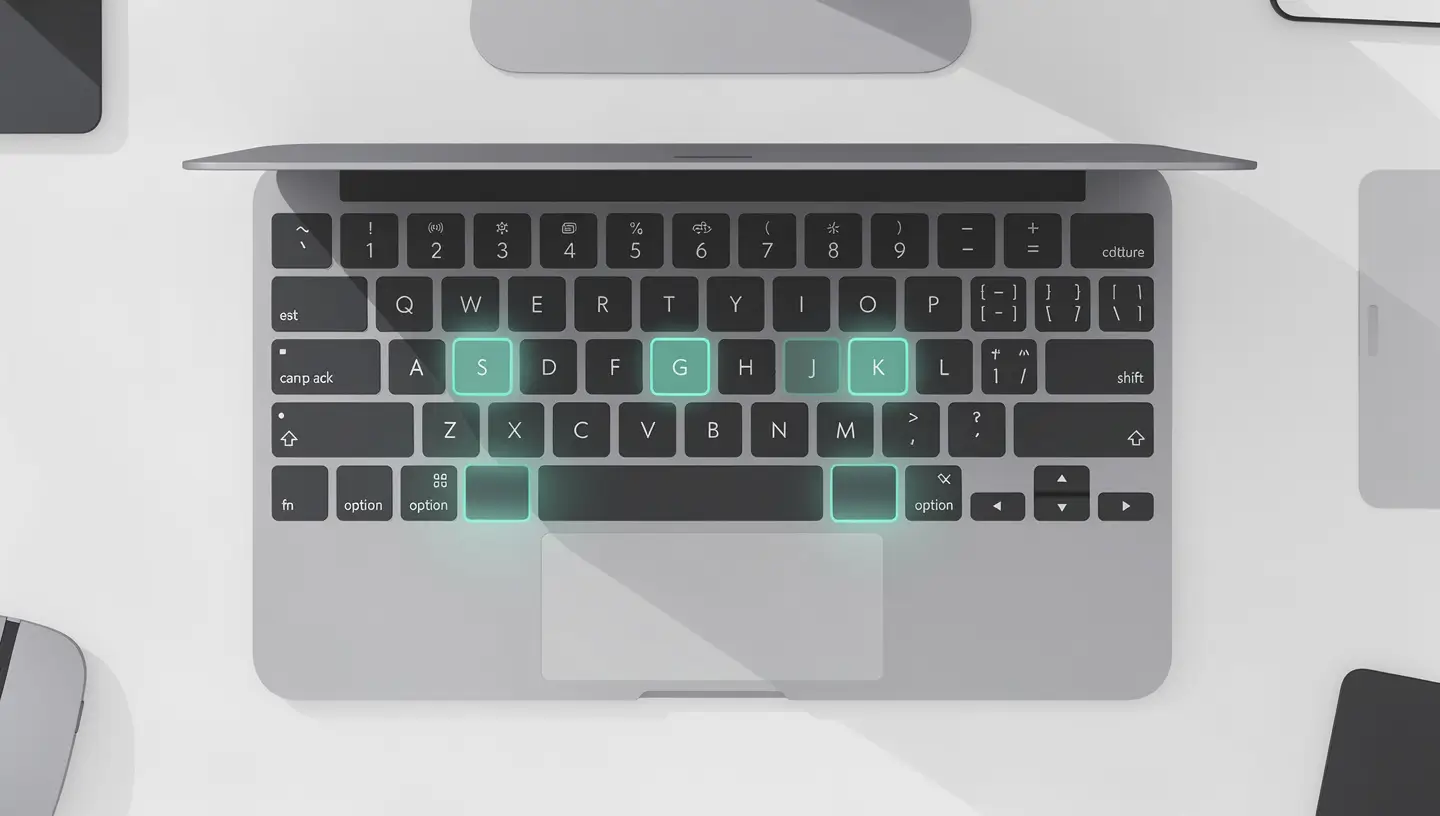
The speed of navigation in the Finder is based on keyboard shortcuts. Mastering these few combinations can halve the time spent searching for and manipulating files.
| Shortcut | Action | Usefulness |
|---|---|---|
| Cmd + Shift + G | Go to folder (enter path) | Direct access to any folder by its path |
| Cmd + Shift + . (dot) | Show/hide hidden files | Essential for system and .htaccess files |
| Cmd + T | New tab | Fewer windows, greater legibility |
| Cmd + I | File information | Size, dates, permissions, extension |
| Cmd + Option + I | Inspector (real-time information) | A single info window that updates according to selection |
| Cmd + D | Duplicate the file | Instant copy to the same folder |
| Cmd + Option + V | Move (instead of paste) | Cut and paste files (Cmd+C then Cmd+Option+V) |
| Cmd + [ and Cmd + ] | Previous / Next | Browsing your history as if you were in a browser |
| Cmd + Up arrow | Move up a level | Go to parent folder |
| Input | Rename the file | Different from Windows where Enter opens the file |
For an exhaustive list of macOS keyboard shortcuts, see our Mac keyboard shortcut guide.
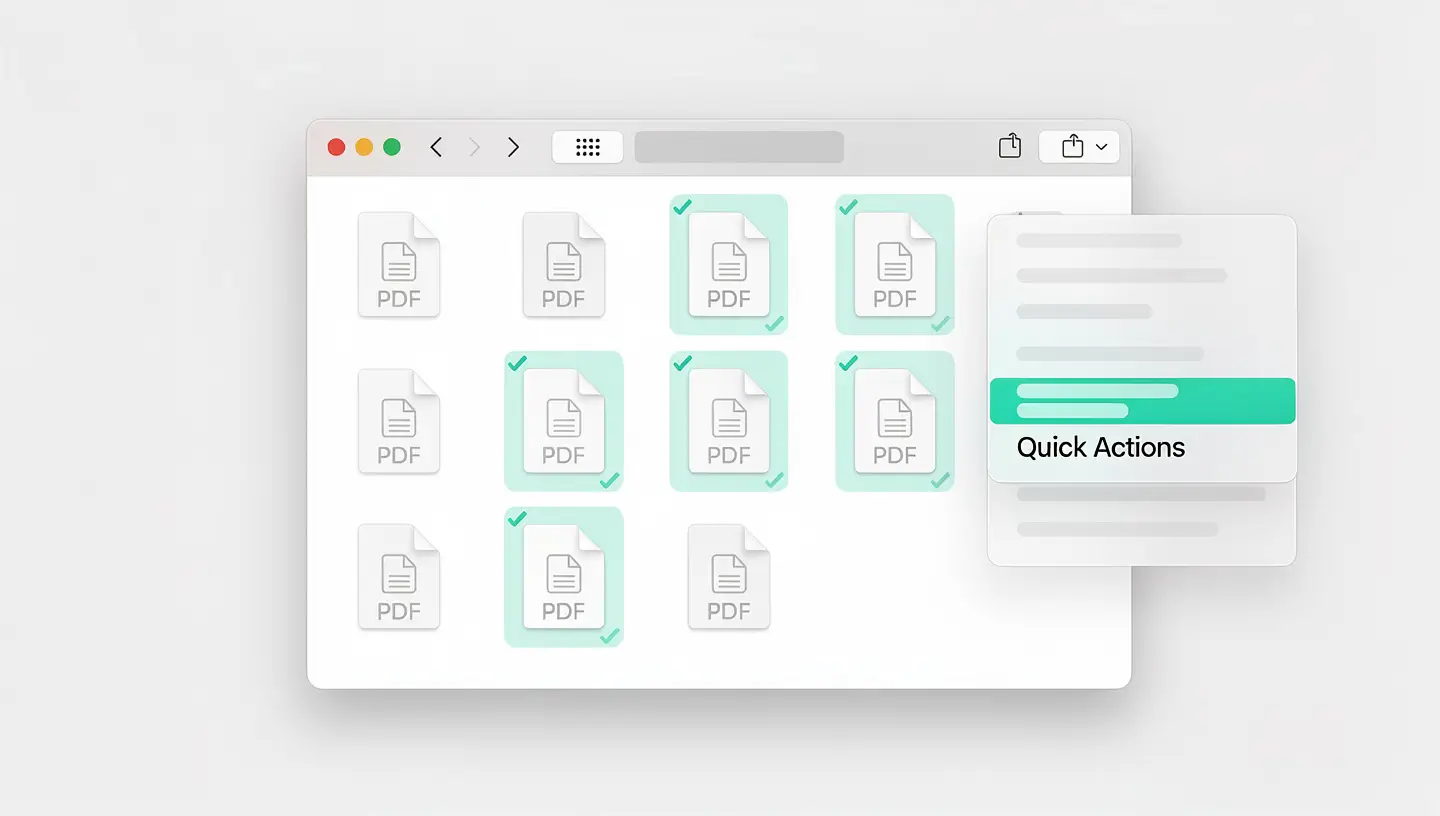
Quick Actions are accessed by right-clicking on a file and allow you to perform common operations without opening an application. macOS provides several by default, and you can create new ones with the Shortcuts application.
The application Shortcuts (part of macOS) lets you create automated actions that appear as Quick Actions in the Finder. For example: resize all selected images to a specific width, add a watermark, convert audio files, or mass rename according to a template.
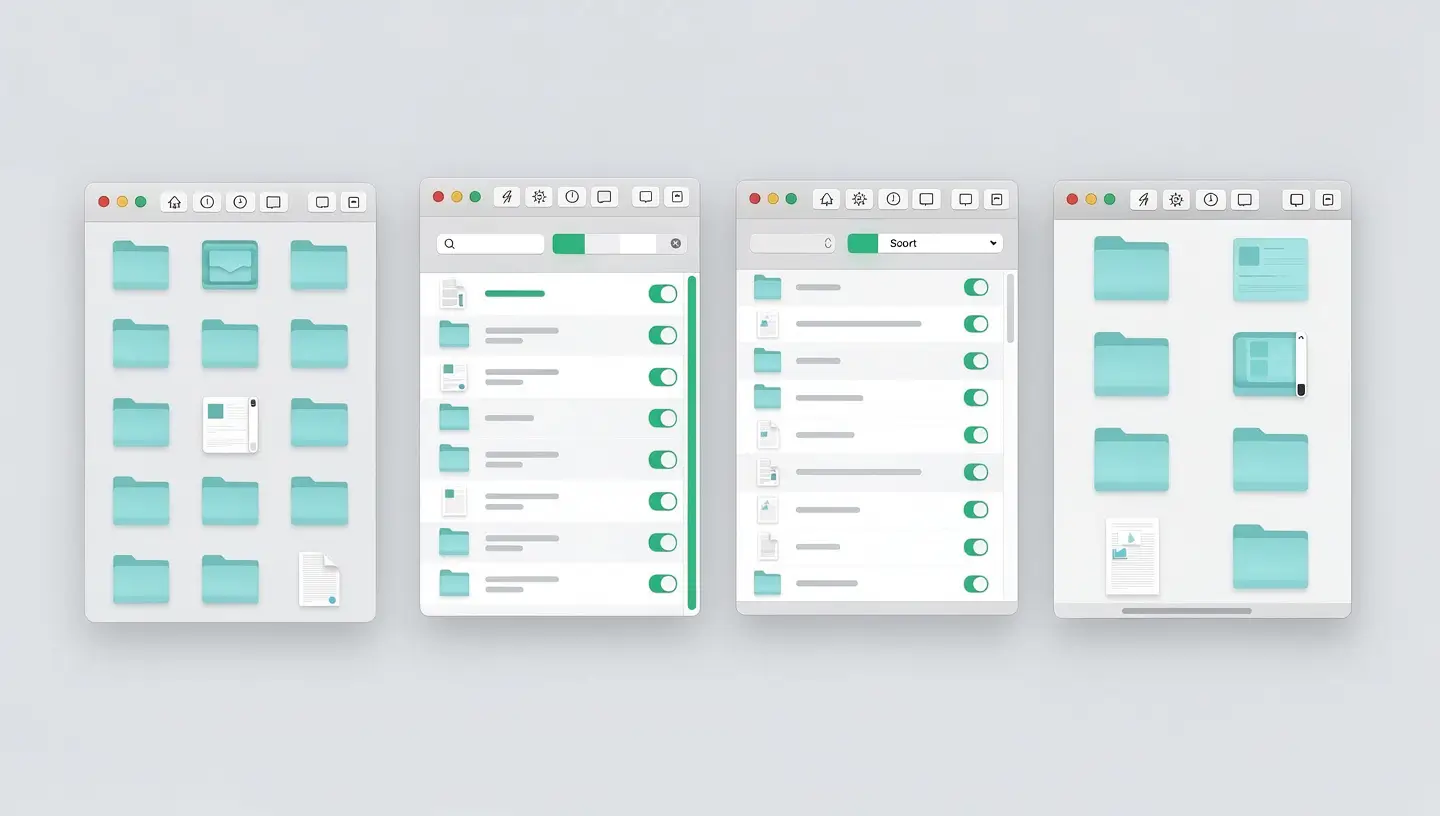
Each view has its own optimal context of use:
Each folder can have its own display settings. Open Presentation → Display options (Cmd + J) to configure sorting, icon size, visible columns and spacing grid. Tick «Always open in [view]» to set the display mode for this specific folder.
Select several files, right-click → Rename. macOS offers three modes: Text Replace (replace part of the name), Text Add (add a prefix or suffix) and Format (full rename with counter). It's a surprisingly powerful native mass renaming tool - no need for a third-party application for most needs.
Finder tabs (Cmd + T) work just like in a web browser. Drag a tab out of the window to detach it, or drag it into another window to group it together. You can also merge all open Finder windows into one with tabs: Window → Merge all windows.
Right-click on a file and hold down the Option Copy [name] as path« option appears in the context menu. This is essential for developers and Terminal users who need the absolute path to a file.
If your desktop is cluttered, right-click → Use the batteries (or Presentation → Use stacks). Files on the desktop are automatically grouped by type, date or tag - a clean desktop in one click.
AirDrop is integrated directly into the Finder in the sidebar. You can also drag and drop any file onto the AirDrop icon to send it, or use the Sharing menu (right-click → Share → AirDrop). For more complex data transfers between Macs, see our guide to’Mac Migration Assistant.
For more tips on managing files and using the Terminal in addition to the Finder, see our article on Mac Terminal commands. Apple also provides a complete guide to the Finder in its official Mac documentation.
Press Cmd + Shift + . (dot) in any Finder window. Hidden files (whose names begin with a dot, such as .htaccess or .DS_Store) appear semi-transparent. Press the same combination again to hide them. This shortcut also works in the Open and Save dialog boxes.
macOS does not have a «Cut» shortcut (Cmd + X) for files. Instead, copy the file with Cmd + C, then paste it into the destination folder with Cmd + Option + V. The file is moved (not copied) - the exact equivalent of Windows cut and paste.
Activate the path bar: Overview → Show path bar (or Cmd + Option + P). The full path appears at the bottom of every Finder window. You can double-click on any item in the path to navigate directly to that folder.
No. A smart folder is a saved search, not a copy of files. It only takes a few KB to store the search criteria. The files it displays remain in their original location and take up no extra space.
Right-click on a file of the relevant type → Read information. In the «Open with» section, choose the desired application, then click «Change all» to apply the change to all files of that type. For example, you can set VLC as the default player for all .mp4 files.
Simply drag the folder you want into the «Favourites» section of the sidebar. To remove it, drag it out of the sidebar. You can also rearrange items in the sidebar by dragging them vertically.
Open the folder in the Finder, then launch a search with Cmd + F. By default, macOS suggests searching in «This Mac» or in the current folder - choose the current folder. You can also change the default behaviour in Finder → Settings → Advanced → «Search in».
Yes, tags applied to files stored in iCloud Drive are synchronised between all your Macs connected to the same Apple ID. They are also visible in the Files application on iPhone and iPad. Tags applied to local files (outside iCloud) remain local to that Mac.
Yes, Quick Look displays Word (.docx), Excel (.xlsx), PowerPoint (.pptx) and most common office formats. Formatting is generally well preserved. For specialised formats (CAD files, scientific formats), free Quick Look extensions are available to extend compatibility.
Yes, with over 15 years' experience since 2010, our team will configure the Finder optimally, organise your files, set up automatic backups and optimise the overall performance of macOS. 180-day guarantee on all our services.


Over 15 years of Apple expertise in Brussels. Free, no-obligation quote and 180-day guarantee on repairs.