

Apple Intelligence is the personal artificial intelligence system developed by Apple and integrated directly into macOS, iOS and iPadOS. Unlike traditional AI assistants that operate exclusively in the cloud, Apple Intelligence relies heavily on local processing - the AI models run directly on your Mac's chip, without your data leaving the device for the majority of tasks.
What fundamentally distinguishes Apple Intelligence from competing solutions is its system-level integration. AI isn't confined to a dedicated application: it's accessible in Mail, Notes, Pages, Safari, Messages, and virtually any application that handles text - including third-party apps. You select text, right-click, and the AI functions appear in the context menu.
Apple Intelligence was launched gradually from the end of 2024 and continues to evolve with each macOS update, with new features added regularly. French has been fully supported since macOS Sequoia 15.4 (March 2025), and Apple is continually expanding the list of supported languages.
Apple Intelligence requires an Apple Silicon chip to operate. Local AI processing requires dedicated computing power (the Neural Engine built into M chips) that Intel processors do not have.
| Mac | Compatible | Condition |
|---|---|---|
| MacBook Air M1 and later | Yes | 8 GB memory minimum |
| MacBook Pro M1 and later | Yes | 8 GB memory minimum |
| Mac mini M1 and later | Yes | 8 GB memory minimum |
| iMac M1 and later | Yes | 8 GB memory minimum |
| Mac Studio M1 Max and higher | Yes | 8 GB memory minimum |
| Mac Pro M2 Ultra and higher | Yes | 8 GB memory minimum |
| All Intel Macs | No | No Neural Engine compatible |
Writing Tools are probably the most immediately useful feature of Apple Intelligence. Accessible anywhere you can enter text on macOS, they offer three main capabilities.
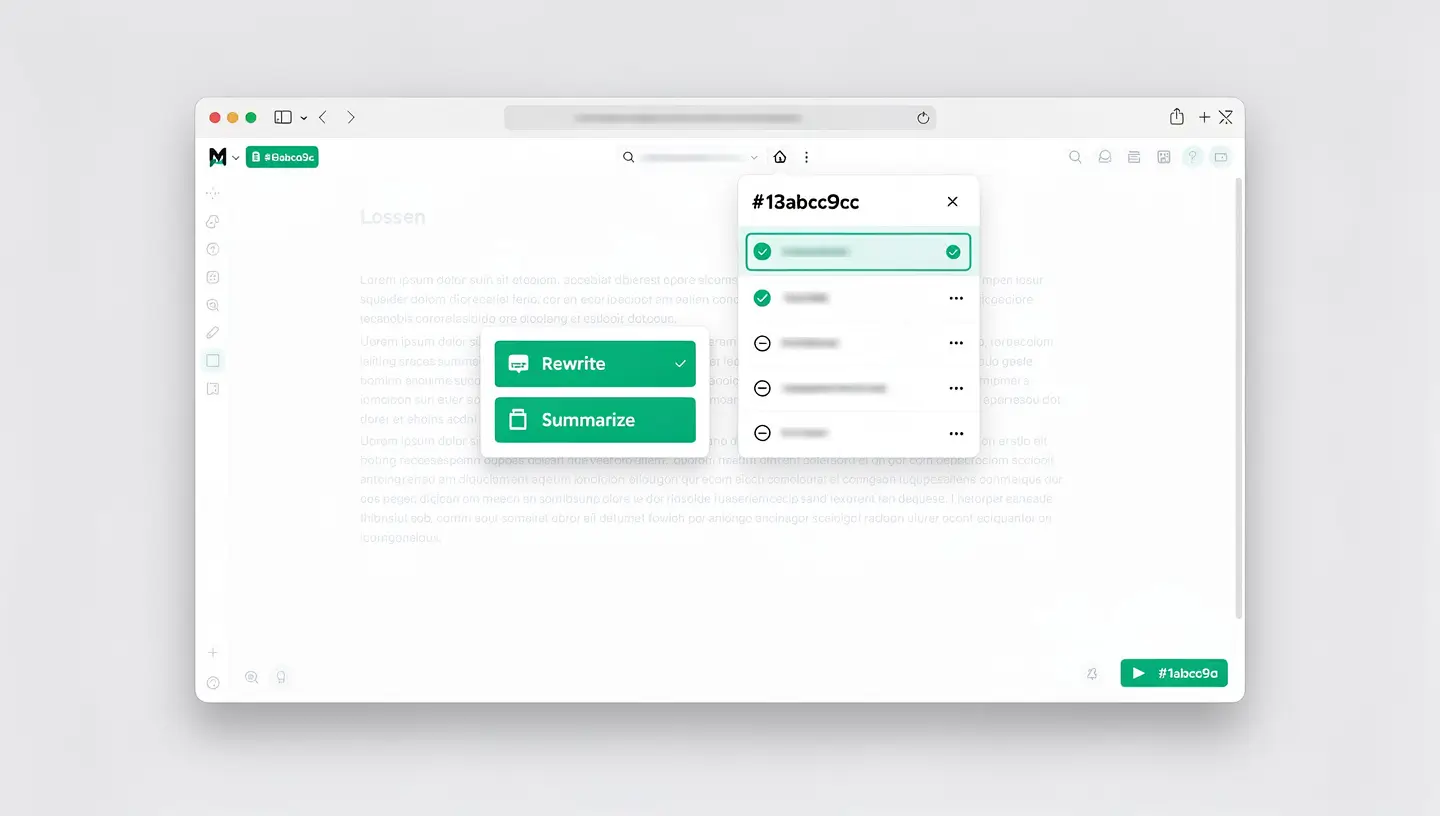
Select a text, go to Writing Tools and choose «Rewrite». Apple Intelligence will propose a reworded version of your text. You can specify the tone you want: more professional, more friendly or more concise. This is particularly useful for business emails, client messages or writing documents - each rewording retains the meaning while adapting the style.
The «Revise» function goes further than a traditional spellchecker. It analyses the grammar, syntax, punctuation and consistency of your text, then suggests contextual corrections that you can accept or reject one by one. Unlike an automatic spellchecker, it explains its suggestions.
The «Summarise» function condenses a long text into a few key points. It can produce the summary as a paragraph, bulleted list or table. Ideal for extracting the gist of a long article, report or email thread.
Apple Intelligence is radically transforming Siri on the Mac. The voice assistant - or text assistant, as you can now write to it directly - benefits from a considerably improved understanding of natural language and deeper integration with the system.
Siri continues to evolve with each macOS update. Apple is gradually developing cross-application action capabilities - the ability for Siri to chain together actions in several apps with a simple voice request - which continually enrich the experience.
Image Playground is Apple Intelligence's image generation application. It creates illustrations from text descriptions, in three visual styles: Animation, Illustration and Sketch. The result is deliberately stylised - Apple has chosen not to offer a photorealistic style to avoid the risks of misinformation and deepfakes.
Image Playground can be accessed as a standalone application, but also directly from Messages, Notes, Freeform, Keynote and Pages. You can describe what you want, add predefined themes and even use photos of people from your library to create custom illustrations.
Genmoji pushes back the boundaries of classic emojis by allowing you to create personalised emojis from a text description. «A cat in a Christmas hat coding on a MacBook»? Genmoji generates it in seconds. Like Image Playground, most of the generation is done locally on your Mac.
Apple Intelligence transforms Mail into a much more powerful productivity tool:
The macOS Notifications Center displays condensed summaries for long threads in Messages, groups of notifications from the same application and large textual content. Focus Mode «Reducing interruptions» uses Apple Intelligence to filter notifications and display only those that deserve your immediate attention.
Apple Intelligence is also present in Safari (article summary in Reader mode), Photos (natural language search, automatic creation of souvenir films), Notes (audio transcription and summary) and the Voice Recorder application (transcription and summary of recordings). To explore the AI-related security capabilities of macOS, read our article Mac security.

The issue of confidentiality is central to Apple Intelligence, and is what fundamentally differentiates Apple's approach from other AI solutions. The system is based on three levels of processing.
The majority of Apple Intelligence tasks - text correction, suggested answers, summaries, searching Photos - run entirely on your Mac thanks to the Neural Engine in the Apple Silicon chip. Your data never leaves your device. That's the highest level of privacy.
For more complex tasks that exceed the capabilities of the local model, Apple Intelligence can call upon dedicated Apple servers, running on Apple Silicon chips and running a hardened operating system. Apple claims that these servers do not retain any data after processing, do not make it accessible to Apple, and that the entire system is auditable by independent security researchers.
When Siri or Writing Tools suggest using ChatGPT, your explicit permission is required each time. Apple states that no OpenAI account is required and that OpenAI does not store requests from Apple Intelligence. You retain full control over what is shared. To find out more about protecting your data in general, see our guide protect your data on the Mac. Apple details its AI privacy policy on its official Apple Intelligence page.
No. Apple Intelligence requires an Apple Silicon chip (M1 or later) to work. Intel Macs do not have the Neural Engine required for local AI processing. If you wish to access Apple Intelligence, you must upgrade to an Apple Silicon Mac.
Yes, Apple Intelligence is included free of charge in macOS on all compatible Macs. There are no subscriptions or additional costs. Basic ChatGPT integration is also free and does not require an OpenAI account. If you have a ChatGPT Plus subscription, you can link it to access advanced features.
Yes, French has been fully supported since macOS Sequoia 15.4 (March 2025). Writing Tools, Siri, Notification Summaries, Smart Mail and other features work in French. Apple regularly extends the list of supported languages.
Most of the processing is done locally on your Mac. For complex tasks, Private Cloud Compute processes the data on Apple servers without storing it. Access to ChatGPT requires your explicit authorisation each time. You can disable ChatGPT integration in the settings.
Go to System Settings → Apple Intelligence and Siri. If your Mac is compatible and macOS is up to date, Apple Intelligence should be offered automatically. Make sure the Siri language and system language are set to a supported language (French, English, etc.).
In everyday use, the impact is negligible. AI processing uses the Neural Engine, a dedicated unit that does not penalise the main CPU. During an intensive task (generating an image, summarising a very long document), you may notice a slight increase in power consumption, but nothing that significantly affects the overall fluidity of the Mac.
Yes, entirely. Go to System Settings → Apple Intelligence and Siri and disable the feature. You can also selectively disable certain elements such as notification summaries, ChatGPT integration or writing suggestions, while keeping others.
8GB is the minimum required and Apple Intelligence works well with this configuration for most tasks (Writing Tools, Siri, Summaries). For more intensive uses (Image Playground with complex images, multitasking with AI in the background), 16GB offers a smoother experience. Apple Silicon Unified Memory is very efficient, but 8GB is still just enough when Apple Intelligence is added to your usual applications.
Features based on local processing (writing tools, text suggestions, proofreading) work offline. Features requiring Private Cloud Compute or ChatGPT integration require an Internet connection. In practice, the majority of day-to-day tasks remain accessible without a connection.
Start with the Writing Tools: select any text and right-click to access the rewrite and summarise options. Try writing to Siri (double-click the Siri icon) rather than speaking. Enable notification summaries for chatty applications (Messages, Slack, email). Explore Image Playground to create quick illustrations without leaving your Mac.


Over 15 years of Apple expertise in Brussels. Free, no-obligation quote and 180-day guarantee on repairs.