
The belief that Macs are immune to computer threats is a thing of the past. In 2026, attacks targeting macOS have increased significantly, including ransomware, phishing and spyware. Your Mac probably contains family photos, business documents, bank details and irreplaceable memories. Losing this data - whether through theft, hardware failure or attack - can have disastrous consequences.
The good news is that macOS includes some of the most robust protection tools on the market. The problem is that most users don't activate them or configure them incorrectly. This step-by-step guide will help you lock down your Mac like a digital safe, without installing any paid software.
FileVault is the first line of defence for protecting your Mac data. This macOS-integrated encryption system turns your entire disk into an unreadable volume without your session password or recovery key. In practical terms, if someone steals your MacBook, they won't be able to read anything on the disk, even if they physically remove it from the machine.
| Criteria | FileVault disabled | FileVault activated |
|---|---|---|
| Access to data after theft | Possible in Target Disk mode | Impossible without password |
| Impact on performance | No | Negligible (Apple Silicon) to slight (Intel) |
| Protection of sensitive data | Limited to the session password | Full AES-256 encryption |
| Recovery if you forget | Simple reset | Recovery key or iCloud required |
Encrypting your disk protects against theft, but not against hardware failure, accidental deletion or ransomware. The only truly comprehensive protection is a solid backup strategy. IT professionals apply the 3-2-1 rule: three copies of your data, on two different types of media, including one off-site.
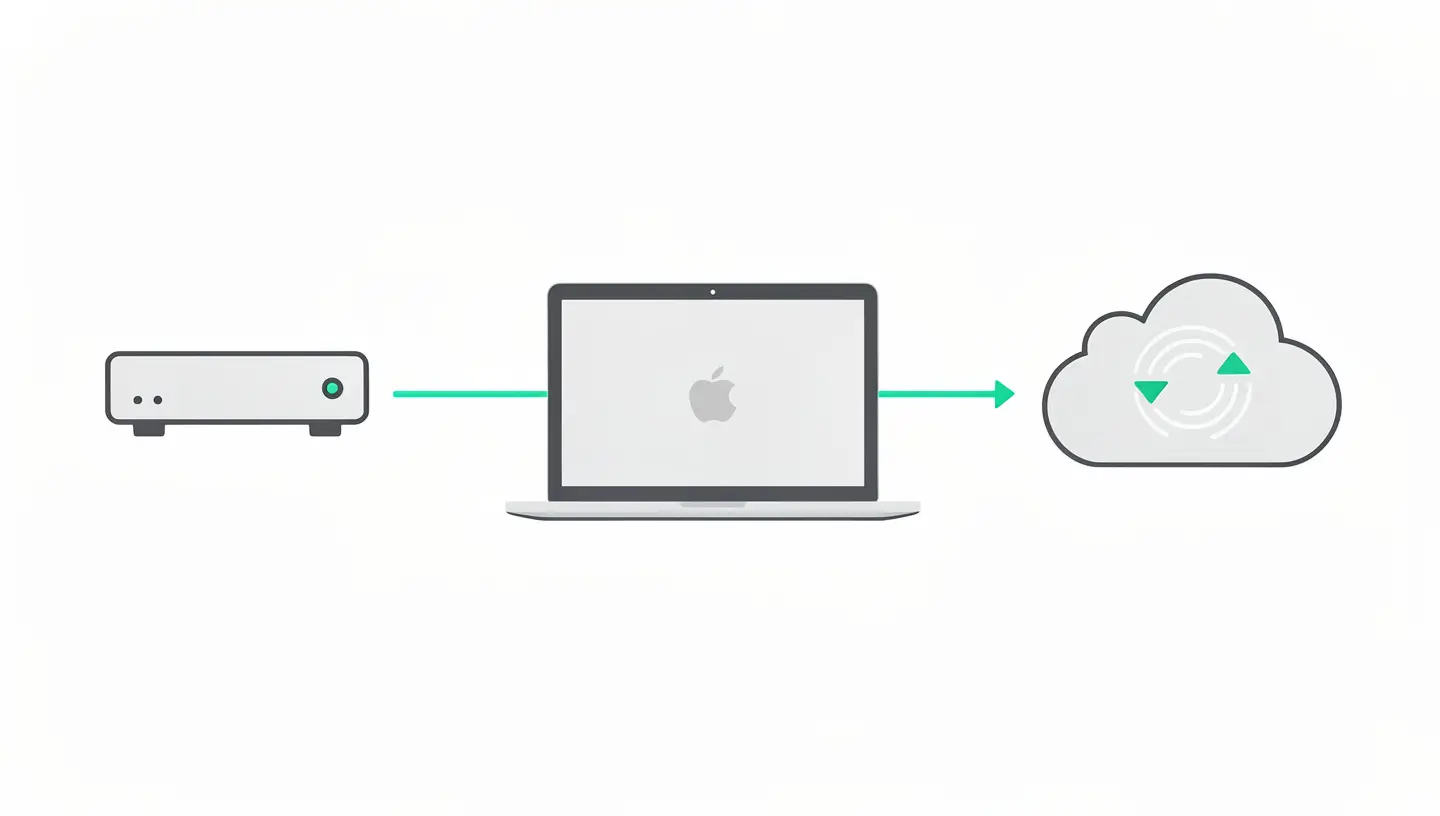
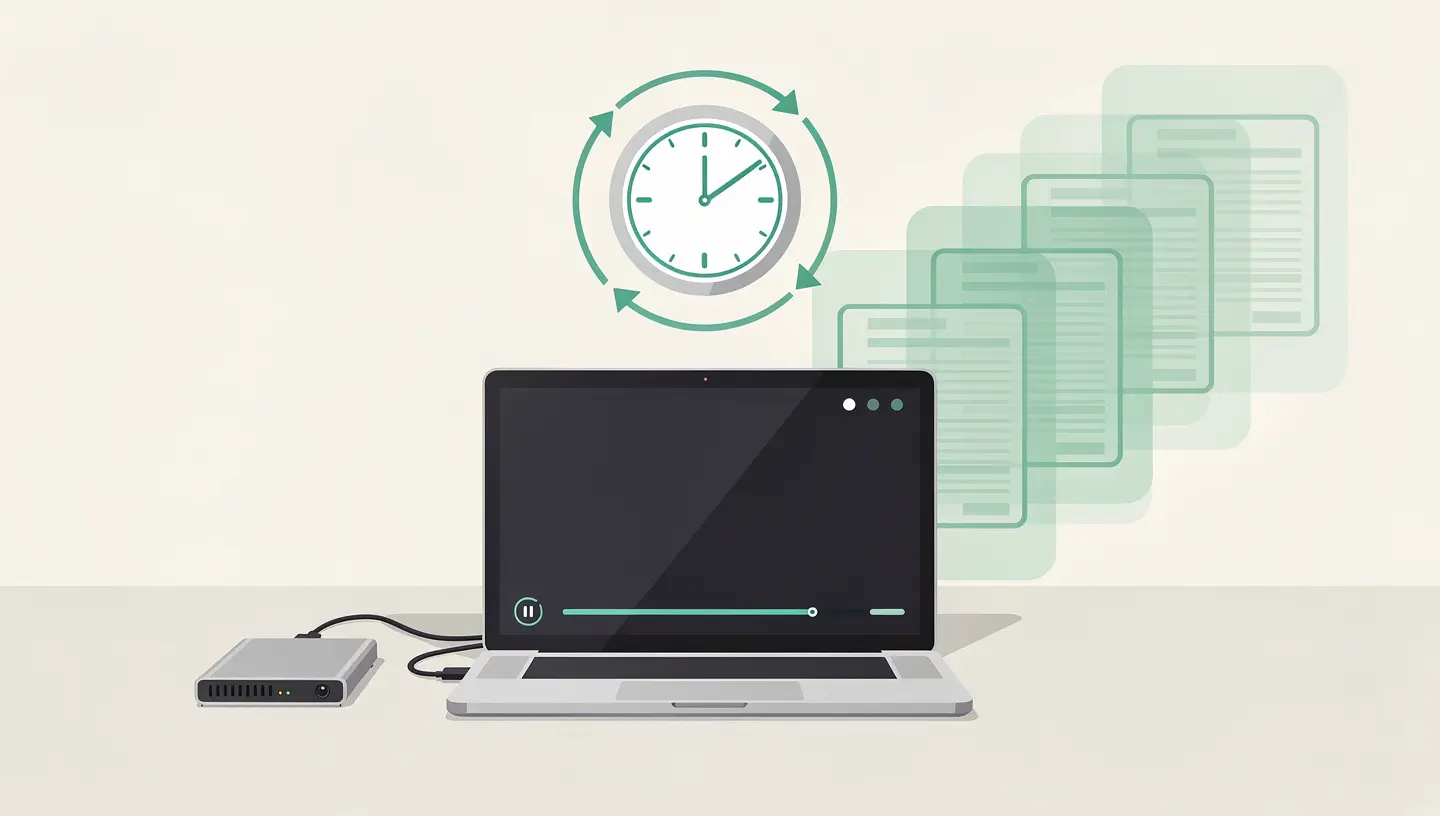
Time Machine is still the simplest and most reliable backup tool for the Mac. Plug in an external drive, activate Time Machine, and your Mac is automatically backed up every hour. In the event of a problem, you can restore an individual file, a folder or even your entire system at a specific time. For detailed configuration, see our complete Time Machine guide.
iCloud automatically synchronises your documents, photos and important files on Apple servers. It's your offsite copy: even if your Mac and external drive are destroyed (fire, flood), your data remains accessible from any Apple device or via icloud.com. The 200GB package costs €2.99 per month, and the 2TB package costs €9.99 per month - a derisory investment compared with the value of your data.
For maximum protection, create a bootable clone of your disk using software such as Carbon Copy Cloner or SuperDuper! Unlike Time Machine, a clone allows you to boot directly from the backup disk if your primary disk fails. It's the preferred solution for professionals who can't afford any downtime.
| Solution | Type | Automatic | Catering | Cost |
|---|---|---|---|---|
| Time Machine | Local incremental | Yes (hourly) | File, folder or system | Free + external disk |
| iCloud Drive | Cloud (off-site) | Yes (continuous) | Individual files | 2.99 to €9.99/month |
| Bootable clone | Full local | Plannable | Direct start | Software ~40 € + disk |
A weak password is like an armoured door with the key under the mat. In 2026, an eight-character password with no special characters can be cracked in a few minutes by brute force. Rigorous management of your passwords is a fundamental pillar of data protection.
Since macOS Sequoia, Apple offers a dedicated application Password which replaces the old access keychain. It generates complex passwords, stores them encrypted, synchronises them between your devices and alerts you if any of your passwords have been compromised in a known data leak. Use it systematically for every new online account.
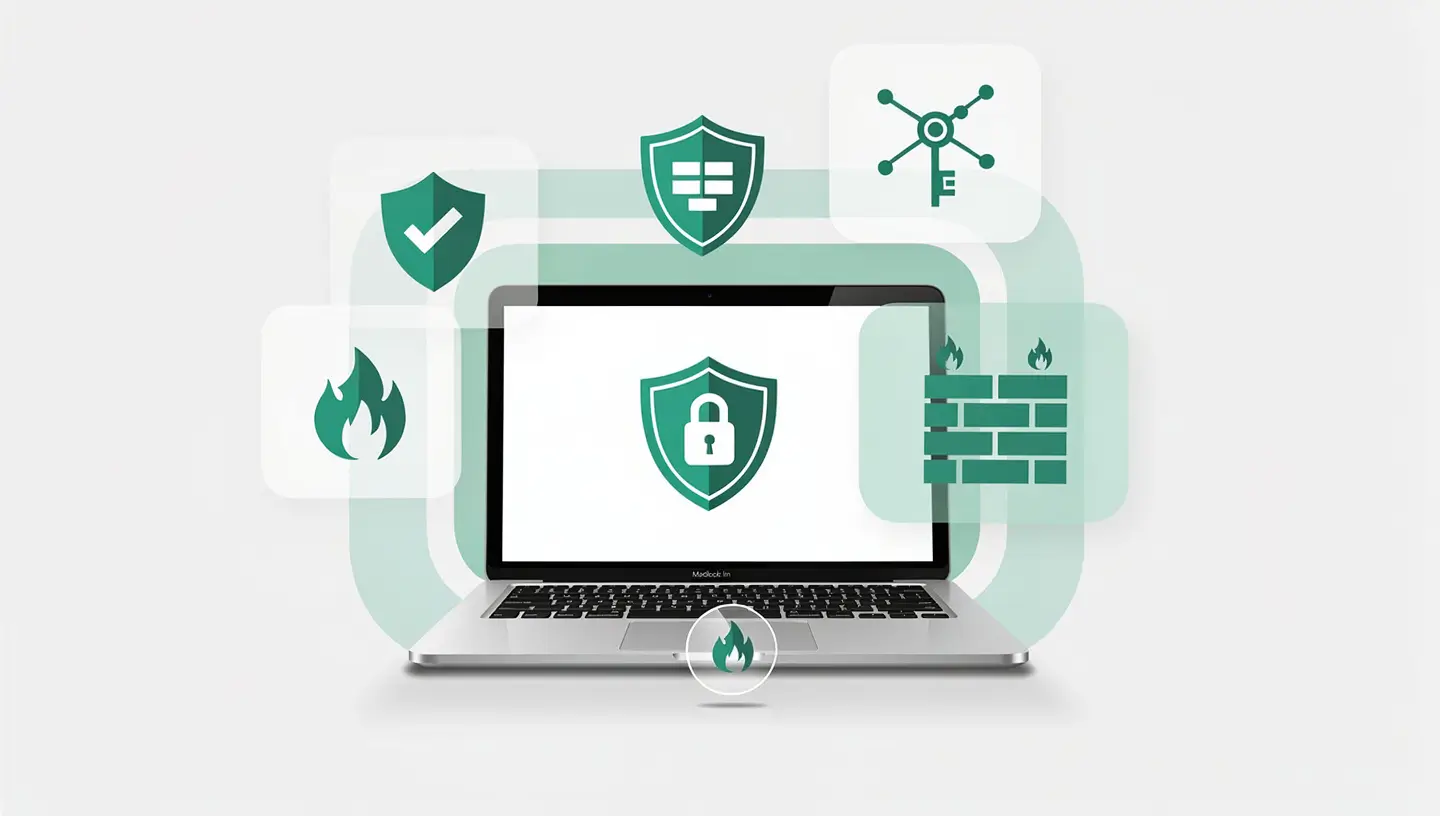
Your Mac is constantly communicating with the outside world: updates, iCloud synchronisation, web browsing, third-party applications. The firewall built into macOS controls these incoming connections and blocks attempts at unauthorised access.
Go to System Settings → Network → Firewall and activate it. By default, macOS blocks all unsolicited incoming connections while allowing essential system services. For standard use, the default configuration is sufficient. If you host a local server or use screen sharing, you can add exceptions manually.
A public WiFi network (café, airport, hotel) is an ideal hunting ground for hackers. Anyone connected to the same network can potentially intercept your unencrypted data. Two solutions:
If your WiFi is causing problems, our guide WiFi Mac no longer works can help you diagnose the situation before reinforcing your network security.
macOS is packed with security features, but some are not activated by default or need to be adjusted. Here's a checklist of settings to check now to protect your data on the Mac.
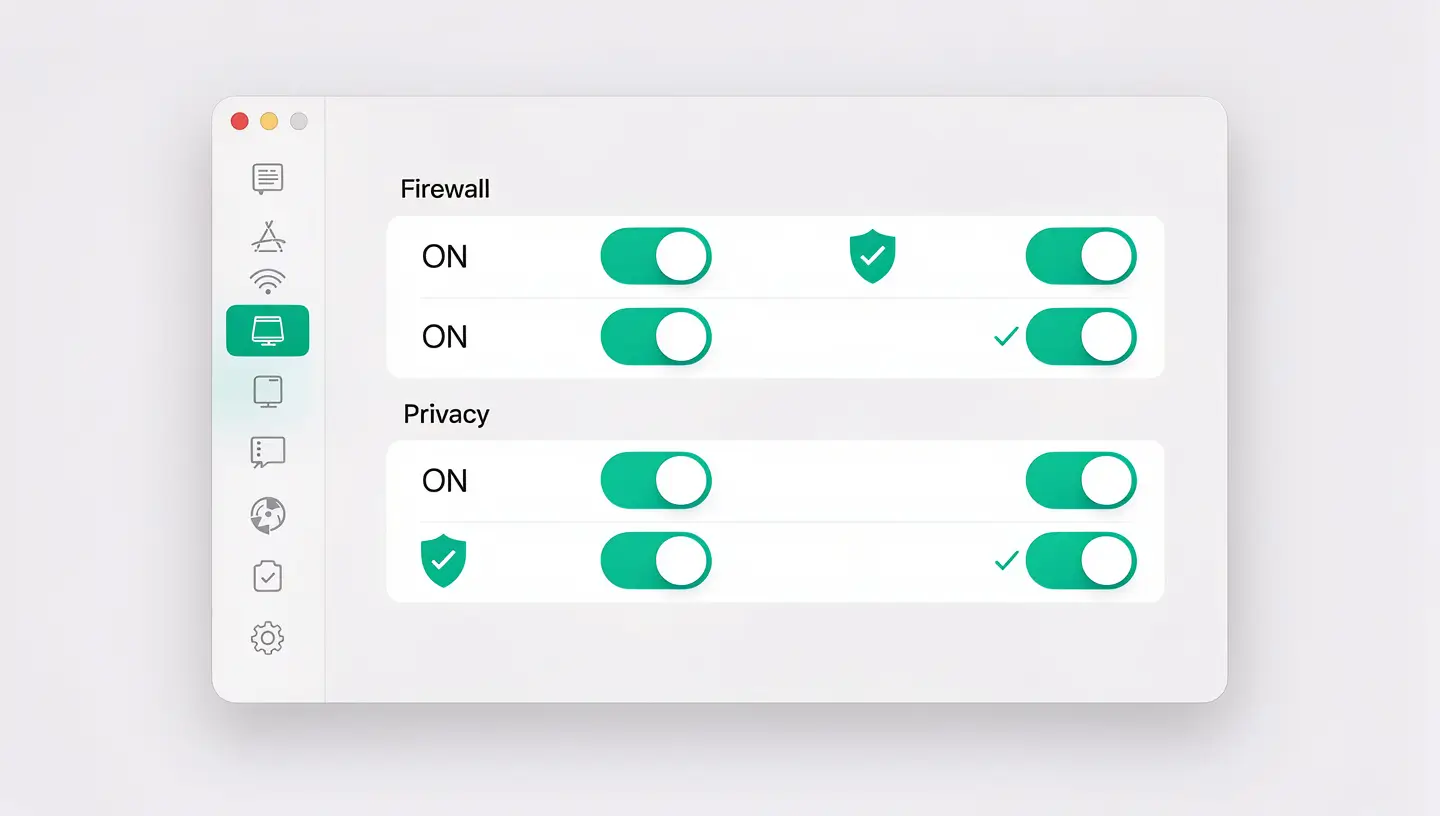
| Setting | Location | Recommended action |
|---|---|---|
| FileVault | Confidentiality and security → FileVault | Activate |
| Firewall | Network → Firewall | Activate |
| Locate my Mac | Apple ID → Locate | Activate (allows remote wiping) |
| Automatic updates | General → Software update | Activate all options |
| Gatekeeper | Confidentiality and security | Keep on «App Store and identified developers».» |
| Automatic locking | Locking screen | 5 minutes maximum |
| Password after standby | Locking screen | Immediately |
| Location services | Confidentiality and security → Location services | Disable for non-essential apps |
The function Locate my Mac is not just for finding a lost Mac. It also lets you lock it remotely with a personalised message, or erase all its data if you're sure you won't get it back. Combined with FileVault, this feature makes a stolen Mac completely unusable and its data inaccessible. To find out more about the security features built into macOS, visit the official Apple data protection page.
MacOS updates are not just cosmetic. Each update corrects security flaws, some of which are actively exploited by hackers. Delaying a security update leaves the door open to known vulnerabilities. Activate automatic updates and never postpone a critical security update. Apple regularly publishes patches via Apple security updates - check that your Mac is up to date.
Understanding today's threats is the best way to protect against them. Here are the most common risks facing Mac users in 2026, and the reflexes they should adopt.
Phishing remains the number one threat across all platforms. An email or text message prompts you to click on a link and enter your credentials on a fake website. Phishing campaigns targeting Apple users are particularly sophisticated: fake «Apple ID suspended» emails, fake iCloud notifications, fake security warnings. The best thing to do: never click on a link in an email alert. Open Safari manually and type in the address of the site concerned yourself.
Malware targeting macOS is on the rise. The most common in 2026 will be adware (intrusive advertising), infostealers (theft of passwords and bank details) and ransomware (encryption of your files with a ransom demand). Gatekeeper and XProtect, the protections built into macOS, block the majority of these threats - provided you don't bypass them by installing software from unverified sources. Our article on Mac antivirus details the complementary solutions available.
A stolen MacBook without FileVault activated means direct access to your entire digital life. With FileVault, Locate My Mac and a strong session password, the thief is left with a beautiful aluminium object that's completely unusable. It's the combination of these three protections that makes the difference.
Man-in-the-middle attacks on public WiFi networks make it possible to intercept the data exchanged between your Mac and the sites you visit. Although most sites now use HTTPS, some applications still transmit data in cleartext. Use iCloud Private Relay or a VPN on any network that is not your own.
A fake Apple technician calling you, a «friend» asking you for a verification code received by text message, an email from your «bank»: social engineering exploits human trust. The absolute rule: Apple will never call you to ask for your password or a verification code. Nobody legitimate will ask you for this information.
On an Apple Silicon Mac (M1 and later), the impact is imperceptible because encryption is managed by the chip itself. On an Intel Mac with SSD, the slowdown is of the order of 1 to 3 %, invisible in everyday use. On an Intel Mac with a mechanical hard disk, the slowdown may be more noticeable, but these machines would first benefit from a SSD upgrade.
For the majority of users who keep macOS up to date and download only from the App Store or reliable sources, the built-in protections (XProtect, Gatekeeper, MRT) are sufficient. A third-party antivirus is recommended if you regularly download files from the Internet or if you use your Mac in a sensitive professional context.
Common signs include: unknown applications in your Applications folder, an abnormally slow Mac for no reason, browser redirects to unknown sites, unusual pop-up ads, excessive network activity visible in the Activity Monitor, or changes to your settings that you haven't made. When in doubt, our team offers a free diagnosis.
Yes, iCloud Keychain uses AES-256 end-to-end encryption, which means that even Apple can't read your stored passwords. Your data is encrypted on your device before being sent to the iCloud servers, and only your trusted devices can decrypt it.
If you chose iCloud recovery, you can reset your password online. If you opted for a local key and lost it while forgetting your password, the data is unfortunately irrecoverable - that's precisely the strength of encryption. That's why we always recommend keeping the key in a safe place and choosing iCloud recovery as a complement.
In addition to the measures described in this guide, a business Mac should have a separate user account for work, a VPN configured for access to the company network, encrypted backups separate from personal backups and, ideally, MDM (Mobile Device Management) if your company offers it.
Yes, significantly. Passkeys are resistant to phishing because they are cryptographically linked to the website that created them - a fake site can't intercept them. They cannot be brute-force guessed or stolen in a database leak. Apple synchronises them encrypted via iCloud Keychain between all your devices.
Absolutely. If your Time Machine drive isn't encrypted, anyone with physical access to it can read your data - even if FileVault is enabled on your Mac. When configuring Time Machine, check the «Encrypt backups» option. If your current backup is not encrypted, you will need to recreate it from scratch with this option enabled.
On a Mac with an SSD (all recent Macs), simply deleting a file and emptying the recycle bin does not guarantee complete deletion. The safest method is to activate FileVault: deleted data remains encrypted and is therefore inaccessible. If you are selling your Mac, carry out a complete deletion via reset settings.
Of course you can. With over 15 years' experience since 2010, our team offers a complete security service: FileVault activation, Time Machine configuration, privacy settings verification, malware removal and clean macOS installation if required. All our services are covered by a 180-day guarantee.


Over 15 years of Apple expertise in Brussels. Free, no-obligation quote and 180-day guarantee on repairs.