

Before deleting anything, you need to know where your disk space is going. macOS provides a built-in diagnostic tool which details each category of file.
On macOS Ventura or later (Sonoma, Sequoia, Tahoe), go to the Apple menu then System Settings then General then Storage. On macOS Monterey, go to the Apple menu then About this Mac then Storage. A coloured bar will appear with the categories: Applications, Documents, System Data, macOS, Photos, etc. Hover over each segment to see how much space it occupies.
| Category | What it contains | Typical size |
|---|---|---|
| macOSThe operating system itself | System files, updates | 25-35 GB (normal), 60+ GB (problem) |
| Applications | Installed apps and their data | Variable (5-50 GB) |
| Documents | All your personal files | Variable |
| System dataFormerly «Other» | Caches, logs, temporary files, snapshots | 10-30 GB (normal), 50+ GB (problem) |
| Photos | Photo and video library | Variable |
If the System Data or macOS category exceeds 50GB, this is often a sign of a problem, which we'll detail below. At MAC Repair, this is one of the most common cases we deal with: Macs with 256GB, 150GB of which is taken up by invisible system files.
It seems obvious, but it's the first source of waste we see in the workshop. When you delete a file with Cmd+Del, it goes into the recycle bin but continues to occupy disk space until the recycle bin is emptied.
Right-click on the Recycle Bin icon in the Dock and choose Empty Recycle Bin, or use the shortcut Cmd+Shift+Del. To automate, go to System Settings then General then Storage and activate Empty Trash Automatically (deletes files older than 30 days).
The Downloads folder is your Mac's invisible recycle bin. Every file downloaded from Safari, Chrome or Mail lands there and stays there indefinitely. After a few months' use, this folder can easily grow to 10 to 30 GB.
Open the Finder and press Cmd+Shift+L to go directly to Downloads (or Option+Cmd+L). Sort by size by clicking on the Size column to identify the largest files. Remove .dmg and .pkg installers (they are no longer needed once the app has been installed), previously extracted ZIP files and duplicate downloaded documents.
Applications take up space not only in the app itself, but also in the support files, caches and preferences that accumulate in the Library folder. An app you no longer use can take up anywhere from 500 MB to several GB.
In System settings then General then Storage, click on the «i» button next to the Applications category. The list shows all your apps sorted by size, with the date they were last used. Look out for apps you haven't opened in months.
Simply dragging an app into the recycle bin is not enough: the support files remain on the disk. For a complete deletion, also delete the remaining files in these folders (accessible via Finder then Go then Go to folder):
| Chemin | Content |
|---|---|
| ~/Library/Application Support/[AppName] | Application data and support files |
| ~/Library/Caches/[AppName] | Temporary cache files |
| ~/Library/Preferences/[com.nomapp.plist] | Application preferences |
| ~/Library/Saved Application State/[AppName] | Saved state of windows |
Caches are temporary files created by macOS and your applications to speed up certain operations. Over time, they accumulate and can take up several gigabytes without any real benefit.
In Safari, go to Safari then Settings then Advanced and tick Show Development menu. Then click on Development then Empty Caches. In Chrome, go to chrome://settings/clearBrowserData and select Cached images and files. In Firefox, go to Settings then Privacy then Clear Data.
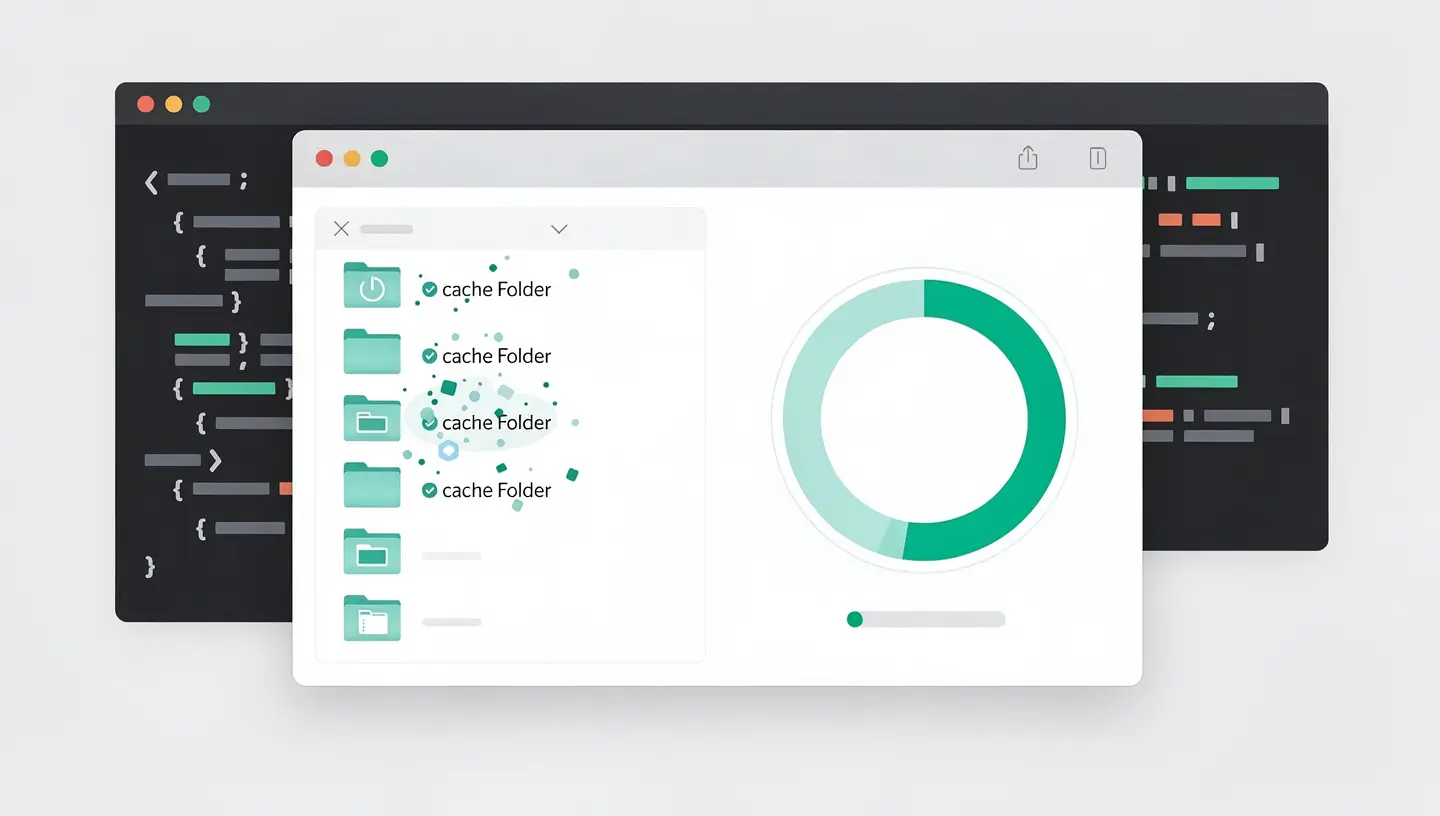
Open the Finder, press Cmd+Shift+G and type ~/Library/Caches. This folder contains the caches for all your applications. You can safely delete the contents of the sub-folders (not the folders themselves). macOS will recreate the necessary caches automatically the next time you launch each app.

Your Mac is probably hiding large files that you've forgotten about: old videos, local iPhone backups, virtual machine files, abandoned GarageBand or iMovie projects.
In System settings then General then Storage, click on the «i» next to Documents. The tool displays Large Files (sorted by size), Downloads and the File Browser. Go through this list and delete anything you no longer need.
For a more detailed search, open the Finder, press Cmd+F, click on the Type menu, then choose Other and select File size. Set it to «greater than 500 MB» to find large files hidden in your system.
The System Data category (formerly Other in previous versions of macOS) is often the most mysterious and the largest. It includes caches, temporary files, logs, fonts, plugins and application support files.
| Component | Location | Deletion security |
|---|---|---|
| Application caches | ~/Library/Caches/ | Secure (contents only) |
| System logs | ~/Library/Logs/ | Safe |
| Temporary files | /tmp/ and /private/var/folders/ | macOS manages them automatically |
| Language files | In each app (.lproj) | Safe (except for your language) |
| Time Machine snapshots | Invisibles (APFS volume) | See dedicated section below |
If your System Data exceeds 50 GB and the above methods are not sufficient, this is often linked to Time Machine snapshots (next section) or a software problem that requires a professional diagnosis.
This is the most common hidden cause of saturated storage. Time Machine creates local snapshots on your internal drive even when your external backup drive is not connected. These snapshots can occupy between 10 and 100 GB.
Open Terminal (Applications then Utilities then Terminal) and type :
tmutil listlocalsnapshots /
This command displays a list of all local snapshots with their date. If the list is long, Time Machine is accumulating snapshots that have not yet been transferred to the external disk.
To delete a specific snapshot, type :
tmutil deletelocalsnapshots [date]
For example: tmutil deletelocalsnapshots 2026-03-25-180516
To force Time Machine to reduce the space occupied by snapshots, use :
tmutil thinlocalsnapshots / 10000000000 4
This command tells Time Machine to free up around 10 GB of space immediately. The result is often spectacular: some users recover 30 to 80 GB in one go.
macOS offers an automatic storage optimisation feature that moves your least-used files to iCloud, leaving only a lighter version locally.
Go to System Settings then your Apple ID then iCloud then Optimise Mac storage. Once activated, macOS automatically frees up space by moving Desktop and Documents files, full-resolution photos and old Mail attachments to iCloud.
| iCloud package | Storage | Monthly price |
|---|---|---|
| Free | 5 GB | 0 € |
| iCloud+ 50 GB | 50 GB | 0,99 € |
| iCloud+ 200 GB | 200 GB | 2,99 € |
| iCloud+ 2 TB | 2 To | 9,99 € |
For users with a 256GB Mac, the iCloud+ 200GB subscription at €2.99/month is often the best investment for never running out of space.
Files downloaded several times, duplicate photos imported and documents copied from one folder to another accumulate silently. To spot them manually, open the Finder, use Cmd+F and sort by name to identify files with a «(2)» or «copy» suffix.
For more effective cleaning, free tools such as Gemini 2 (trial version) can scan your disk and automatically identify any duplicates. Always check the results before deleting to avoid losing important files.
Rather than cleaning your Mac once a year in a hurry, adopt a maintenance routine that takes 10 minutes a month. That's the advice we always give our customers after every MAC Repair service.
| Frequency | Action | Estimated time |
|---|---|---|
| Every week | Empty the bin | 10 seconds |
| Every month | Sort the Downloads folder | 5 minutes |
| Every month | Empty browser caches | 1 minute |
| Every 3 months | Delete unused apps | 10 minutes |
| Every 6 months | Complete cleaning (all stages) | 30 minutes |
| Once a year | Preventive maintenance professional | Intervention pro |
Go to the Apple menu then System Settings then General then Storage. A coloured bar details each category (Applications, Documents, System Data, Photos, etc.). Click on the «i» button next to each category to see details of the files and sort them by size.
All the methods described in this article use only the tools built into macOS: empty the recycle bin, clean up Downloads, delete unused apps via System Settings, empty caches via the Finder (~/Library/Caches), manage Time Machine snapshots via Terminal, and use the built-in storage management tool. No paid software is required.
System Data (formerly «Other») includes application caches, temporary files, logs, fonts, plugins and Time Machine snapshots. To reduce it: empty the caches in ~/Library/Caches, delete the logs in ~/Library/Logs, and manage the Time Machine snapshots via the Terminal with the command tmutil thinlocalsnapshots.
Temporarily, yes. Caches exist to speed up certain operations (loading web pages, launching apps). After deletion, the first few uses will be slightly slower while macOS recreates the necessary caches. But the space recovered more than makes up for this slight initial slowdown, especially if your disk was almost full.
Open Terminal and type tmutil listlocalsnapshots / to view existing snapshots. To delete a snapshot : tmutil deletelocalsnapshots [date]. To free up space in batches : tmutil thinlocalsnapshots / 10000000000 4. If deletion fails, temporarily deactivate Time Machine in System Settings and then reactivate it.
Apple recommends that you keep at least 10 % of your total disk capacity free for macOS to work properly. In practice, we recommend keeping at least 20 % free (i.e. 50GB on a 256GB Mac) to avoid slowdowns. Below 10 %, macOS displays a warning and performance degrades significantly.
Dragging the app into the recycle bin will not delete its remaining files. For a complete deletion, also delete the corresponding folders in ~/Library/Application Support/, ~/Library/Caches/, ~/Library/Preferences/ and ~/Library/Saved Application State/. Access these folders via Finder then Go then Go to Folder.
Partially. iCloud storage optimization moves seldom-used files to the cloud, freeing up local space. But iCloud does not clean up caches, logs, Time Machine snapshots or residual files from deleted applications. Regular cleaning is still necessary in addition to iCloud.
MacOS updates require between 15 and 35 GB of temporary free space. If your disk is full, start by emptying the recycle bin, deleting the Downloads folder and managing Time Machine snapshots. If that's not enough, a free diagnosis in our workshop can quickly identify what is occupying the space and free it up in complete safety.
At Réparation MAC in Brussels, our’preventive maintenance includes full software cleaning (caches, temporary files, residual applications, storage optimisation) and physical cleaning (dusting, thermal paste). Prices are available on our rates, with free diagnostics and a 180-day guarantee.
Over 15 years of Apple expertise in Brussels. Free, no-obligation quote and 180-day guarantee on repairs.