
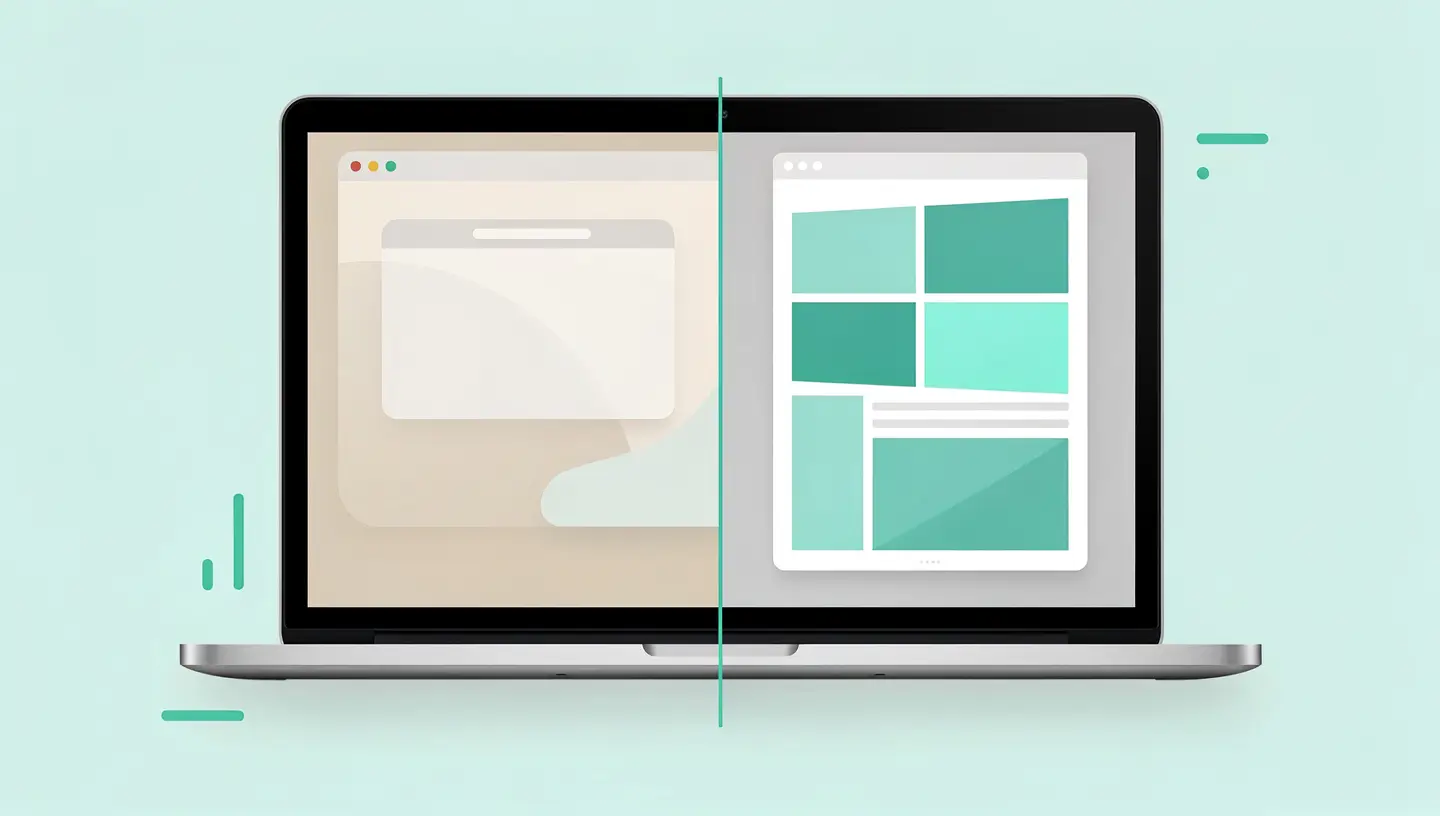
There are two ways of running Windows on a Mac, and the choice depends mainly on your hardware and how you use it.
| Criteria | Boot Camp (dual boot) | Virtualisation |
|---|---|---|
| Compatibility | Intel Mac only (2012-2020) | All Macs (Intel and Apple Silicon) |
| Performance | 100% hardware resources - ideal for demanding games and software | Shared with macOS - excellent for office use, limited for games |
| Windows version | Windows 10 (x86/x64) officially, Windows 11 possible with adjustments | Windows 11 ARM on Apple Silicon, Windows 10/11 x64 on Intel |
| Restart required | Yes - you need to reboot to switch between macOS and Windows | No - Windows runs in a window next to macOS |
| Cost | Free (Boot Camp is integrated into macOS) + Windows licence | Paid software (Parallels ~€100/year) or free (UTM) + Windows licence |
| Disk space | Dedicated partition (minimum 64 GB, 128 GB recommended) | Virtual machine file (40-100 GB depending on use) |
In a nutshell: Boot Camp offers the best performance but requires a reboot and only works on Intel Macs. Virtualisation is more flexible, works on all Macs and allows instant switching, but shares resources with macOS.
Whichever method you choose, prepare your Mac before you start.
Full backup : Create a backup Time Machine before any manipulation. Disk partitioning (Boot Camp) involves a risk of data loss in the event of interruption.
Sufficient disk space : For Boot Camp, allow at least 64 GB for the Windows partition (128 GB recommended if you are installing applications or games). For virtualisation, the virtual machine file takes up 40 to 100 GB. Check your available space in System Settings → General → Storage. If your disk is full, our guide to free up space on the Mac will help you.
Windows ISO image : Download the official Windows 10 or Windows 11 ISO directly from the Microsoft. For Apple Silicon Macs, specifically download the version Windows 11 ARM from the Windows Insider programme or via official Microsoft channels.
macOS updated : Update macOS to the latest version compatible with your Mac before using Boot Camp, to ensure the latest drivers are available.
Boot Camp is Apple's official tool for installing Windows in dual boot mode on Intel Macs. It partitions your disk, installs the Apple drivers for Windows and configures dual boot. Here's the full procedure.
Open Applications → Utilities → Boot Camp Assistant. If the application does not appear, your Mac is probably an Apple Silicon model (M1 or later) - go straight to the virtualisation section. The wizard will guide you through the process.
The wizard asks you to select the downloaded Windows ISO file. Then adjust the slider to define the size of the Windows partition. Recommendations :
| Intended use | Recommended partition size |
|---|---|
| Office automation only | 64 GB minimum |
| Office + pro applications | 128 GB |
| Games and heavy software | 200 GB or more |
Click on Install. Boot Camp partitions the disk, copies the installation files and automatically reboots on the Windows installer. Follow the standard Windows installation steps: choose the language, accept the licence, select the BOOTCAMP partition (format it in NTFS when the installer suggests it).
Never interrupt the partitioning or installation process - a power cut or forced restart can corrupt the disk. Connect your MacBook to the mains throughout the operation.
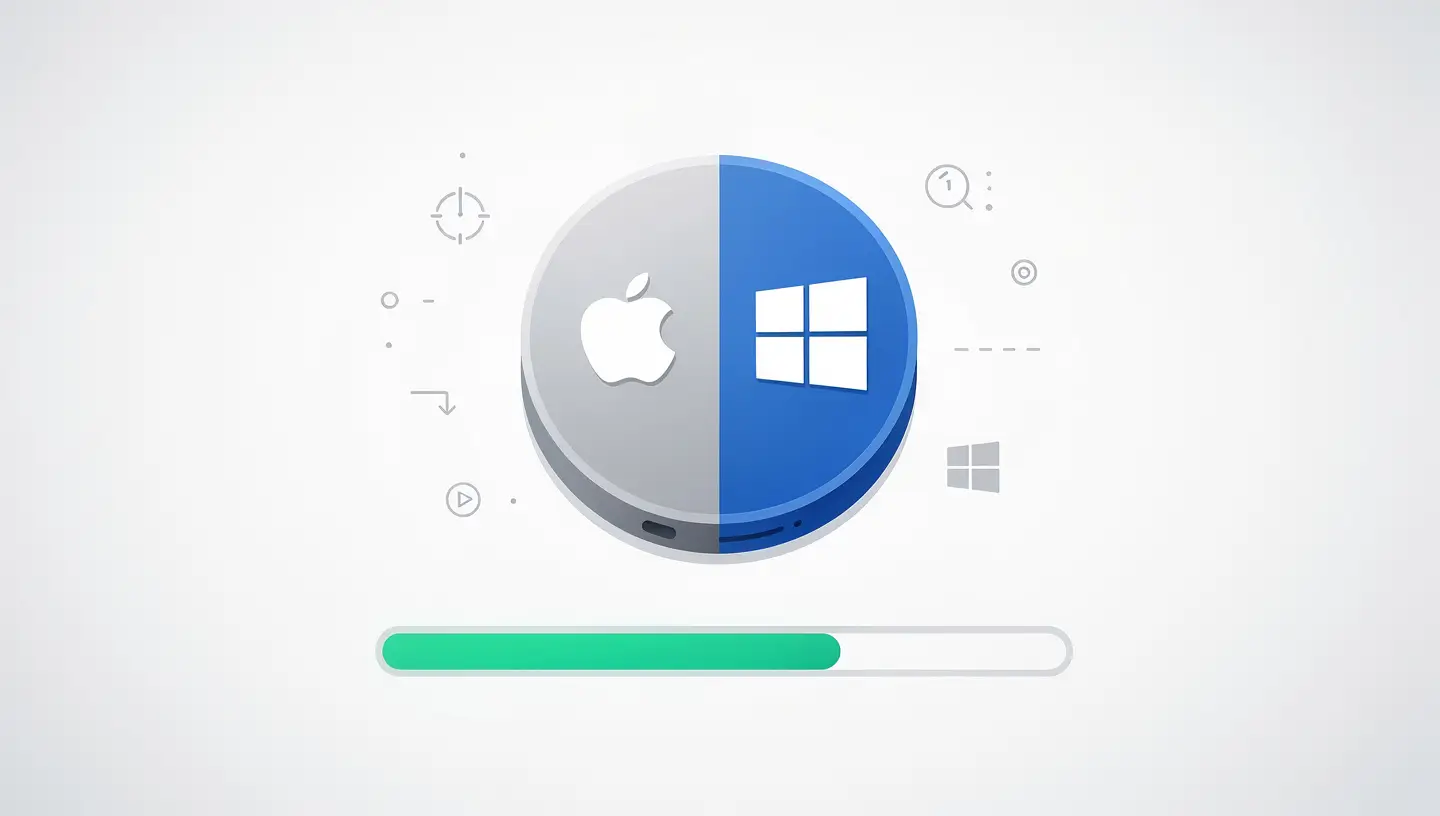
When Windows starts up for the first time, the Boot Camp installer automatically launches to install the Apple drivers: keyboard, trackpad, WiFi, Bluetooth, webcam, graphics card and audio. Allow the installation to complete, then restart. If the installer does not launch automatically, open the «OSXRESERVED» or «WININSTALL» drive in File Explorer and run Setup.exe in the BootCamp folder.
When you start your Mac, hold down the Option (⌥) immediately after the start-up sound (or as soon as the Apple logo appears on more recent Macs). A selection screen displays the boot volumes available: choose «Macintosh HD» for macOS or «BOOTCAMP» for Windows.
To set the default system: on macOS, go to System Settings → General → Startup disk. Under Windows, use the Boot Camp icon in the notification area (taskbar) and select «Restart under macOS».
Macs equipped with Apple Silicon chips (M1, M2, M3, M4) are not compatible with Boot Camp. The only option is virtualisation, which runs Windows in a virtual machine on top of macOS. Performance is remarkably good, thanks to Apple's native virtualisation framework.
| Solution | Prices | Highlights | Weak points |
|---|---|---|---|
| Parallels Desktop | ~€100/year (subscription) | One-click installation, excellent performance, Coherence mode (Windows apps in macOS), DirectX 11 support | Annual subscription required, no perpetual licence |
| VMware Fusion | Free (personal use) or ~€150 (Pro) | Free for non-commercial use, robust and proven, good compatibility | More complex initial configuration than Parallels, inferior gaming performance |
| UTM | Free (open source) | Totally free, available from the Mac App Store, x86 emulation possible | Lower performance than Parallels, manual configuration, no integrated mode |
Our recommendation: Parallels Desktop offers the best user experience and performance, but its annual subscription model can be off-putting. VMware Fusion is free for personal use and is an excellent alternative. UTM is suitable for technical users who want a solution without spending a penny.
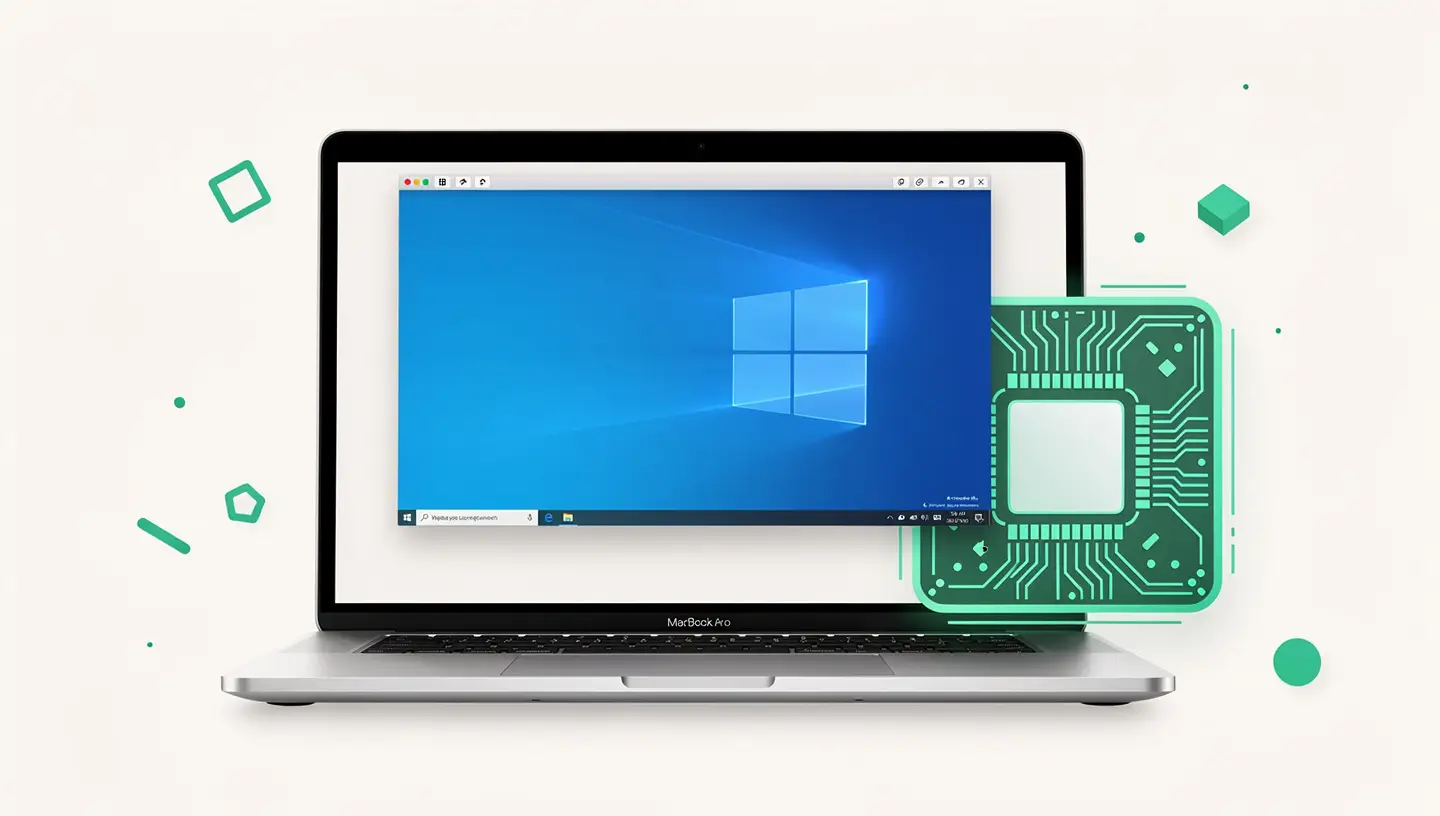
Whether you're using Boot Camp or virtualisation, a few optimisations can significantly improve the Windows experience on a Mac.
Updated drivers: Open Apple Software Update in Windows to check for Boot Camp driver updates. Outdated drivers cause WiFi, trackpad and power management problems.
Trackpad : The Force Touch trackpad works on Windows, but multitouch gestures are limited to the basics (two-finger scrolling, right-click). Third-party software such as Trackpad++ adds extra gestures, but the quality never matches that of macOS.
Autonomy : Windows is less battery-efficient than macOS on MacBooks. Expect your battery life to be reduced by 30 to 50%. Reduce brightness, deactivate Bluetooth and keyboard backlighting whenever possible.
RAM allocated : Allocate at least 4 GB of RAM to the virtual machine (8 GB if your Mac has 16 GB or more). Don't use more than half of your Mac's total RAM to keep macOS running smoothly.
Processors : Allocate half of the available CPU cores to the VM for a good balance. On a MacBook Air M1 (8 cores), allocate 4 cores.
Storage : Place the virtual machine file on the internal SSD (never on an external disk) for optimum performance.
| Problem | Cause | Solution |
|---|---|---|
| Boot Camp does not offer partitioning | Non-standard Core Storage or APFS disk | Check the disc format in the’Disk utility. If necessary, save and reformat. |
| WiFi does not work on Windows | Boot Camp drivers not installed or out of date | Install the drivers via the BootCamp folder on the installation volume, then update them via Apple Software Update. |
| No sound under Windows (Boot Camp) | Missing Cirrus Logic audio driver | Reinstall the Boot Camp drivers. If the problem persists, download the Boot Camp support package from the Apple website. |
| Windows very slow in VM | Insufficient RAM or CPU allocated | Increase the RAM allocated (to at least 4 GB) and the CPU cores (to at least 2). Close power-hungry macOS applications. |
| Your disk could not be partitioned« error» | Fragmented files or insufficient space | Back up, wipe the disk and restore from Time Machine, then restart Boot Camp. |
| Black screen on Windows start-up | Conflicting graphics drivers | Boot into Windows Safe Mode (Shift + F8 on startup) and reinstall the graphics drivers. |
If your Mac encounters a black screen even on the macOS side after installing Boot Camp, consult our dedicated guide to restoring the display.
To remove Windows completely and reclaim disk space, use the Boot Camp Wizard :
| Step | Action |
|---|---|
| 1 | Start up under macOS (Startup option → Macintosh HD) |
| 2 | Open Applications → Utilities → Boot Camp Assistant |
| 3 | Select Remove Windows (or «Restore the disk as a single volume») |
| 4 | Confirm - Boot Camp deletes the Windows partition and resizes the macOS volume |
Never delete the Boot Camp partition manually via Disk Utility - this can create unusable free space and require a complete reformat. Always use the Boot Camp Wizard for a clean removal.
For virtualisation, deletion is simpler: delete the virtual machine file and uninstall the virtualisation software if you no longer need it.
No. Apple has removed Boot Camp from Apple Silicon Macs. These Macs use an ARM architecture that is incompatible with x86 versions of Windows. The only option is virtualisation with software such as Parallels Desktop, VMware Fusion or UTM, which run Windows 11 ARM with a layer of compatibility for x86 applications.
Boot Camp itself is free and integrated into macOS. However, Windows requires a licence. You can install Windows 10 without a licence (it will run with a watermark and limited customisation features) or buy a Windows 10/11 Home or Pro licence. OEM licences are often available at discounted prices.
Yes, and that's one of the main advantages of Boot Camp: Windows has direct access to the hardware, particularly the graphics card. Gaming performance is much better than with virtualisation. However, beware: MacBooks are not gaming machines and thermal management can limit performance during prolonged sessions. The 15-inch MacBook Pro with a dedicated AMD GPU delivers the best results.
No. Boot Camp creates a separate partition on the disk. When you are running macOS, Windows is not loaded in memory and has no impact on performance. The only drawback is the reduction in disk space available for macOS, since part of it is reserved for the Windows partition.
From macOS, you can read the Boot Camp partition (NTFS) in read-only mode. Writing requires third-party software such as Paragon NTFS or Mounty (free). From Windows, the macOS partition (APFS) is not natively visible - tools such as Paragon APFS for Windows provide read access. To exchange files easily, use a cloud service (iCloud, OneDrive) or a USB stick formatted in exFAT.
Officially, Boot Camp only supports Windows 10. Windows 11 requires TPM 2.0 and Secure Boot, which Intel Macs do not natively provide. However, it is possible to install Windows 11 via Boot Camp by bypassing compatibility checks with registry modifications during installation. Operation is generally stable but not guaranteed by Microsoft.
UTM is the best solution, completely free of charge. It's an open source project based on QEMU that uses Apple's virtualisation framework for decent performance. VMware Fusion is free for personal use and offers better performance than UTM. Both require a Windows 11 ARM image.
For regular use of Windows on an Apple Silicon Mac, Parallels Desktop justifies its subscription by its ease of installation (VM creation in just a few clicks), its optimised performance and its Coherence mode, which integrates Windows windows directly into macOS. If you only use Windows occasionally, the free alternatives will suffice.
No. Boot Camp is an official Apple tool and its use does not breach the warranty. However, Apple does not provide support for Windows itself - only for installation via Boot Camp and associated drivers. Windows-related problems (viruses, system errors, software) are not covered by Apple support.
Yes, this is a known problem. The thermal management drivers in Windows (Boot Camp) are less optimised than those in macOS. The fan spins more often and the MacBook heats up more, especially when gaming or performing intensive tasks. Place your MacBook on a hard, flat surface and consider a ventilated stand. If the overheating is excessive, Internal cleaning and thermal paste replacement can help.


Over 15 years of Apple expertise in Brussels. Free, no-obligation quote and 180-day guarantee on repairs.