
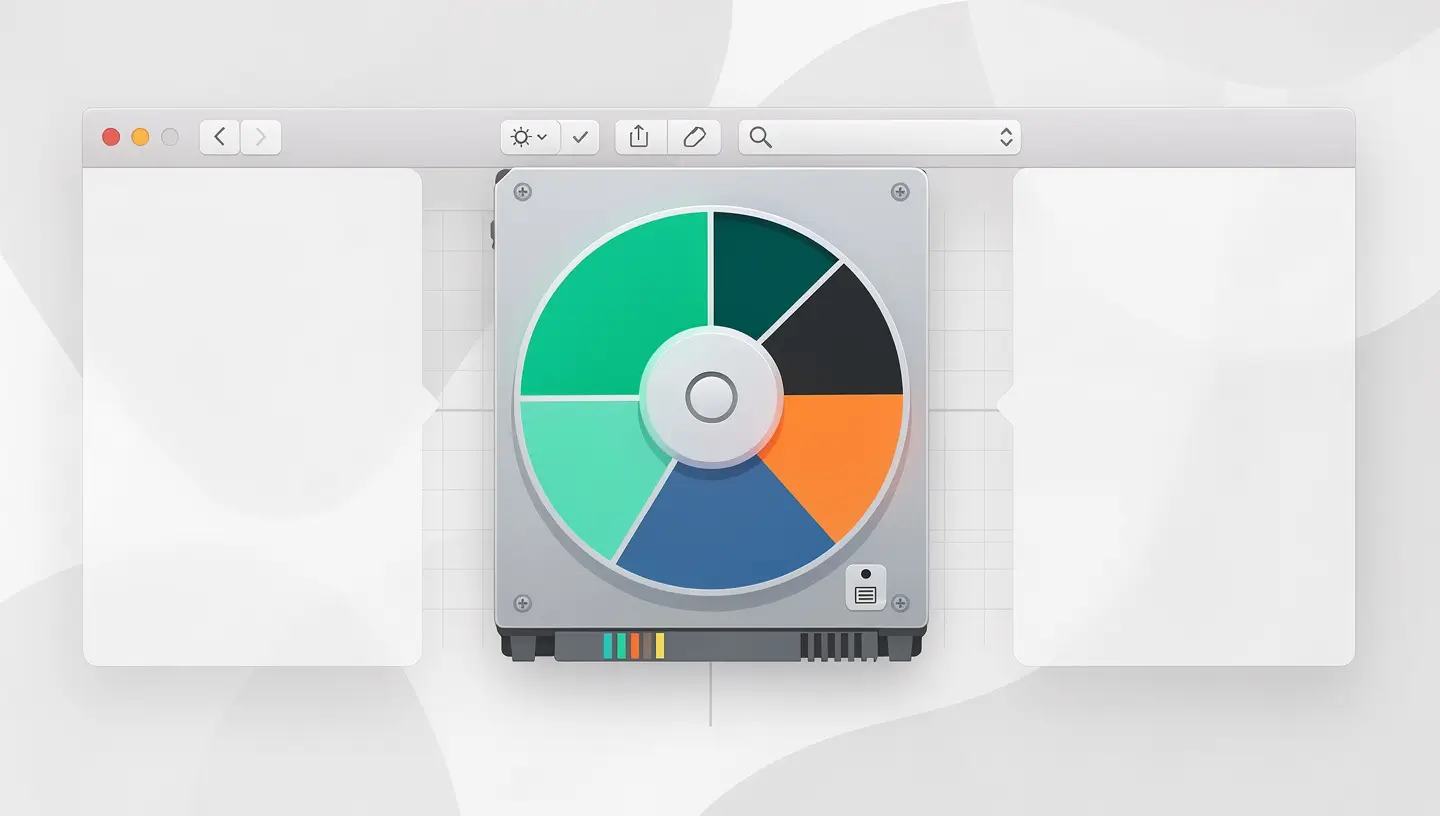
Partitioning a disk consists of dividing it into several independent sections, each behaving as a separate disk in the eyes of macOS. There are several situations in which this operation is justified: installing a second operating system (Windows via Boot Camp on Intel Macs, or an older version of macOS to test compatibility), separating personal data from the system to facilitate reinstallations, creating a volume dedicated to Time Machine backup on a large external drive, or isolating a development environment.
Before you get started, it's essential to understand the difference between APFS volumes and conventional partitions, because macOS offers both approaches - and the right choice depends on your situation.
Since macOS High Sierra (2017), Apple has been using the APFS (Apple File System) file system by default on all SSD-equipped Macs. This modern file system fundamentally changes the way we manage disk space.
| Criteria | Classical score | APFS volume |
|---|---|---|
| Space allocation | Fixed - size defined at inception | Dynamic - automatically shared space |
| Resize | Requires a dedicated operation (risk of data loss) | Automatic, without intervention |
| Creation speed | Several minutes (data movement) | Almost instantaneous |
| File system | APFS, Mac OS extended (HFS+), ExFAT, FAT32 | APFS only |
| Ideal use case | Boot Camp (Windows), multi-OS external drives | Data separation, multi-macOS, development |
Creating an APFS volume is the modern and recommended way to separate your data on a recent Mac. The operation is fast, reversible and without risk to your existing data.
The new volume appears immediately in the Finder, in the sidebar under «Locations». You can access it just like any other disk. For more advanced use of the Disk Utility, see our complete guide to Mac Disk Utility.
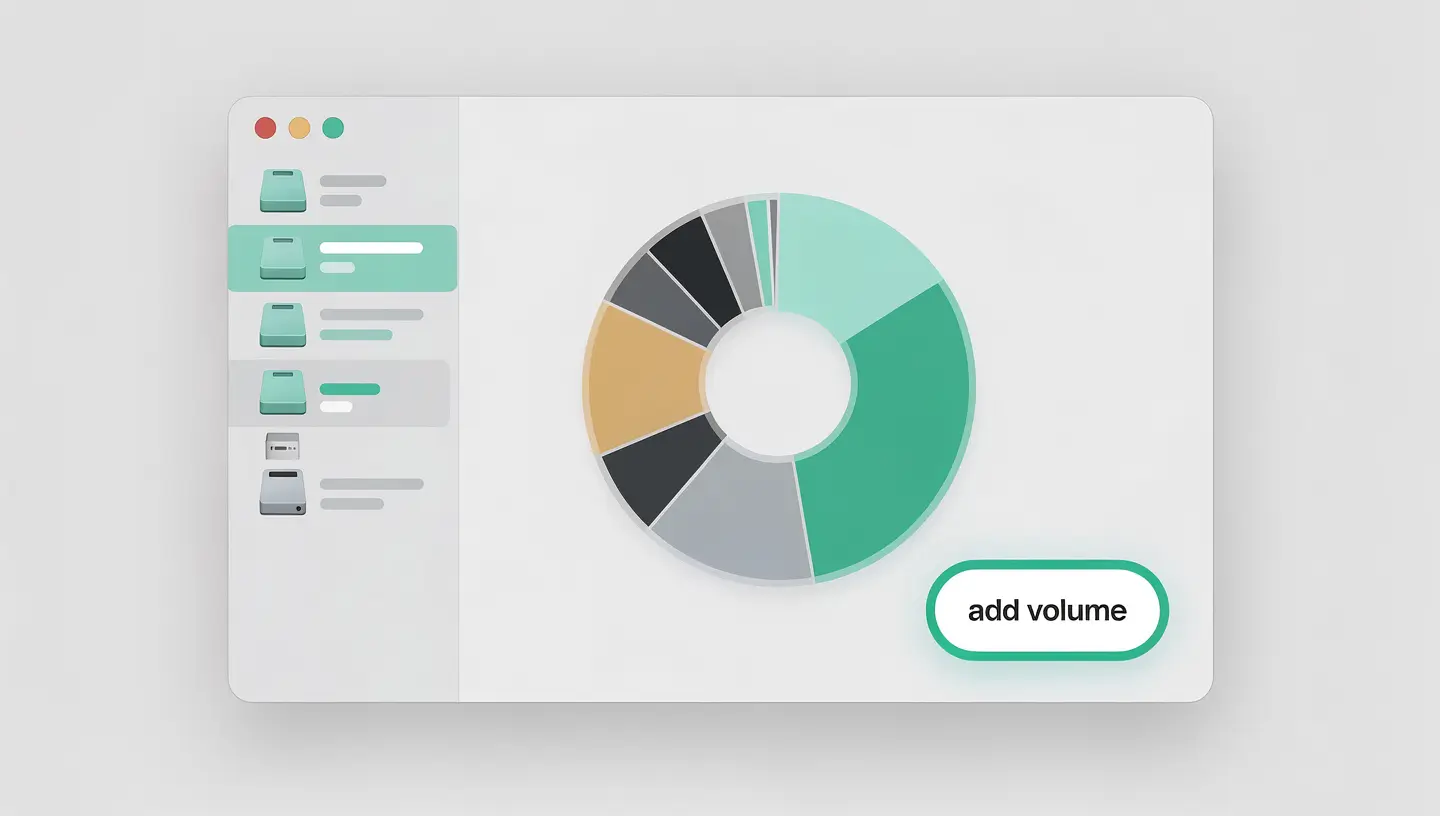
Creating a classic partition is necessary in certain specific cases: installing Windows via Boot Camp (Intel Macs only), formatting a section of external disk in ExFAT for mixed Mac/Windows use, or maintaining compatibility with older systems.
Terminal offers granular control over partitioning via the command diskutil. This approach is reserved for advanced users who need precision or automation. To familiarise yourself with the Terminal, our guide to Mac Terminal commands covers the essential basics.
diskutil apfs addVolume diskX APFS "VolumeName"
Replace diskX by the identifier of your APFS container (visible with diskutil list) and «VolumeName» by the desired name.
diskutil apfs addVolume diskX "APFS (Encrypted)" "VolumeName" -passphrase "YourPassword"
diskutil list
This command displays the complete tree structure of all the disks, containers, volumes and partitions on your Mac. It's the essential starting point before any manipulation.
diskutil partitionDisk diskX GPT APFS "Volume1" 50% ExFAT "Volume2" 50%
partitionDisk erases the entire target disk before creating new partitions. Use it only on an empty disk or one where you have backed up all the data. To add a partition without erasing, use diskutil splitPartition.
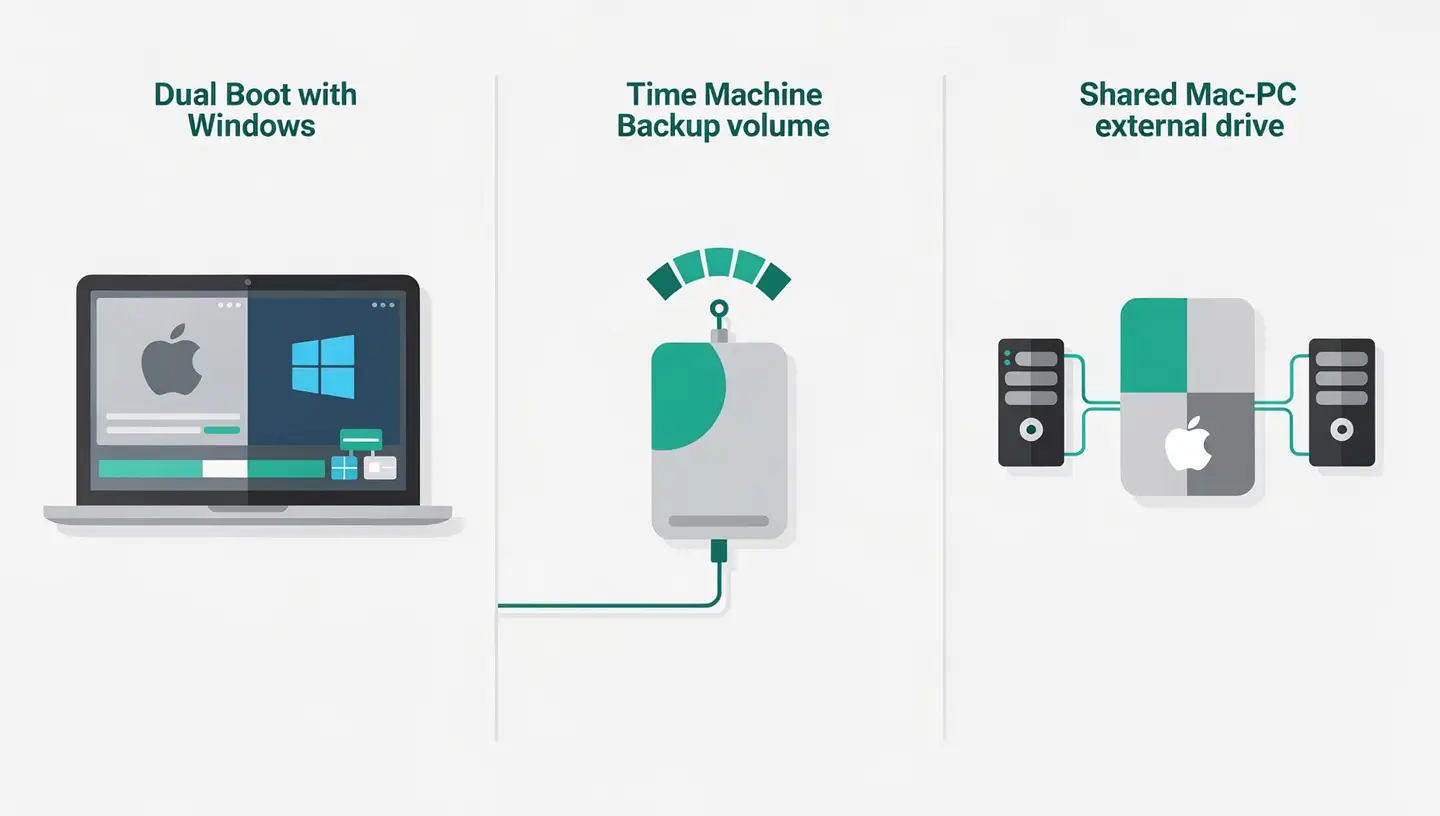
The Boot Camp Wizard automatically creates a partition dedicated to Windows on your internal disk. You don't need to use Disk Utility - the Wizard takes care of everything: partitioning, NTFS formatting and installing Apple drivers. Allow at least 64 GB for Windows, ideally 128 GB if you plan to install applications. Our guide dual boot Mac Windows details the full procedure.
If you share an external drive between a Mac and a Windows PC, the ExFAT format is the best compromise: readable and writable natively by both systems. You can also partition the drive in two: an APFS partition for Time Machine and an ExFAT partition for file exchange.
Create a separate APFS volume and install the macOS beta on it. At boot time, hold down the Option (Alt) key to choose which volume to boot from. This approach protects your main installation from any problems related to the beta. Once the testing period is over, simply delete the volume - the space is freed up instantly.
Since macOS Catalina, Apple has already separated the system (read-only volume) and user data into two separate APFS volumes. Creating a third volume for your projects or work files can make it easier to reinstall macOS without affecting your personal data.
To help you manage your disks further, Apple provides comprehensive documentation on the partitioning with Disk Utility.
Adding an APFS volume doesn't delete any existing data - it's a non-destructive and almost instantaneous operation. Adding a conventional partition should not erase any data either, but there is a risk when resizing. The Terminal command partitionDisk erases the entire disk. In all cases, make a backup beforehand.
A partition physically divides the disk into sections of fixed size. An APFS volume is a logical subdivision within an APFS container, with space shared dynamically. APFS volumes are more flexible: they grow and shrink automatically as needed, without wasting space.
Yes, you can add APFS volumes to the main container. However, creating conventional partitions on the internal disk of an Apple Silicon Mac is limited by the system's security mechanisms (Signed System Volume). The recommended method is to add APFS volumes.
ExFAT is the best choice: it can be read and written natively by macOS, Windows and most devices (TV, consoles). It does not have the 4GB limit per file of the FAT32 format. For a Mac-only drive, APFS is optimal.
In the Disk Utility, select the physical disk, click Partition, then drag the separator into the pie chart. Resizing is only possible if there is enough free space and the data is not blocking the operation. APFS volumes resize automatically.
Yes. Create an additional APFS volume and install the second version of macOS on it. At boot time, hold down the Option (Alt) key to choose the boot volume. This is the recommended method for testing beta versions without risking your main installation.
There are several possible causes: you have selected a volume instead of the physical disk (activate «Show all devices»), the disk is being used by Time Machine or another process, or the disk partition scheme is not compatible (GUID required). If the problem persists, our team can help you with a free diagnosis.
No. Boot Camp is not available on Macs equipped with Apple Silicon chips (M1 and later). To run Windows on these machines, you need to use virtualisation software such as Parallels Desktop or UTM, which work without partitioning - Windows runs in a window inside macOS.
If your external drive is large enough (at least twice the size of your internal drive), you can create an APFS volume dedicated to Time Machine and use the rest for regular storage. macOS manages this configuration very well. See our Time Machine guide for the installation.
Of course you can. With over 15 years' experience since 2010, our team carries out partitioning, multi-boot configuration and data migration between volumes. We ensure that your data is backed up before any manipulation and check the integrity of the disk after the operation. 180-day guarantee on all our services.


Over 15 years of Apple expertise in Brussels. Free, no-obligation quote and 180-day guarantee on repairs.